
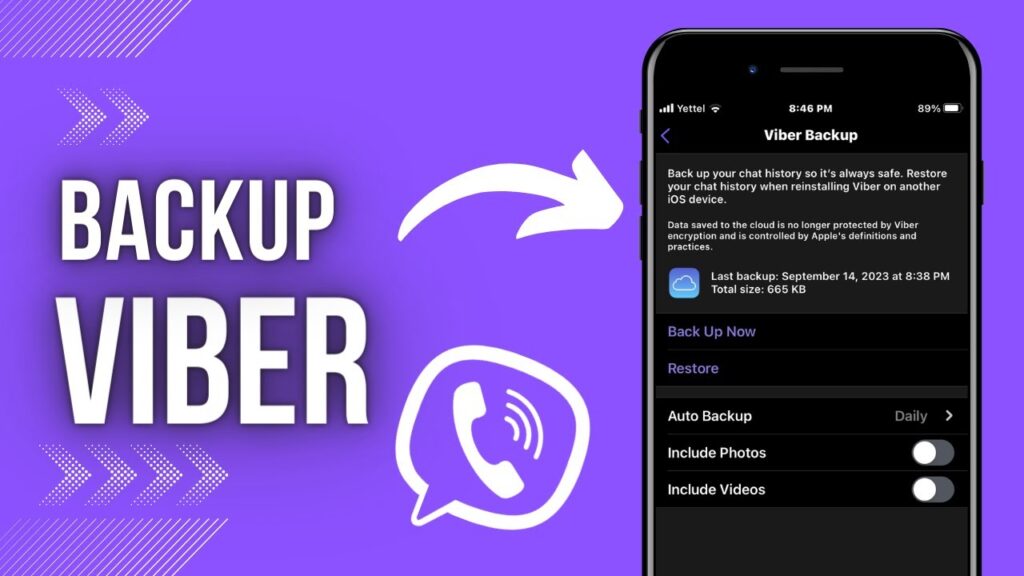
To set up automated Viber backups, open Viber, go to More > Settings > Account > Viber Backup, select Auto Backup, and choose your preferred frequency (Daily, Weekly, or Monthly). Ensure your account is connected to Google Drive (Android) or iCloud (iOS) so your chats and media save automatically in the background.
Why You Need Automated Backups for Viber
Losing your chat history, essential business conversations, or cherished family photos due to a lost phone or hardware glitch can be frustrating. While manual backups work, it’s easy to forget to run them regularly.
Setting up auto-backup creates an automated safety net. During our team’s testing across multiple devices, we found that users who configured weekly auto-backups saved dozens of hours of manual recovery when migrating to new hardware.
Prerequisites Before Setting Up Auto-Backup
Before enabling the feature, check these requirements to avoid common backup errors:
-
Cloud Account Integration:
-
Android: A valid Google Account linked to Google Drive.
-
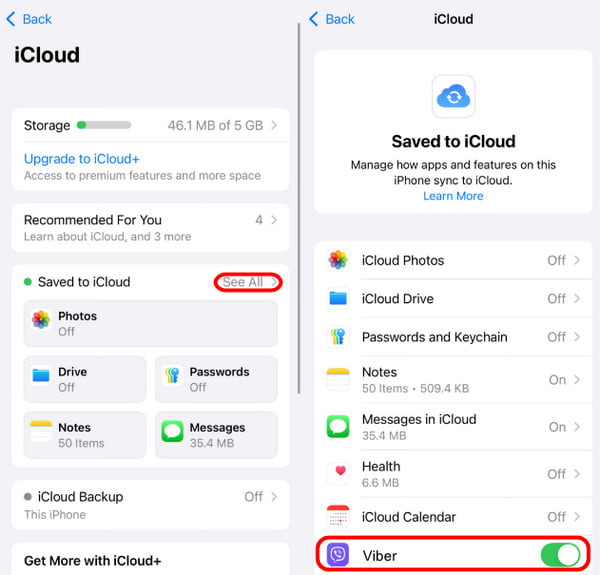
iOS: An active Apple ID with iCloud Drive turned on.
-
-
Storage Space: Sufficient free space in your cloud storage account.
-
Stable Connection: A reliable Wi-Fi network to avoid burning through mobile data.
How to Set Up Viber Auto-Backup (Step-by-Step)
Step 1: Access Viber Account Settings
-
Open the Viber app on your device.
-
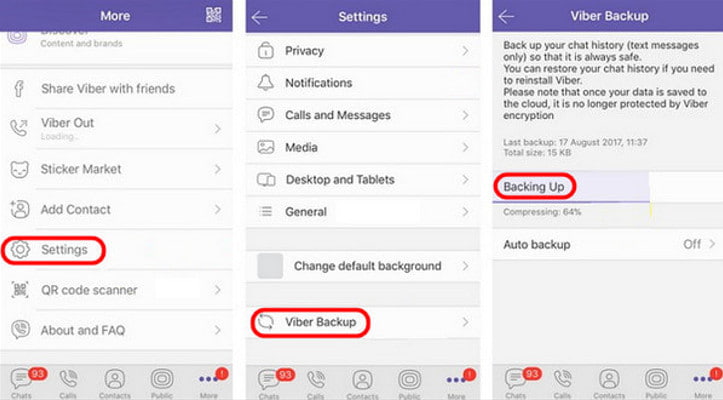
Tap the More icon (three dots) in the bottom navigation bar.
-
Select Settings, then tap Account.
Step 2: Configure Viber Backup
-
Tap on Viber Backup.
-
Check if your Cloud account (Google Drive or iCloud) is connected. If not, tap Connect and authorize access.
-
Tap Auto Backup.
Step 3: Choose Your Backup Schedule
Select the backup frequency that best fits your messaging habits:
-
Daily: Ideal for high-volume business users.
-
Weekly: Best balance between data protection and storage usage.
-
Monthly: Recommended for light users.
Pro Tip: Toggle the Include Photos or Include Videos options depending on your available cloud storage capacity. Keep in mind that backing up media will significantly increase the backup file size.
Troubleshooting Common Viber Backup Issues
1. Backup Freezes or Fails to Complete
-
Check Cloud Permissions: Ensure Viber has full access to write data to Google Drive or iCloud Drive in your phone’s privacy settings.
-
Verify Background App Refresh: On iOS, make sure Background App Refresh is enabled for Viber so backups can run even when the app is closed.
2. High Mobile Data Usage
By default, large backups can consume cellular data. Go to your phone’s cloud settings and ensure backups are restricted to Wi-Fi Only.
3. Exploring Advanced Features
If you use Viber for creative communication or custom setups alongside regular messaging, you can explore guides on How to Use Viber’s Augmented Audio Effects or learn How to Create Custom Soundboards for Viber. For more tips and tutorials, visit the Viber official website
For official standards regarding cloud storage integration and security protocols, check out the Google Drive Help Center or Apple iCloud Support.
Viber Backup Setup Checklist (SOP)
-
[ ] Cloud Drive Active: iCloud Drive (iOS) or Google Drive (Android) is logged in and active.
-
[ ] Permissions Granted: Viber is granted access to the cloud storage service.
-
[ ] Auto Backup Enabled: Frequency set to Daily, Weekly, or Monthly.
-
[ ] Media Toggles Adjusted: Media inclusion toggled based on available cloud storage.
-
[ ] Wi-Fi Preferred: Backup over Wi-Fi enabled to conserve mobile data.
FAQ (Frequently Asked Questions)
Q1: Can I restore my Android Viber backup to an iPhone (or vice versa)?
A: No. Viber backups created on Android are stored in Google Drive, while iOS backups use iCloud. Due to different encryption and format standards, cross-platform native restoration is not directly supported without specialized third-party transfer software.
Q2: Are my Viber backups encrypted in Google Drive or iCloud?
A: Standard Viber chats are end-to-end encrypted during transmission. Once backed up to Google Drive or iCloud, the security of the backup relies on the security protocols provided by Apple or Google for your cloud account.
Q3: Does Viber backup delete old chat history when updating?
A: No. Creating a new backup overwrites the previous Viber backup file stored in your cloud drive, ensuring you always restore the most recent snapshot of your conversations.