
Install Viber on your computer, then link it to an active Viber account on your phone. The desktop app displays a QR code during setup; scan it with Viber on your phone and approve the link to finish activation.
Download the installer from Viber’s official download page. Check the Windows or macOS requirements listed there before you begin, since supported versions can change. If you need more account or setup help, visit Viber’s Help Center.
Check your computer’s operating system
Choose the installer that matches your computer, and confirm that Viber supports its operating system on the download page.
| Computer | Check before downloading |
|---|---|
| Windows PC | Confirm Windows support and review any listed requirements. |
| Mac | Confirm macOS support and review any listed requirements. |
Viber desktop links to a mobile account. During setup, the QR code connects the computer app with the account on your phone. Learn more about QR codes.
Download Viber from its official page
Open Viber’s official download page and choose Windows or Mac. Save the installer somewhere easy to find, such as your Downloads folder. Avoid third-party download sites, which may offer old or repackaged files.
The source also links to a Viber download listing. For the official installer, use Viber’s own download page. For a separate Windows walkthrough, see how to install Viber on a Windows PC.
Install Viber on Windows
- Open the Windows installer from your browser’s download list or Downloads folder.
- Follow the installer prompts. The screens may differ by Windows version.
- When setup finishes, open Viber from the installer’s final screen or the Start menu.
- Wait for the activation screen. If Viber does not open, confirm that you downloaded the Windows installer and that your computer meets the listed requirements.
Check the live download page rather than relying on an old guide for installer names or supported Windows versions.
Install Viber on Mac
- Open the Mac installer you downloaded from Viber.
- Follow the installation instructions. Your Mac may show additional prompts as you open or install the app.
- Open Viber from the location where you installed it and wait for the activation screen.
- If macOS blocks the setup, check Viber’s help guidance and confirm that the Mac version supports your computer.
Windows and Mac setup screens differ. Follow the prompts for your own operating system.
Link the desktop app to your phone
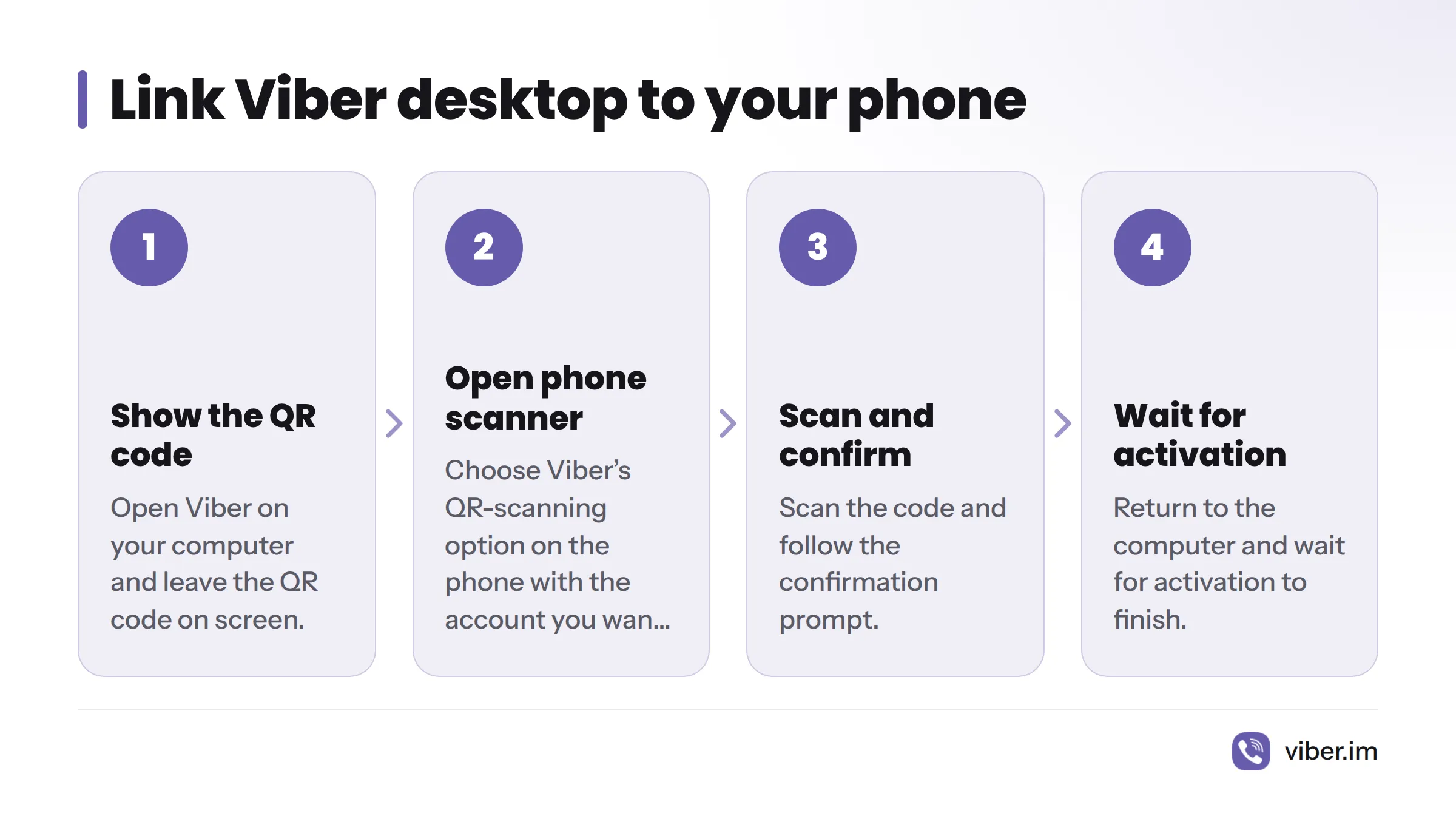
Open Viber on your computer and leave the QR code on screen. On the phone with the account you want to link, open Viber and choose its QR-scanning option. Scan the code, follow the confirmation prompt, then return to the computer and wait for activation to finish.
The app’s prompts may change, so follow the instructions shown on your devices rather than relying on a button name from an older guide. Desktop activation requires an active mobile Viber account. This guide does not cover installing Viber on a phone.
Check activation and fix common setup problems
After you approve the link on your phone, the computer app should move past the QR screen and finish opening. If it stays on that screen, activation may not have completed.
- No QR code appears: Confirm that Viber is open on the computer and showing its first-time activation screen. If needed, close and reopen the app.
- Your phone cannot scan the code: Make sure the whole code is visible, then try again through Viber’s QR option. Follow the app’s instructions if the scanner does not open.
- You scanned the code, but activation has not finished: Approve any prompt on your phone and give the computer app a moment to update. If it remains stuck, restart Viber on both devices and repeat the linking steps.
- You are unsure about the installer: Download it again from Viber’s official download page rather than a third-party site.
For help with messages and device syncing after setup, see Viber’s syncing guide. Sync settings are separate from installation and activation.
Viber desktop app FAQs
Can I use Viber on my PC?
Yes. Download Viber for Windows from its official page and link it to an active mobile Viber account. Check the page to confirm support for your version of Windows.
Where can I download Viber for Windows or Mac?
Use Viber’s official download page and choose the option for your computer. Check the listed support details before installing.
Do I need a mobile account? Where does the QR code appear?
Yes. Desktop activation links to an active mobile Viber account. The QR code appears in Viber on your computer during setup. Scan it with Viber on the linked phone and follow the confirmation prompts.
Where can I get help if activation fails?
Visit Viber’s Help Center for activation guidance. If activation works but you need help with syncing, consult the device syncing guide.