
Start with what is happening: a call will not connect, an alert is missing, storage seems full, a contact is gone, or the app freezes. This Viber troubleshooting guide helps you sort the issue, find guidance for Android, iOS, or Viber desktop, and contact Viber Support if a focused guide does not fit. It points you toward relevant help; it does not diagnose the cause or promise a fix.
Sort the problem by symptom
The categories below describe types of issues people may report. They are not ranked by frequency.
| Symptom | Category | Details to note | Where to go next |
|---|---|---|---|
| Calls sound poor or fail to connect | Calls | Affected device, and whether the call connects | Viber call-quality guide or Viber Support |
| Alerts arrive late or do not appear | Notifications | Device, operating system, and notification-permission settings | Viber Support for guidance specific to your platform |
| Viber seems to take up a lot of space | Storage | Viber’s app storage or the device’s total storage | Viber storage guide or Viber Support |
| A name or contact is missing | Contacts | Whether a name is missing, a contact record is absent, or syncing is the concern | Viber contact guide |
| The app freezes or stops responding | App behavior | Device, platform, and what was happening when it froze | Viber Support |
For help from Viber, begin with the Viber Help Center. The Viber website also publishes guides. Older videos and community posts may describe someone else’s experience, so do not assume a suggested fix applies to your device.
Calls: separate poor quality from a failed connection
A call-quality problem means the call connects, but the sound or call experience is poor. A failed call does not connect as expected. Neither symptom, on its own, confirms the cause. Note the device and internet connection before choosing a guide.
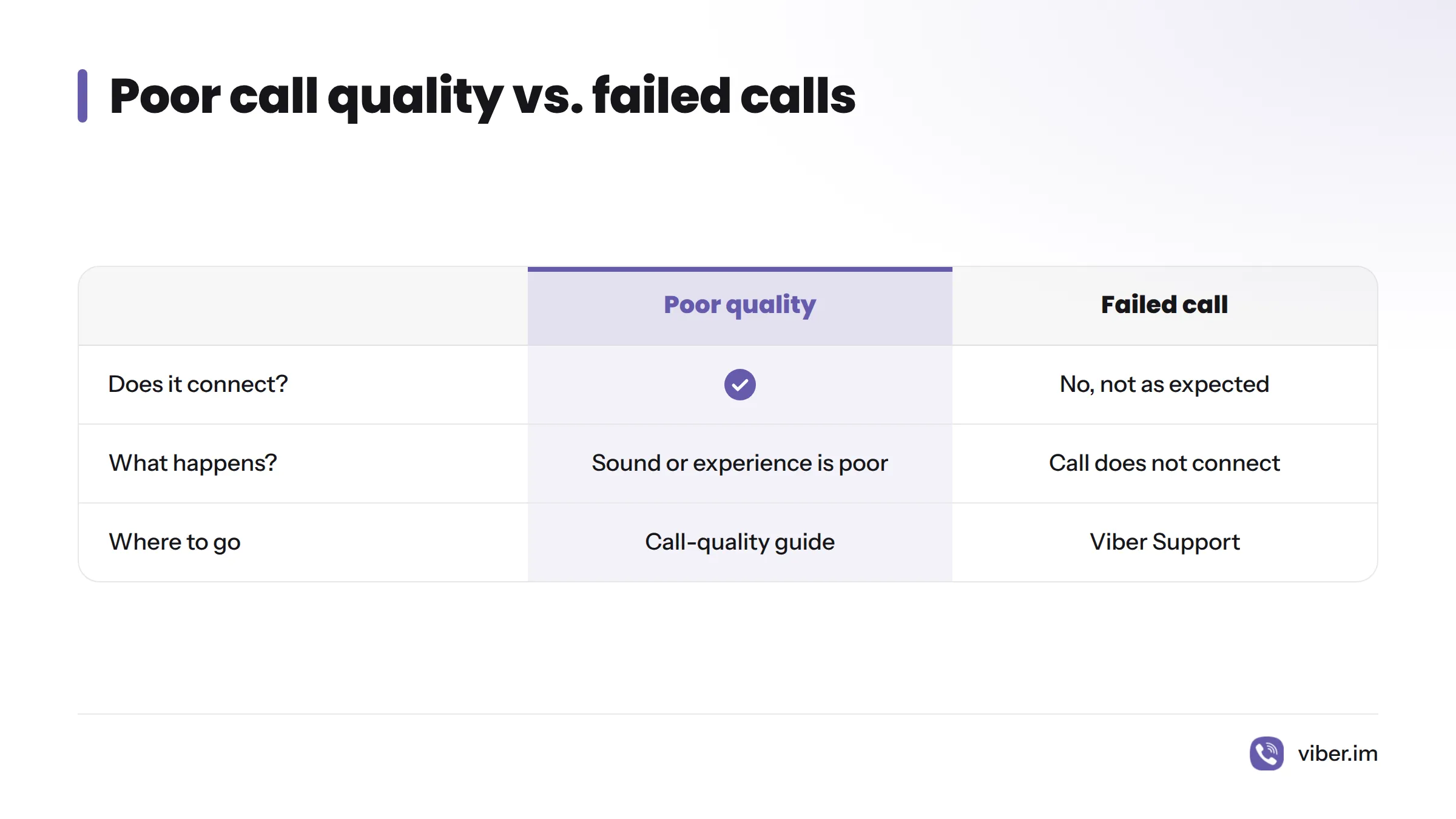
The Viber call-quality guide covers call quality. If the call will not connect, tell Viber Support that it fails rather than assuming the quality guide addresses the problem.
Notifications: missing or late alerts
A missing or delayed alert is a notification issue, not a call issue. Device notification permissions control whether an app may show alerts. They are one setting to consider, but the symptom alone does not show that permissions caused the problem.
Choose documentation for the affected platform. If its instructions do not match what you see, contact Viber Support and describe the device and alert behavior.
Storage: Viber space versus device space
Viber’s app storage and the device’s total storage measure different things. If Viber seems to use too much space, check whether you are looking at the app’s storage details or a warning about the whole device.
The Viber storage guide may help with storage questions. Before deleting anything, check the guide and Viber’s official documentation to see what the action removes. This page does not claim that deleting app data preserves messages or media.
Contacts: missing names and missing records
A name that does not appear and a contact record that is absent are different problems. Contact syncing may be relevant, but the symptom alone does not establish a cause. Note which issue you see, along with the device and platform.
Use the Viber guide to adding contacts for instructions on adding someone. If an existing name or record is missing, choose the matching platform in the Viber Help Center or ask Viber Support for guidance.
Choose guidance for Android, iOS, or desktop
Support instructions can differ by device. Select Android, Apple’s iOS, or Viber desktop according to where the problem occurs; do not assume that the same screen or steps apply across platforms. Android is an operating system. See Android, Wikipedia) for background on the platform.
The app version may also help identify relevant platform guidance. An update is not a guaranteed fix for a specific symptom. See how to update Viber for update instructions, or contact Viber Support about Viber desktop or your device.
Choose a guide, then contact support if needed
Before opening a support page:
- Name the symptom: Is the issue about calls, alerts, storage, contacts, or freezing?
- Identify the platform: Is the affected device Android, iOS, or desktop?
- Open matching guidance: Choose a focused guide or select the same platform in Viber’s Help Center.
- Contact support if the guide falls short: Describe the symptom and affected platform to Viber Support.
Not covered here: Activation, verification codes, account access, and feature-use questions need a different support route. This page helps sort technical problems; it is not an account-recovery or feature-use guide.
Viber troubleshooting questions
Why isn’t my Viber working?
“Not working” could mean a call, notification, storage, contact, or freezing problem. Identify the symptom and affected platform, then open the matching guide or the Viber Help Center. That phrase alone does not reveal the cause.
Why does Viber freeze?
Freezing is an app-behavior issue. Note the device and platform, then look for matching guidance in the Help Center. If you cannot find instructions for what you see, contact Viber Support with those details.
How do you contact Viber?
Open the Viber Help Center and follow its support options. Include the symptom and affected platform so your request goes to the relevant category. If no guide fits, start with the Help Center rather than relying on an unverified community fix.
First identify the symptom and platform. Then use a focused guide or ask Viber Support for help.