
Send a GIF from inside the Viber conversation: open the chat, find its GIF control, search the library, choose an animation, then tap send. The icon may sit in a different place on Android and iPhone, or change between app versions, so look for the GIF label in the chat’s message or media controls.
This guide covers how to send gifs on viber, including how to send GIFs on Viber Android and how to send GIFs on Viber iPhone. Searching Viber’s GIF library is different from making your own GIF. For other chat tools, see Viber messaging features, or visit Viber for more about the service.
1. Open the conversation
Choose the one-to-one or group chat that should receive the GIF. Check the chat name, especially if several conversations look alike. If you need to locate an archived conversation, see how to find a hidden Viber chat.
2. Find the GIF control on Android or iPhone
Look beside the message field for the chat’s media controls, then tap the GIF option. The steps for how to send GIFs on Viber Android and how to send GIFs on Viber iPhone follow the same pattern: open a chat and launch its GIF tool. The icon’s position can vary, so use the label shown in your app rather than relying on a fixed location.
If you do not see a GIF option, inspect the other controls attached to the message field before leaving the chat. Viber’s GIF message guide has more information about adding GIFs to a conversation.
3. Search Viber’s GIF library
Tap the search field and enter a short description of the reaction or subject you want. Try terms such as “laughing” or “congratulations,” then browse the results. If nothing fits, use a shorter term or a synonym; a search may not return a match for every phrase.
4. Preview and choose an animation
Tap a result to preview it if the panel offers that option. Make sure it suits the conversation and that you selected the intended animation. GIFs are animated images, distinct from stickers and videos. For a definition of the format, see GIF.
5. Send the GIF
Tap Viber’s send control. Before you do, check the recipient and selected animation. Then look in the conversation for the GIF as a sent message.
Before sending: I recommend one final check of the chat name and preview. It can prevent an awkward message going to the wrong person.
6. If GIF search or sending does not work
Try these checks:
- Confirm that the device has an internet connection, then retry the search or send.
- Close and reopen Viber, return to the conversation, and try again.
- Check your device’s app store for a Viber update.
- If the GIF panel is missing, inspect the message field’s media controls and confirm that you are in a Viber chat.
- If the problem continues, note whether you use Android or iPhone and record the Viber app version before contacting Viber Help.
These steps may not fix every issue. Controls can change between releases, and a search may not find a match for every word. The instructions describe the general in-chat process; they do not cover every device model, region, or app build. For another question about GIFs, see Viber’s GIF messaging instructions.
Questions about sending GIFs on Viber
Can I send GIFs in Viber messages?
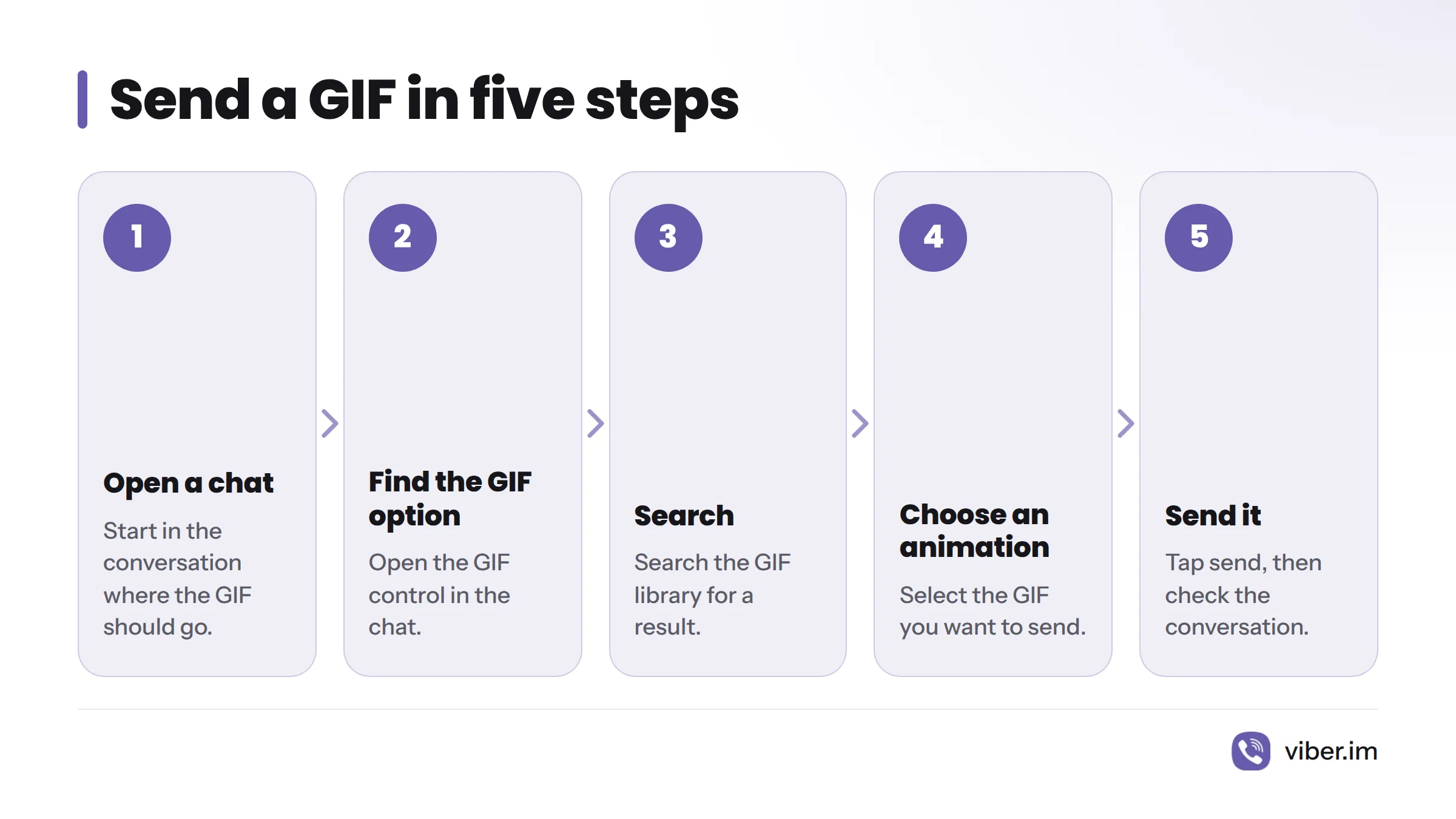
Yes. Open the GIF option in a conversation, search the library, select a result, and tap send.
Do the steps differ on Android and iPhone?
The sequence is the same on both: open a chat, find its GIF option, search, choose an animation, and send it. The icon or label may vary by device and app version.
What if search has no results or the GIF panel is missing?
Try a shorter or different search term. If the panel does not appear, check the chat’s media controls, your connection, and whether Viber has an update. If sending still fails, note your device type and app version before contacting support.
How can I confirm that the GIF was sent?
Check the conversation for the selected GIF as a sent message.
Related: use stickers on Viber