
Viber messaging features cover direct and group chats, photo and video sharing, stickers, GIFs, and chat folders. Which one you need depends on the task: reply to one person, share a clip, or make a busy chat list easier to sort. Menus and availability can vary by device and app version, so check the instructions for your setup.
Viber is a messaging app from Rakuten. This guide covers everyday messages, not calls, payments, account support, or business messaging. Visit Viber or browse more how-to articles on Viber.im to continue.
Choose a Viber feature for the task
Viber chats can connect two people or bring several participants into one conversation. You can exchange text and media, add visual reactions, and sort chats into folders. The Viber overview on Wikipedia offers background on the app; for a particular task, start with the relevant guide below.
| What you want to do | Feature | Guide |
|---|---|---|
| Send a direct note | One-to-one chat and message composer | Open an existing conversation or start one |
| Talk with several people | Group chat | See the Viber group chats guide |
| Share a moment | Photos and videos | Follow the guide to share images and videos on Viber |
| Add a visual reaction | Sticker packs or GIFs | Learn to use stickers on Viber or send GIFs on Viber |
| Sort conversations | Chat folders | Read how to organize Viber chats with folders |
Send text in direct and group chats
Start or continue a one-to-one chat
A one-to-one chat is a conversation between you and one other person. Use it for a quick question, a longer exchange, or a follow-up. Type in the conversation and send the message when it is ready. If you already have a chat with that person, continuing there keeps the exchange together.
Use the message composer
The message composer is where you prepare and send a message. Its layout and available options may vary by device and app version. I recommend following instructions written for your setup rather than relying on steps that show a different screen.
Keep a group conversation in one place
Group chats bring several participants into a shared conversation. They can suit plans, family updates, or shared projects when everyone needs the same information. See the Viber groups page for group-specific guidance. This article covers messages, not group calls.
Share photos and videos
A photo or video can show a place, share an update, or pass along a clip without switching to another service. For step-by-step directions, use the image and video sharing guide.
Check the guide and the Viber app on your device before relying on a particular format, size limit, or button name. Those details are not established here, and the instructions may differ between app versions.
Use stickers and GIFs
Pick a sticker pack
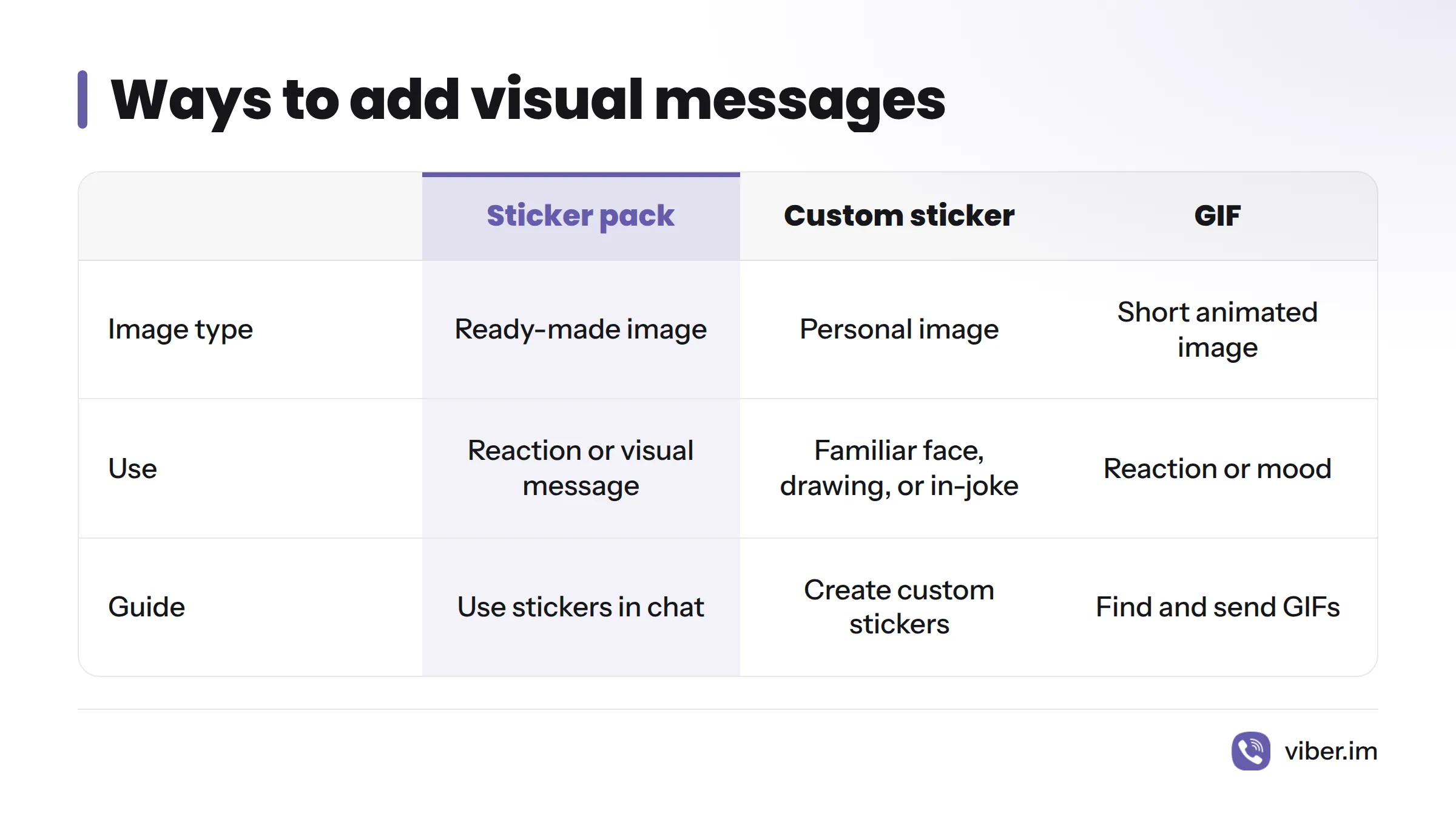
Sticker packs provide ready-made images for reactions or visual messages. They can add a playful note when plain text feels flat. The Viber sticker guide explains how to use stickers in a chat. Choose one that suits the conversation, especially in a group where people may interpret a message differently.
Make a custom sticker
For a personal image rather than a ready-made sticker, see the guide to creating custom stickers in Viber. Check its steps against your app, since controls and availability may vary. A custom sticker can bring a familiar face, drawing, or in-joke into a conversation.
Find and send a GIF
GIFs are short animated images that can convey a reaction or mood. Follow the Viber GIF guide for instructions. Check the guide or the app for the exact search and send controls rather than assuming every interface works the same way.
Sort conversations with chat folders
Folders let you group chats in a way that makes sense to you, such as family, friends, or volunteer work. They may be useful when a long chat list makes a particular conversation hard to find. For setup details, read the guide to organizing Viber chats with folders. Check the steps on your device before relying on a specific folder option.
Check message-expiry details before setting a timer
Viber messaging also includes a message-expiry feature, but the exact timer behavior, eligible chat types, and effect on copies or stored content need confirmation in Viber documentation. I won’t guess what expires, when it happens, or what remains available afterward. Read the explanation shown in Viber for the specific chat and app version before setting a timer. Expiry does not prove that every copy of a message disappears.
Features and controls may differ across iPhone, Android, and other supported devices, as well as by app version and chat type. If an option does not appear in your app, check Viber’s device-specific instructions before assuming it is available in your setup.
Find the guide you need
- Continue a group conversation: visit Viber groups.
- Share a picture or clip: read the media sharing instructions.
- Add a visual reply: learn about stickers and GIFs.
- Make a personal sticker: follow the custom sticker guide.
- Sort conversations: see the chat folder tutorial.
Can I create custom stickers in Viber?
A Viber guide covers custom sticker creation. Follow its steps, then check which options appear in your app and on your device.
Can I organize Viber chats with folders?
The folder guide explains how to sort conversations. Its directions may differ from the controls in your app version.
Can I search for GIFs in Viber?
Use the GIF guide to learn how to find and send GIFs. The controls can depend on your device and app version.
Do Viber messaging features work the same way on iPhone and Android?
Not necessarily. Check Viber’s instructions for your device and app version, then open the guide for the task you want to complete.
Sources
- Viber official website, Rakuten Viber
- Viber, Wikipedia
- How to Use Stickers on Viber Chats, Viber.im
- How to Add GIFs to Viber Messages, Viber.im
- How to Create Custom Stickers in Viber, Viber.im
- How to Share Images and Videos on Viber, Viber.im
- Viber Groups, Viber.im
- How to Organize Chats with Folders in Viber, Viber.im