
To install Viber on Android, open Google Play, search for Rakuten Viber Messenger, and confirm that the listing supports your phone. Tap Install, then open the app and follow its phone-number verification steps. Price and availability can vary by region, so check the details shown on your device.
Check Android compatibility first
Find your phone’s Android version in Settings, usually under About phone or Software information. Menu names differ by device. If you can’t find the setting, search Settings for “Android version.”
Open the official Rakuten Viber Messenger listing on Google Play on your phone and read its compatibility notice. Requirements may change, so follow the details Google Play shows for your device. The listing also shows local availability and any price that applies.
If the app doesn’t appear or Google Play says your phone is incompatible, don’t assume another download source is safe. Use Viber’s download hub for the publisher’s download information, and avoid APK sites and third-party app stores.
Find the official Google Play listing
- Open the Google Play Store app.
- Search for Rakuten Viber Messenger.
- Open the result and compare its name and publisher details with the official listing.
- Confirm that Google Play offers the app for your phone before continuing.
An app’s name or icon alone doesn’t confirm that it is official. If you can’t find the listing or its publisher details don’t match, stop and go to Viber’s official site to find the download route. Android supports app distribution through Google Play, but similarly named listings aren’t necessarily official.
Install Viber and check the download details
Review the price and compatibility information on the listing. If Google Play shows no charge, the app itself is free to download in your region. Follow the terms displayed on your screen.
Tap Install and wait for Google Play to finish downloading and installing the app. The button changes to Open when installation is complete. App size can change, so check the live listing and any storage message on your phone rather than relying on an old estimate.
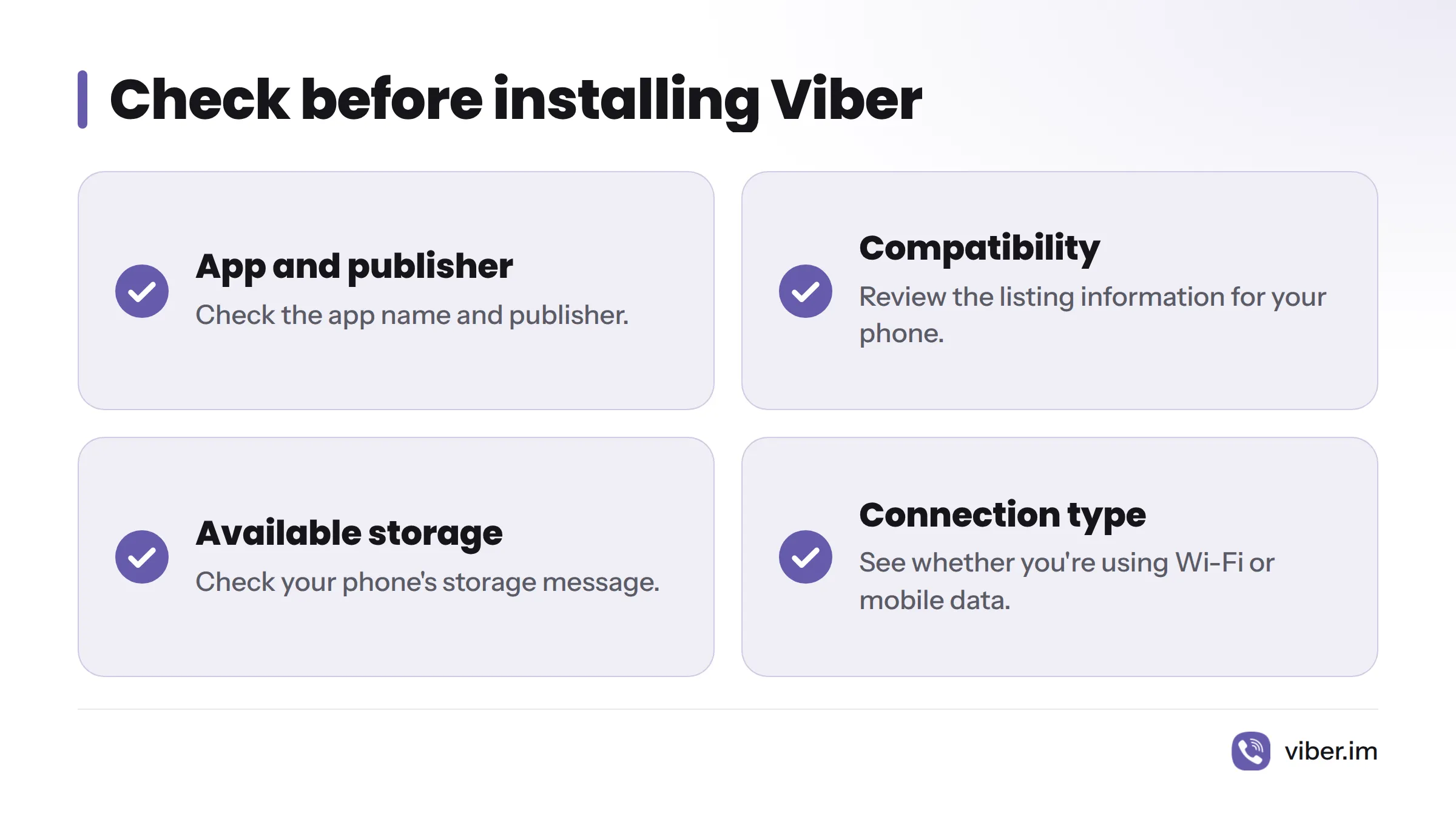
Before starting, check the app name and publisher, compatibility, available storage, and whether your phone is using Wi-Fi or mobile data. A mobile-data download can count toward your data allowance. Connect to Wi-Fi first if you prefer not to use mobile data. For another store walkthrough, see how to install the Viber Android app on your phone.
Open the app and review permission requests
When Google Play displays Open, tap it to launch Viber. Read each permission request before choosing an option. The prompts and their wording can vary by Android version and app build, so a request shown on one phone may not appear on another.
If a prompt is unclear, pause and read what Viber says it needs. I recommend deciding about each request on its own rather than granting access automatically to move through setup. Check the prompt in the version you installed; this guide doesn’t label specific permissions as required or optional.
Verify your phone number
Follow Viber’s setup screens to enter a phone number that you can access. The app will ask you to receive and enter an SMS verification code. Never share that code with another person.
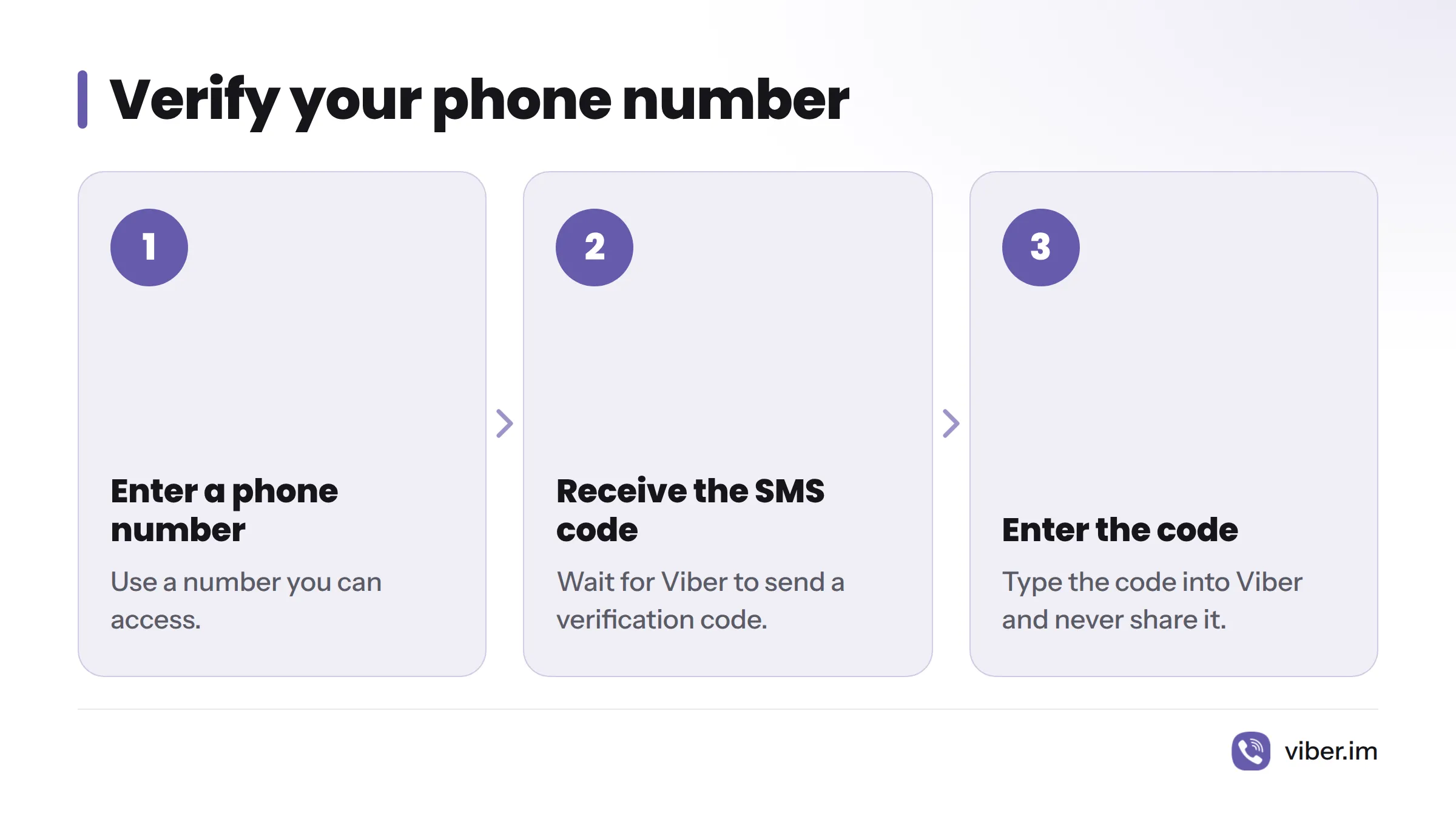
If the message doesn’t arrive, check the number and country code, and confirm that your phone can receive SMS. Wait for Viber’s on-screen instructions before asking for another code. For more help with the app download, see Viber’s guide to downloading its mobile app.
If Viber won’t install
| What you see | Check first | Safe next step |
|---|---|---|
| Viber doesn’t appear in Google Play | Search the full app name and open the official listing | Review Viber’s download page and the listing on your phone |
| Google Play says the phone is incompatible | Read the listing’s compatibility notice | Check your Android version in Settings; don’t try an unofficial package |
| The download stays pending or appears stuck | Check your connection and the listing’s progress indicator | Reopen the listing and follow the message Google Play displays |
| The download finishes, but installation fails | Check available storage and any on-screen error | Follow the message from your phone or Google Play; don’t guess at a fix |
| The SMS code doesn’t arrive | Check the phone number, country code, and SMS reception | Wait for Viber’s instructions and use the verification options shown in the app |
These checks can help identify what is preventing the install, but they won’t resolve every phone or network issue. For a safe route back to the app, use Viber’s download page.
Viber on Android: common questions
Is Viber free to download on Android?
Check the Google Play listing for the price in your region. If it shows no charge, downloading the app itself is free there. The listing shows local availability and terms.
Where can I find the official Viber app for Android?
Search Google Play for Rakuten Viber Messenger and check the publisher details. You can also start at Viber’s download hub.
Which Android version does Viber require?
The minimum version may change. Check the compatibility details on the official Google Play listing from your Android phone; this article doesn’t give an unverified version number.
Why does Google Play say my phone is incompatible?
Follow the compatibility message on the listing. Check your Android version in Settings and compare it with the information Google Play displays. If the phone remains marked incompatible, don’t download an APK from an unverified site.
Will the download use mobile data, and how much storage does Viber need?
If your phone isn’t connected to Wi-Fi, the download can use mobile data. Storage needs may change, so check the listing and any storage notice on your phone rather than relying on an old size estimate.
Do I need a phone number to set up Viber?
Viber’s initial setup asks you to enter a phone number and verify it with a code. Follow the in-app instructions, since screens and verification options can change.
Sources
Related: set up your Viber account