
To install the Viber app on iPhone, use the Apple App Store listing for Rakuten Viber Messenger. Check that the app name and developer details match, tap Get, then complete any Apple authentication prompt. Viber will guide you through phone-number setup after you open the app.
Check iPhone compatibility
Viber needs an iOS version supported by the app release you download. Check the compatibility details on the Rakuten Viber Messenger App Store page and Viber’s Help Center before installing. Support can change with app updates, so I wouldn’t rely on an older guide for the minimum version.
To check the iOS version on your iPhone, go to Settings > General > About. Apple explains where to find your software version. If your phone runs an older version, check whether its model can update. The app may not be available if the device cannot meet Viber’s stated requirement.
Find Viber’s official App Store listing
Search the App Store for Rakuten Viber Messenger. Before downloading, compare the result with the official Apple listing. Confirm the app name and developer details on the listing rather than relying on a similar icon or search wording.
You can also start at Viber’s download page and choose the iPhone option. This directs you to the App Store instead of an unfamiliar download site.
Download and open the app
- On the official listing, tap Get.
- Complete the Apple prompt if one appears. Depending on your device and account settings, Apple may ask for Face ID, your passcode, or Apple Account credentials. Approve only a request you started in the App Store.
- Wait for the download to finish, then tap Open or select Viber from your Home Screen or App Library.
If Get does not appear or the download stalls, check device compatibility first. Then review the message on screen and your internet connection. If the App Store reports an account or download issue, consult Apple’s app download support. Prompts vary with iOS versions and account settings.
Set up Viber and verify your number
Open Viber and follow the setup screens. Read each prompt, then enter the requested details. Viber’s account setup guide offers a written walkthrough if you need one.
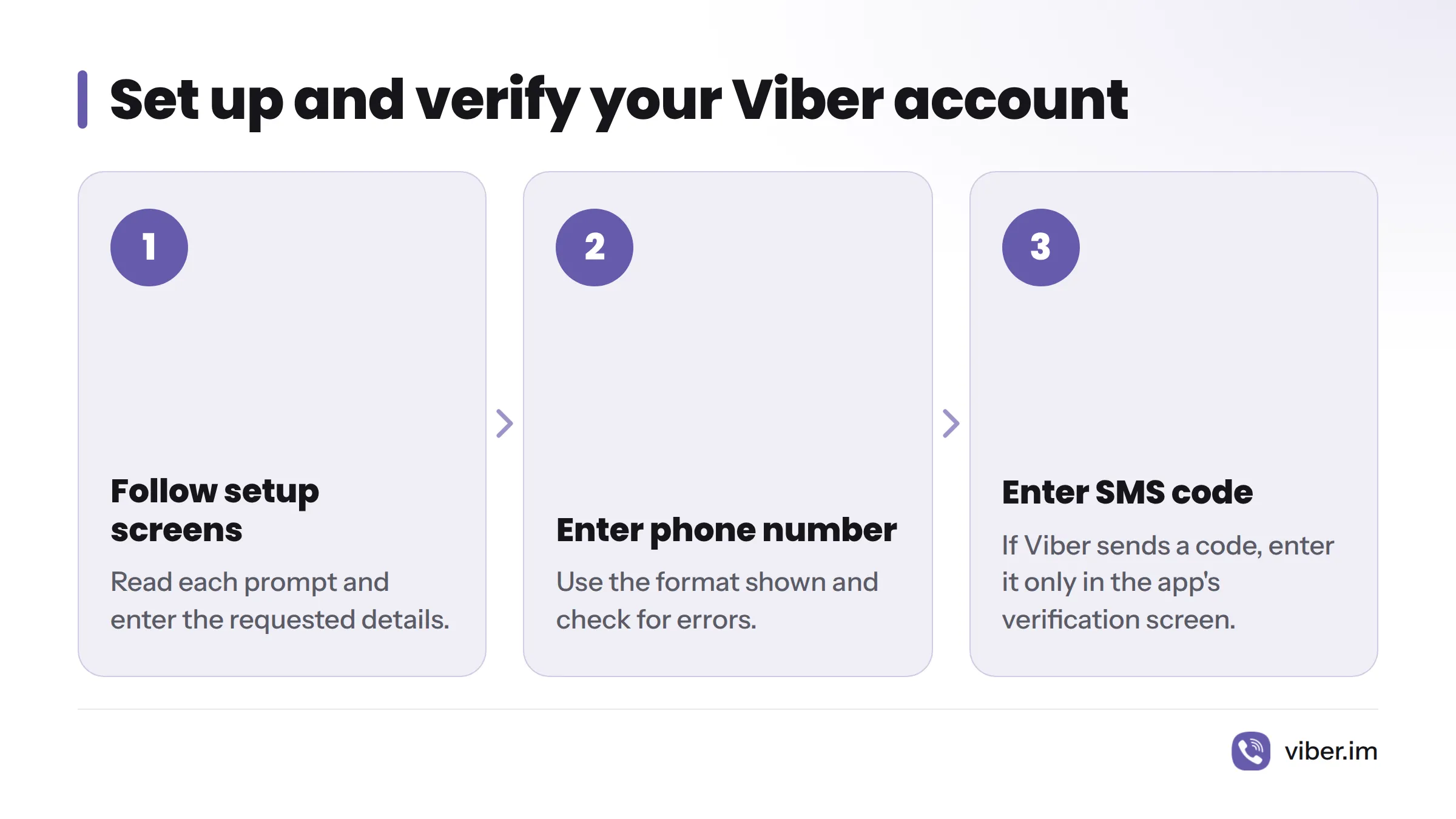
The app may ask for your phone number to activate your account. Enter it in the format shown and check for errors before continuing. If Viber sends an SMS code, enter it only in the verification screen in the app. Never share the code with someone else.
If the text does not arrive, confirm the number and country code, then use the resend or alternate option shown in Viber. If those steps do not work, check the Viber Help Center for account-verification guidance. Avoid guessing codes repeatedly.
Choose whether to allow notifications
iOS may ask whether Viber can send notifications. You can allow alerts or decline; either choice is separate from installing the app. Change your choice later in iPhone settings using Apple’s notification settings guide. Read the prompt on your screen, since its wording can vary by iOS version.
Confirm activation
Viber is ready after the app confirms activation or moves past account verification. If it returns to a setup screen, complete the remaining steps. This iPhone guide to getting Viber provides another walkthrough.
Viber app iPhone: common questions
Is Viber available for iPhone?
Yes. Search the App Store for Rakuten Viber Messenger and check the details against the official listing linked above.
Do I need an Apple ID to download Viber?
The App Store may ask you to authenticate with your Apple account or device, depending on your settings. Follow the prompt on your iPhone. Apple’s download support page covers account and download issues.
Does Viber need my phone number?
Viber may request a number during setup. Follow the instructions in the app, and enter any verification code only there.
Can I decline notifications?
Yes. Your choice does not affect installation. You can review it later in iPhone notification settings.
Why is Get unavailable?
Check the App Store listing and Viber’s support information for device compatibility. If your iPhone can run a newer iOS version, update it and check again. If it cannot meet Viber’s stated requirement, contact Viber support to ask about device support. Do not download an app copy from an unofficial site.
What if I do not receive the verification SMS?
Check the phone number and country code, then use the options in Viber. If the message still does not arrive, consult the Help Center. Do not post your number or verification code publicly.
For more about Viber, visit the Viber homepage.