
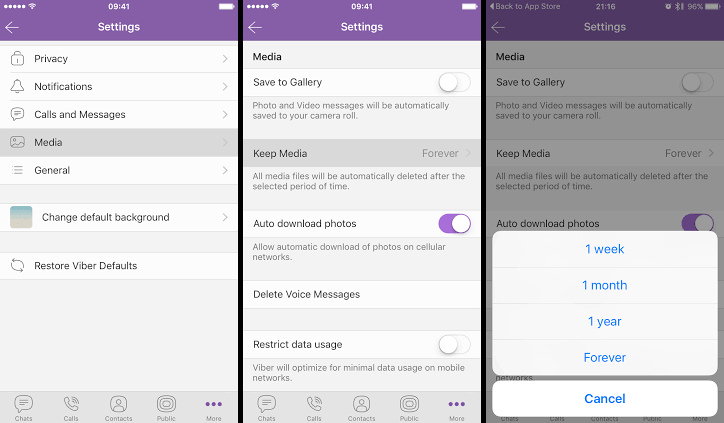
Viber doesn’t have a standalone “vibrate on keypress” toggle inside its own in-app settings menu. Instead, Viber inherits haptic feedback directly from your smartphone’s system-level tactile engine and keyboard software (Gboard, Apple QuickType, or SwiftKey). To enable haptics while tapping messages or buttons in Viber:
-
iOS: Go to Settings > Sounds & Haptics > Keyboard Feedback and toggle Haptics ON. Ensure System Haptics is also ON.
-
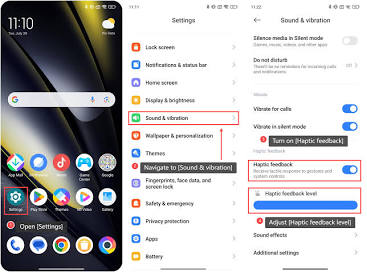
Android: Go to Settings > Sound & Vibration > Touch Feedback / Haptics and turn it ON. If you use Gboard, open Gboard settings via the keyboard cog, go to Preferences, and switch Haptic feedback on keypress to ON.
If you’re anything like me, typing out a fast reply on a glassy screen without physical feedback feels completely dead. You hit a key, you think you registered a tap, but you’re left guessing until the character pops up. That subtle, satisfying micro-vibration—haptic feedback—is crucial for fast, confident typing.
Last year, during an intensive remote project where our team logged hundreds of daily messages, my phone suddenly went completely “numb” after a OS update. Viber felt terrible to type on. I spent nearly two hours digging through Viber’s internal menus looking for a haptic toggle that simply isn’t there.
Here is the secret: Viber relies on your OS-level touch motor and virtual keyboard driver for tactile responses.
Whether you are running iOS or Android, this updated 2026 guide will walk you through enabling haptic feedback for every tap, reaction, and keypress in Viber, along with fixing common low-battery throttles that kill your vibration motors.
Understanding Why Viber Haptics Behave Differently
To configure touch responses properly, you need to understand how Viber processes touch events across different layers of your OS:
-
In-App Gestures & Button Taps: Long-pressing a message to react with an emoji or dragging to record a voice note uses your device’s core haptic API (Apple Taptic Engine or Android Vibration Effect API).
-
Message Typing: Keypress vibrations are 100% controlled by your virtual keyboard app (e.g., Gboard, Samsung Keyboard, or iOS QuickType), not Viber itself.
When user migration happens—such as when people follow our Viber legacy message migration guide—system permissions often reset defaults. Restoring system-wide vibration settings is always step one.
Step-by-Step: Enabling Haptic Feedback for Viber
Method 1: Enabling Haptics on iOS (iPhone)
Apple’s Taptic Engine provides some of the best tactile sensations in the industry, but iOS aggressively disables haptics if system toggles are off or low-power modes are active.
Method 2: Enabling Haptics on Android (Gboard & Samsung)
Android gives you deep control over vibration intensity, but OEM skins (One UI, MIUI, Pixel UI) categorize these settings differently.
Step 1: Enable System Touch Vibration
-
Open phone Settings and go to Sound & Vibration (or Haptics).
-
Look for Touch Feedback, Haptic Intensity, or Vibrate on Touch.
-
Slider the intensity up from zero or switch the toggle to ON.
Step 2: Configure Keyboard Haptics (Gboard)
Because most Android users rely on Gboard inside Viber:
-
Open Viber, open any chat, and tap the text field to bring up the keyboard.
-
Tap the Gear Icon (Settings) on the top bar of the keyboard.
-
Tap Preferences.
-
Scroll down to Haptic feedback on keypress and switch it ON.
-
Adjust Vibration strength on keypress (a sweet spot for modern linear motors is around
12msto20ms).
If you want to optimize your typing speed and dictionary learning alongside tactile feedback, check out our guide on how to enable Viber predictive text learning and smart dictionaries.
Comparison: iOS vs. Android Haptic Behavior in Viber
| Feature / Scenario | iOS (iPhone 12 & Newer) | Android (Flagship/Mid-range) |
| Keyboard Touch Feedback | Managed by Apple QuickType Settings | Managed per Keyboard App (Gboard/SwiftKey) |
| Custom Vibration Strength | Fixed preset (System calibrated) | Variable Millisecond Slider / Intensity Bar |
| In-App Long-Press Response | Instant Taptic Engine click | Haptic Feedback API trigger |
| Low Power Mode Impact | Automatically disables keyboard haptics | Depends on OS power profile (usually disabled) |
Real-World Troubleshooting: “I Turned It On, But Still No Vibration!”
When troubleshooting client devices, turning settings on doesn’t always solve the issue. Here are the three most common technical culprits behind silent haptics in Viber:
Battery Saver Throttling
Both iOS and Android automatically cut power to physical vibration motors when battery levels drop below 20% (or when Low Power Mode is active).
-
Fix: Disable battery saver mode, or navigate to your battery settings and exclude your system launcher and keyboard app from aggressive power optimization.
Android Accessibility Master Override
Android includes a global “Vibration & Haptic Strength” master switch hidden inside Accessibility settings that overrides individual app settings.
-
Fix: Go to Settings > Accessibility > Vibration & Haptic Strength. Ensure Touch Feedback is explicitly turned on.
Conflicting Third-Party Keyboards
Using unoptimized third-party keyboard skins can cause input lag and drop haptic calls sent to the OS kernel. Stick to native keyboards, Gboard, or Microsoft SwiftKey, and keep them updated via the App Store or Google Play Store.
For official documentation on system notification behaviors, you can consult the Viber Support Center or review Android Developer Vibration Docs for hardware specifications.
2026 SOP Checklist: Viber Haptics Setup
Keep this checklist handy whenever you set up a new device or perform a system upgrade:
-
[ ] Device Level: System-wide touch feedback / haptics toggled ON.
-
[ ] Keyboard Level: Keyboard app haptics on keypress enabled with intensity > 0.
-
[ ] Power Management: Low Power Mode disabled or exempted for keyboard drivers.
-
[ ] Accessibility Check: Master vibration switch enabled in OS Accessibility settings.
-
[ ] Viber App Check: Notifications set to allow vibration alerts in-app.
-
[ ] App Maintenance: Download official packages directly from the Viber official download portal.
FAQ (Frequently Asked Questions)
Q1: Why doesn’t Viber have a direct “Haptic Feedback” switch in its own settings?
Viber delegates text entry and core OS interactions to the host platform’s native frameworks. Leaving touch feedback management to iOS and Android ensures native battery performance and consistent system-wide typing feel.
Q2: Does enabling haptic feedback in Viber drain my battery faster?
While vibration motors do consume small amounts of power per tap, modern linear resonant actuators (like Apple’s Taptic Engine or Android X-axis linear motors) are extremely efficient. The battery impact is negligible—typically less than 1-2% across a full day of heavy messaging.
Q3: Why do haptics work for incoming Viber calls, but not when I tap keys to text?
Call notifications utilize the phone’s standard alert vibrator driver, whereas typing taps rely on low-latency micro-haptics controlled through your system keyboard settings. If typing haptics fail while call vibrations work, your keyboard app settings or system touch feedback switches are turned off.