
A completed Viber backup can preserve chat history when you replace a phone or reinstall the app. Viber stores Android backups in Google Drive and iPhone backups in iCloud. Before you erase or trade in your old phone, run a manual backup and confirm that Viber shows it finished.
Open More > Settings > Account > Viber Backup in the mobile app. Keep the old phone until you have restored the chats and checked them on the new one. Viber’s Help Center can clarify steps that differ by app version.
Viber backup at a glance
A Viber backup is a cloud-stored copy of chat history. It is not a readable chat export, and it does not guarantee that all content will transfer between different types of phones. Check the backup status in Viber before relying on it.
| Phone | Cloud service | Where to look in Viber | Before restoring |
|---|---|---|---|
| Android | Google Drive | More > Settings > Account > Viber Backup | Use the Google account and phone number associated with the saved history. |
| iPhone | iCloud | More > Settings > Account > Viber Backup | Use the Apple Account and phone number associated with the saved history. |
Menu labels can change between app versions. If a label on your phone differs, consult the Viber Help Center rather than following an old screenshot.
Before switching phones: Run a manual backup, wait for the completion status or date to update, and keep the old phone until you have checked the chats on the new one.
For a longer walkthrough of cloud settings, read our guide to automatic Viber backups.
Back up Viber on Android
Check your Google account and Drive access
Viber backup Android users create goes to Google Drive. Confirm that the phone is signed in to the Google account you intend to use and that you can open Drive. A working network connection and enough cloud storage can help prevent an interrupted upload.
Google’s Android backup guide explains Android backup and account settings. Viber chat backup is a separate setting inside the Viber app.
Run a manual backup
- Open Viber on the Android phone that holds the chats.
- Tap More, then Settings.
- Tap Account, then Viber Backup.
- If prompted, connect the Google account you want to use.
- Tap Back Up Now and leave Viber open while the upload runs.
- Return to the backup screen and check the status or date.
If the menu labels differ, update Viber through the app store and check the Help Center before changing app data. Android has separate device-backup settings, but those do not replace checking Viber’s own backup status. The Android operating system) has its own backup settings.
Set Viber auto backup and choose media
Open Viber Backup and review the automatic backup controls. If your app offers a schedule, choose one that suits how often you use Viber. Options can vary by version, so rely on the choices shown on your phone. Run a manual backup if you need a fresh copy immediately.
Check whether the screen offers a photos-and-videos setting. Media adds data to the upload and cloud storage. Do not assume every attachment type is included; confirm the details in Viber or its Help Center.
Back up Viber on iPhone
Check iCloud access
Viber backup iPhone users create goes to iCloud. Confirm that iCloud is set up and that you can access the Apple Account where you want the backup saved. Apple’s iCloud Backup guide describes data stored through iCloud Backup; Viber’s chat backup control remains inside the app.
Run a manual backup and set a schedule
- Open Viber on the iPhone with the chat history you want to keep.
- Tap More > Settings > Account > Viber Backup.
- Check that Viber can access iCloud and that the intended Apple Account is signed in.
- Tap Back Up Now and wait for the status or date to update.
- If automatic backup controls appear, choose a schedule offered in your app.
Do not delete the app just because you tapped the backup button. Wait for Viber to show that the backup has finished. If an iCloud prompt appears, read it and confirm that you are using the account where you want the chat history saved.
Choose whether to include photos and videos
If Viber offers an option to back up photos and videos, turn it on only if you want those items included and have enough iCloud space. Check the backup status after changing the setting. A chat backup may not preserve every file in every conversation, so save irreplaceable pictures separately if you need another copy.
Our Viber chat history backup guide covers the same task in more detail.
Restore Viber chat history
A restore brings saved chat history back into Viber. It is different from syncing messages across devices, exporting a readable file, or copying data between platforms. Keep access to the phone number and cloud account linked to the backup.
Before you restore
- Confirm which Google or Apple account holds the backup.
- Use the phone number connected to the Viber account that made it.
- Install Viber on the new phone from its official app store. Follow our instructions for installing Viber on a new device.
- Keep the old phone until you have checked the restored conversations.
- Do not erase app data or reset the old phone while you are unsure whether a usable backup exists.
Restore on Android or iPhone
- Install and activate Viber on the replacement phone with the associated account and phone number.
- Follow the setup prompts. If Viber finds a backup, check its date and choose the restore option.
- Keep the phone online while the chat history loads. If the backup includes media, attachments may take longer to appear.
- Check several recent and older conversations, including any dates and attachments you need.
If Viber does not show a restore prompt, open More > Settings > Account > Viber Backup and check for a restore control. Do not create a new, empty backup over the old one while you investigate. The Viber Help Center has instructions for different app versions.
Can a Viber backup move between Android and iPhone?
Do not assume that a Viber backup can move directly from Android to iPhone, or the reverse. Android uses Google Drive and iPhone uses iCloud, so a backup created for one platform should not be treated as a restore file for the other. Check Viber’s official guidance before switching platforms. If Viber does not confirm a supported route, plan as though the native backup cannot cross operating systems.
| Situation | Safer next step |
|---|---|
| Android to another Android phone | Use the Google account and phone number tied to the backup, then check Viber’s restore prompt. |
| iPhone to another iPhone | Use the Apple Account and phone number tied to the saved history, then check Viber’s restore prompt. |
| Android to iPhone, or iPhone to Android | Confirm cross-platform support with Viber before relying on a transfer utility or cloud backup. |
| Only a computer or device backup is available | Check Viber’s instructions and those of the computer-backup provider. Do not assume the device backup contains Viber history that you can restore. |
| No known backup | Keep the old device intact if possible and review recovery options before reinstalling or resetting anything. |
What Viber backup saves – and what it does not
These terms describe different actions:
- Backup: A saved copy of chat data created through Viber’s backup controls.
- Restore: Returning saved data to Viber on a supported phone.
- Sync: Keeping some account data or conversations available across devices. Sync does not prove that a restorable chat backup exists.
- Transfer: Moving data between devices or platforms through a route Viber supports.
- Export: Creating a readable copy, such as a document or text file. An export may not be importable into Viber.
Whether photos and videos are included depends on the media setting shown in the app. Check it before the backup runs, then verify the files you need after restoring. Viber desktop may show conversations associated with your account, but do not treat the desktop app as a separate native backup of mobile chat history. Check Viber’s instructions for the task you have in mind.
A backup cannot guarantee recovery of messages deleted before it ran, data that never reached the cloud, or content the app excludes. A third-party export tool may create a readable computer archive, but that is different from Viber’s native backup.
Fix common Viber backup problems
| Symptom | First check | Next step |
|---|---|---|
| Viber Backup is missing | Check that Viber is installed and updated, then open Account settings. | Review the Help Center instructions for your app version before clearing data. |
| Backup will not start or finish | Check the network, leave the app open, and confirm the phone can access its cloud account. | Retry on a stable network and check available cloud storage. |
| Cloud account is unavailable | Confirm you are signed in to the intended Google or Apple account. | Resolve the sign-in issue before starting another backup. |
| Restore option does not appear | Check the phone number, cloud account, and whether a completed backup exists. | Do not overwrite or delete data until you confirm the backup’s platform and date. |
| Chats appear but media does not | Check whether photos and videos were included. | Allow time for downloads, then check Viber’s media controls and storage access. |
| Viber was reinstalled without a backup | Check the old phone and any cloud account you used. | Recovery may be limited if no backup exists. See our guide to recovering deleted Viber chats. |
If a backup keeps failing, do not start by uninstalling Viber. The phone may hold the only remaining copy. Check account access, network, cloud storage, app version, and backup status first.
Checklist before changing phones
Follow these steps before trading in, wiping, or replacing a phone:
- Tap Back Up Now on the phone that holds your Viber history.
- Wait for Viber to show a completed status or updated backup date.
- Note the Google or Apple account used and confirm you can sign in.
- Keep access to the phone number associated with Viber.
- Install Viber on the new phone and follow its activation and restore prompts.
- Check several conversations and any media you need.
- Erase or trade in the old phone only after you are satisfied with the result.
Changing your phone number or cloud account adds uncertainty. Before making either change, check Viber’s account and restore instructions, and keep access to the account holding the backup.
Third-party Viber backup and export tools
Some computer utilities claim to transfer, print, or export Viber messages. These are third-party tools, not Viber’s built-in Google Drive or iCloud backup. Features, supported phones, prices, and privacy practices vary by provider and can change. Before installing one, check its current compatibility details, permissions, data handling, and refund terms. Do not grant access to private chats without understanding the risks.
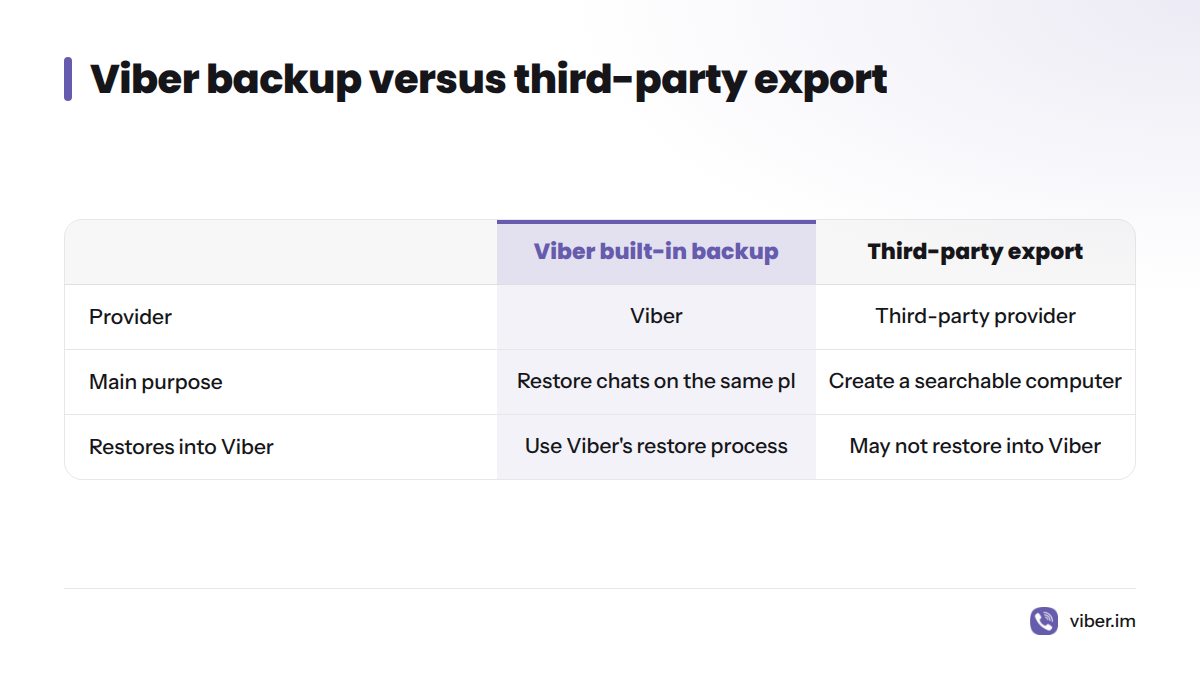
If you want to restore chats on the same platform, start with Viber’s own backup and restore process. If you want a searchable computer archive, an export may suit that task, but it may not restore into Viber later. The two functions are not interchangeable.
Searches for Viber backup free or Viber backup download may lead to third-party tools. Viber’s backup controls are part of the mobile app; check the official app store and Viber guidance rather than assuming a separate download is needed. A Viber backup app listing from another provider is not the same as Viber’s own backup service.
Frequently asked questions
How do I back up Viber chats?
Open More > Settings > Account > Viber Backup, connect the cloud account for your phone, and tap Back Up Now. Wait for the status or date to confirm completion.
How often can Viber auto backup run?
Review the schedule choices on the backup screen. Options may vary by app version, so use a schedule only if it appears in your app.
Can I restore Viber after reinstalling the app?
You may be able to restore chats if a completed backup exists and you can access the associated phone number and cloud account. Check the restore prompt and backup date before proceeding.
Can I back up or restore Viber chats on a PC?
Viber’s native mobile backup is managed in the phone app and uses the cloud service for that platform. A Viber backup on PC or a device backup is a different process and may not restore chat history into Viber.
Can I recover Viber messages if I never made a backup?
There is no guaranteed recovery route without a saved backup. If the old phone still has the chats, do not reset or uninstall it before checking Viber’s support guidance.
Does deleting my Viber account preserve the backup?
Do not assume that it does. Account deletion and cloud backup handling are separate matters. Read Viber’s account and data guidance before deleting an account or removing its cloud data.
How do I save Viber pictures?
Save individual images to your phone using Viber’s media controls, or include photos and videos in a backup if that option appears. Keep a separate copy of files you cannot replace.