
Viber brings messaging, voice calls, video calls, group conversations, and interest-based Communities into one app. App-to-app calls require an internet connection, while calls to regular phone numbers use the separate Viber Out service. Before installing, check that your device is supported and review the privacy details for the features you plan to use.
Start with the Viber messaging app overview or visit the Viber homepage. The guides on site:viber.im cover the Viber messaging app, setup, and calling features.
What is Viber?
Rakuten Viber Messenger is an app for personal messages and calls. You can contact other Viber users, chat in groups, or join public-facing Communities focused on shared interests. The app includes text messaging, voice and video calls, stickers, and GIFs. Features and menus may differ by operating system, app version, or region, so check your device’s app listing before installing.
Private chats, stickers, and GIFs
Choose a contact to open a one-to-one chat, then send text and supported media. Stickers and GIFs add expressive options. Read the Viber messaging and calling guide for more details about messaging.
Voice and video calls
Viber users can make app-to-app voice and video calls over an internet connection. Your mobile carrier or internet provider may charge for data. Follow the Viber video-calling instructions for call steps and screen guidance.
Group chats and Communities
A Viber group chat works for conversations among people who know one another, such as family members or project teammates. Viber Communities support larger, interest-based discussions. A Community is not the same as a private one-to-one chat, so check its rules and privacy settings before joining or posting.
Choose a Viber feature for what you want to do
| Need | Feature | Next step |
|---|---|---|
| Message one person | One-to-one chat, stickers, and GIFs | Open a contact in the app |
| Talk face to face | App-to-app video calls | Read the video-calling instructions |
| Keep a group conversation together | Group chat and group calls | Open or create a group in Viber |
| Follow an interest | Viber Communities | Find Communities in the app and read their rules |
| Call a phone number | Viber Out, subject to its rates and terms | Check the Viber Out service page |
Sticker packs and GIF options may change. Check the app for what it offers rather than relying on instructions written for an older version.
Check whether your device supports Viber
Viber provides mobile and desktop apps, though supported platforms and system requirements can change. Download through an app store or download page linked by Viber, and confirm the publisher before installing.
| Device or platform | Availability check | Notes |
|---|---|---|
| Android phone or tablet | Google Play listing | Check compatibility details for your device. |
| iPhone or iPad | Apple App Store listing | Review the device and operating-system requirements. |
| Windows or Mac computer | Viber’s official download page | Follow the setup steps shown for your system. |
| Linux computer | Check Viber’s official download information | Do not assume an installer exists for every distribution or release. |
See the Viber installation instructions for a device-by-device walkthrough. If a download page seems unfamiliar, go to Viber’s website yourself and follow its store links. Avoid installing a file sent in an unexpected message.
Link Viber across devices
Viber starts with a mobile account. Where supported, you can link the desktop app to that account. Messages, settings, and calls may not work identically on every device. Follow the linking prompts in the app and see the guide to using Viber on two devices.
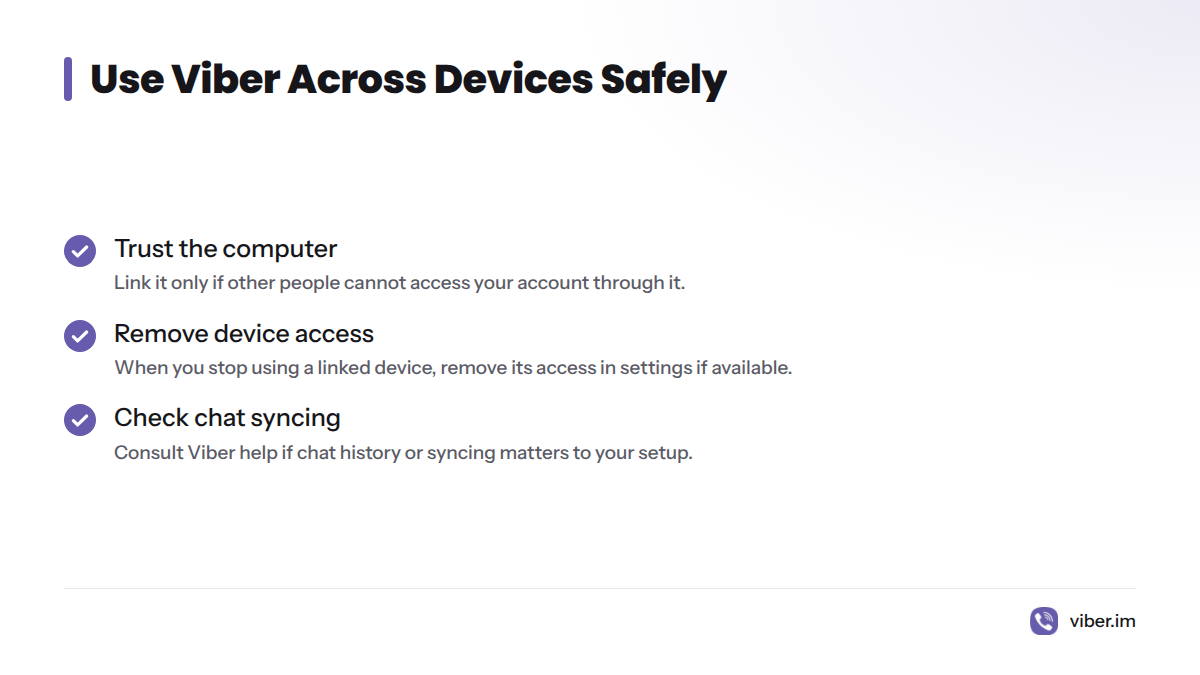
Link a computer only if you trust the device and other people cannot access your account through it. When you stop using a linked device, check the app’s device or account settings and remove its access if that option is available. Consult Viber’s help materials if chat history or syncing matters to your setup.
Review Viber’s privacy and security details
Viber says end-to-end encryption applies by default to one-to-one and group chats, as well as voice and video calls. Its security information describes the scope and exceptions, including features such as Communities. Read the details for the feature you plan to use; protections may differ across parts of the service.
These habits can help protect your account:
- Install Viber through a linked app store or Viber download page.
- Set a screen lock on your phone and computer.
- Update your device and app through their usual update channels.
- Check who can add you to groups and which privacy settings you have enabled.
- Never share a verification code with someone who contacts you unexpectedly.
For more context, read the Viber app guide and Viber’s security information. Secure messaging does not remove the need to think about what you share, whom you contact, or how you protect your device.
Set up Viber
The steps below offer a straightforward way to get started. Prompts may differ between Android and iPhone.
- Open Viber’s official page or your device’s app store. Check the publisher and listing details.
- Install the mobile app and follow the account setup prompts.
- Grant only the permissions you want, such as access to contacts or calls.
- Choose a contact to send a message, or open the call controls to start a voice or video call.
- To use a computer, get Viber for desktop from Viber and follow the account-linking prompts.
The Viber download guide has more setup help. I recommend using official store links instead of third-party download sites, which may host altered or outdated installers.
App calls and Viber Out are different
App-to-app Viber calls connect Viber users over the internet. Viber Out is a separate service for calling phone numbers, including numbers that may not use Viber. Rates, availability, and purchase terms can depend on the destination and account conditions. Check the Viber Out page before buying credit or a plan.
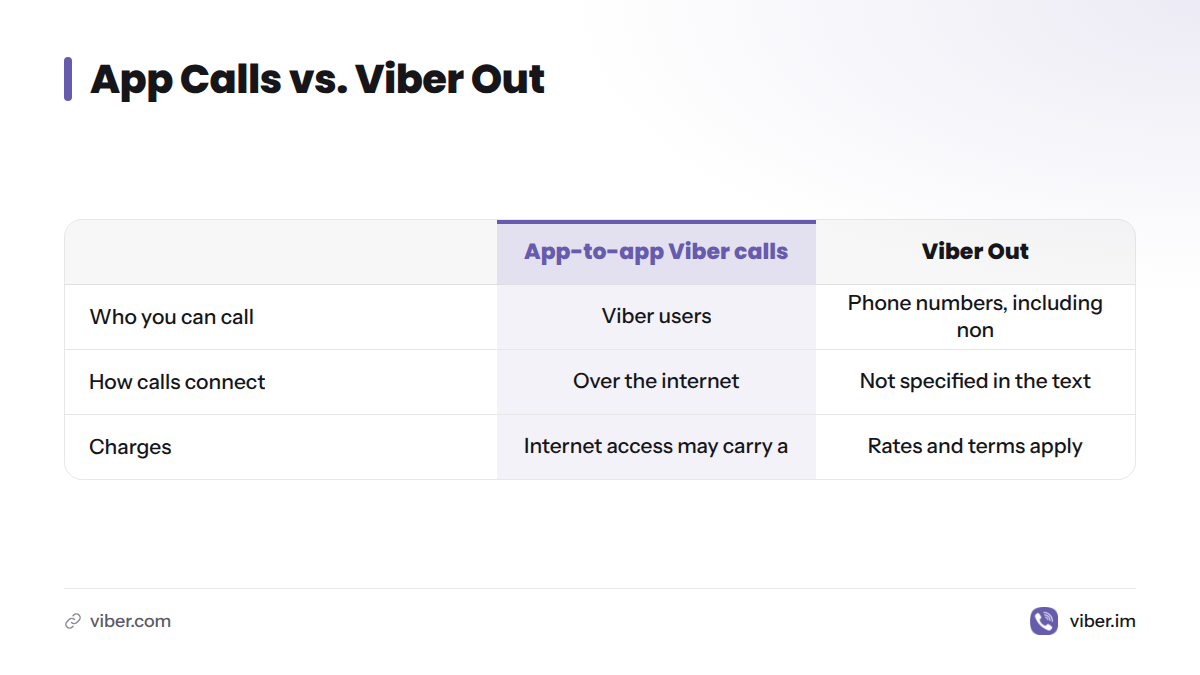
The phrase “free messaging and calls” does not mean every call costs nothing. Internet access may carry a charge, and Viber Out calls follow that service’s rates and terms.
Decide whether Viber fits your routine
Viber may suit you if the people you want to contact use it and its mix of messages, calls, group conversations, and Communities meets your needs. Pick a starting point that matches how you plan to use it:
- Message friends or family: Install the mobile app and start a one-to-one chat.
- Talk with a group: Check group-call controls and device requirements in the app.
- Join a broader discussion: Browse Viber Communities and read their rules before posting.
- Use a computer too: Check desktop availability and link it through Viber’s setup flow.
- Call a regular phone number: Review Viber Out rates and terms for that destination first.
I’d start with the people and devices you already use. That gives you a practical way to see whether Viber fits before moving more conversations onto it.
Frequently asked questions
Are Viber messages and calls free?
App-to-app messages and Viber calls use an internet connection, but your data or internet provider may charge you. Viber Out has separate rates and terms. Check them before calling a phone number through that service.
Can I make a Viber group video call?
Viber supports group calls, but the controls and participant limits may vary by app version or device. Check the group-call options in your app and consult the Viber video-call instructions for steps.
How does a group chat differ from a Community?
A group chat is for conversation among its members. A Community supports broader, interest-based discussion. Review privacy and participation settings before posting in either.
Does Viber work on Windows, Mac, and Linux?
Viber has desktop options, but availability may vary by operating system and release. Check the official download page before installing. On Linux, confirm that the listed version supports your system.
What if Viber will not install or connect?
Check that your device meets the requirements in its app listing, then check your internet connection and available updates. If the problem continues, use Viber’s in-app help or the official Viber Help Center rather than downloading an installer from an unfamiliar site.