
📅 Last Updated: 14 9 月, 2026
✅ Reviewed by: Viber.im Editorial Team
In a hurry? Here is the fast track:
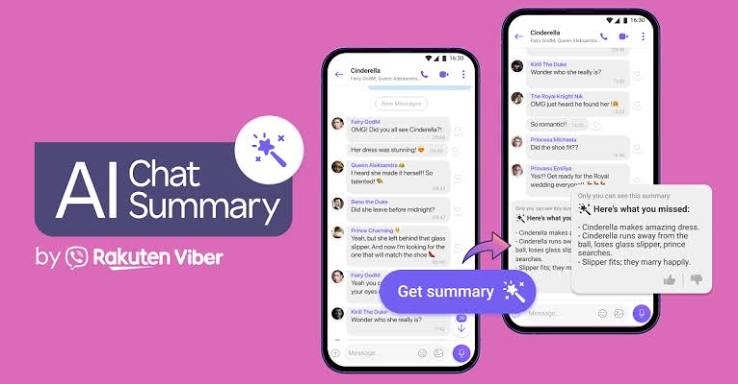
- Open any Viber group chat containing 5 or more unread messages; a Get AI Summary banner will pop up automatically.
- Tap the banner to generate a bulleted breakdown of up to 100 recent unread texts in under 3 seconds.
- If the button does not appear, head to More > Settings > Calls and messages to toggle AI Chat Summary back on.
As someone coordinating remote project leads across three continents, my biggest morning dread used to be the sea of unread badges on Viber. Between internal dev check-ins, client feedback channels, and community groups, missing ten minutes of conversation could leave me scrolling through hundreds of messages just to figure out who agreed on what deadline.
That operational headache changed when Rakuten Viber rolled out its deep integration with OpenAI technology for automated chat summaries. Instead of wading through endless noise, the system parses up to 100 unread messages in one click, distilling key decisions, unresolved disputes, and actionable next steps.
However, the feature isn’t without quirks. From missing banners to unexpected rate limits, I have spent months troubleshooting this tool across our internal operations. This guide breaks down the underlying mechanics of Viber AI Chat Summarization, step-by-step usage, real-world workarounds, and vital privacy settings.
Technical Mechanics: How Viber Processes Your Messages
Viber’s summarization engine connects to lightweight endpoints via OpenAI’s language models. To keep execution fast and prevent hallucinations, Rakuten designed the processing pipeline around a few strict operational boundaries:
-
Ingestion Window: The model ingests a maximum batch of 100 unread text messages per run. If a chat has accumulated 400 unread entries, the prompt context prioritizes the most recent 100.
-
Privacy Isolation: Raw text payloads and sender display names are passed securely to the processing node, but phone numbers, user IDs, and media attachments are completely stripped. Summaries remain private to your device view—the app will never auto-post a summary into the shared group chat.
-
Read Status Logic: Generating a summary instantly clears the unread badge for that batch of messages while preserving your original log history.
If you value privacy while keeping your workflow streamlined, setting proper boundaries across your messaging profile is essential. For instance, if you want to read through summarized task updates without letting contacts see you active, take a look at our Guide on Hiding Online Indicators in Viber to master stealth mode.
Step-by-Step: Extracting Insights from Chats and Links
Executing an AI summary on mobile (iOS and Android) takes only two steps once configured properly.
The Standard Group Chat Summary Pipeline
-
Navigate to the Group Chat: Open any active group containing unread text notifications.
-
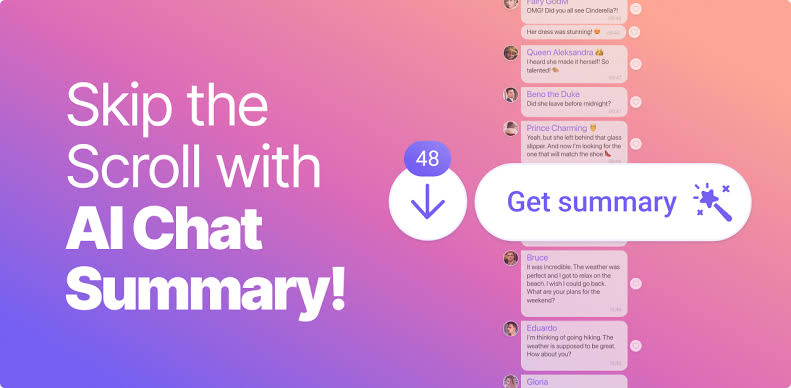
Tap the Sparkle Banner: Look for the dedicated banner with the sparkle icon labeled “Get AI Summary” floating near the top of the chat view.
-
Review the Briefing: A overlay card will present bulleted items highlighting key points (e.g., approved budgets, meeting schedules, owner assignments).
-
Jump to Context: Tap any specific line item to jump straight to the original message in the chat log for full context.
Condensing Shared Web Links
When team members drop long articles or documentation links into a chat, you do not need to open a mobile browser. Tap the “Summarize link” tag beneath the posted URL to read a concise three-sentence breakdown inside your message window.
Beyond productivity tools, customization makes daily communication much easier on the eyes. If you want to refine how your chat interface presents text, check out our walkthrough on Customizing Viber Fonts and Formatting Styles.
Hidden Friction Points Learned from Real-World Testing
After using Viber’s AI tools across multiple active projects, our team hit a few edge cases that documentation rarely mentions:
| Problem Scenario | What Happens | Real-World Fix |
| Multilingual Mix | When messages alternate rapidly between English, Spanish, and Tagalog, summaries can lose context. | Standardize critical wrap-up notes in a single language so the AI parses key action items cleanly. |
| Voice & Sticker Floods | Audio notes and sticker spam dilute text density, leading to incomplete summary outputs. | Use Viber’s built-in audio-to-text transcription on voice notes before running the main AI summary. |
| Rate Limit Hits | Exhausting daily summary calls triggers a temporary API cooldown message. | Connect an authenticated account via the ChatGPT tab in Viber to unlock higher daily operational limits. |
SOP Checklist: Troubleshooting Missing AI Summaries
If the summary banner fails to trigger or yields unexpected errors, run through this standard operating procedures (SOP) checklist:
-
[ ] Step 1: Verify Toggle StatusOpen Viber, go to
More>Settings>Calls and messages, and confirm thatAI Chat Summaryis set to Enabled. -
[ ] Step 2: Confirm Client VersionCheck the Google Play Store or Apple App Store to verify your client is running the latest stable build.
-
[ ] Step 3: Check Unread ThresholdsThe AI prompt requires a minimal text threshold (usually 5+ unread messages). Test by accumulating a few more text entries.
-
[ ] Step 4: Audit Enterprise & Regional RestrictionsRefer to official privacy frameworks like the Viber Security Center for data handling details, or check the OpenAI Usage Policies if regional AI endpoint blocks affect your connection.

FAQ
Is Viber AI Chat Summarization free to use?
Yes, Viber includes a free daily allowance for AI chat summarization. Power users who need frequent processing can link their personal ChatGPT credentials via the in-app AI tab to expand daily rate limits.
Can other group members see my generated AI summaries?
No. All generated summaries are rendered locally on your device view. No automated posts or notifications are sent to the rest of the group.
Why is the AI Summary option missing from my settings?
If the feature does not appear under
Settings > Calls and messages, ensure your app is fully updated. In certain regions, feature rollouts may be temporarily delayed due to local AI endpoint availability.