
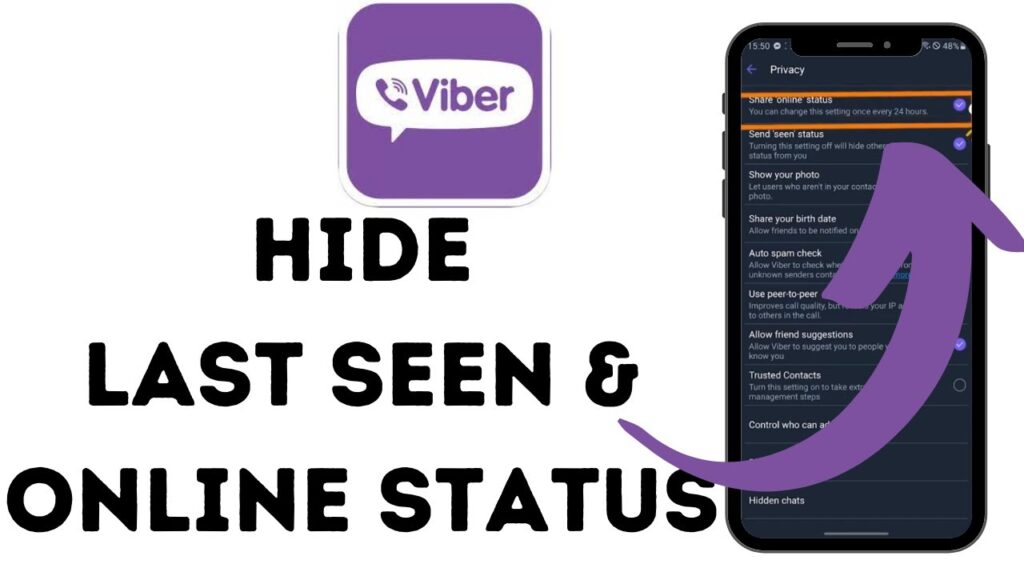
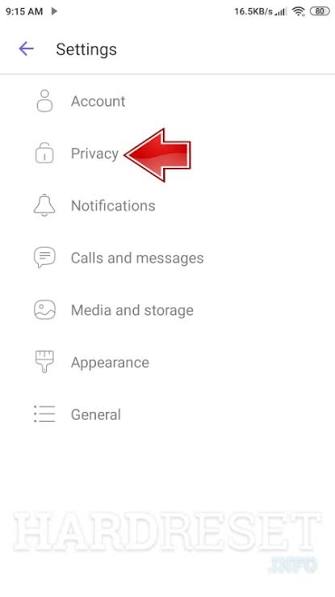
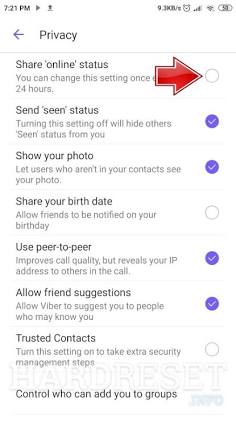
To turn off your online status on Viber, open the app and tap More (…) > Settings > Privacy. Uncheck or toggle off “Share ‘Online’ Status”. Keep in mind that Viber only allows you to change this setting once every 24 hours, and hiding your status also prevents you from seeing when other contacts are online.
We have all been there: you open an instant messaging app like Viber late at night just to check a quick work notification or review a group chat, and suddenly three different contacts spot your “Online” tag and start firing questions at you. Sometimes you just need to drop off the grid, catch up on messages without the pressure of responding immediately, or maintain strict boundaries between your personal life and professional communication.
In this guide, I will walk you through the exact steps to manage your privacy settings, hide your “Online” indicator across iOS, Android, and desktop devices, and share a few critical traps to avoid so you don’t lock yourself out of your settings when you need them most.
Why Viber’s Online Status Rules Trip Up Most Users
If you have ever tried toggling your privacy settings on other platforms like WhatsApp or Telegram, you might assume Viber works the exact same way. It doesn’t. Viber handles user activity indicators with a specific set of strict rules designed to prevent continuous toggling.
The 24-Hour Cooldown Rule
The biggest catch—and the mistake I see users make constantly—is failing to notice the 24-hour limit. Once you switch off “Share ‘Online’ Status”, Viber locks that setting. You cannot turn it back on for at least 24 hours.
During an internal workflow review with our remote ops team last year, one of our project managers turned off her status before a client presentation to avoid distractions. When she tried to turn it back on an hour later for an active launch call, she was stuck offline for the rest of the day, causing unnecessary confusion about her availability.
The Two-Way Privacy Mirror
Just like the “Seen” status (read receipts), hiding your online activity operates on a strict reciprocity system:
-
If you hide your status: You cannot see the online status of any of your contacts.
-
If others hide their status: You won’t see theirs, even if your own status remains public.
Step-by-Step: How to Turn Off Online Status on Mobile (iOS & Android)
The interface for turning off your online status is virtually identical across both iOS and Android. Follow this step-by-step walkthrough to update your settings:
If you regularly use customized visual elements or media inside your chats, tweaking your status settings won’t impact other personalization features. You can still customize your conversations fully—for example, if you want to make your chat windows stand out, check out this guide on how to create and use custom fonts in Viber chats to keep your messaging experience unique without compromising your privacy.
Managing Online Status on Viber Desktop
A common source of confusion is trying to locate privacy toggles directly within the Viber Desktop app on Windows or macOS.
Here is the reality: You cannot change your online status setting from the Viber desktop application.
[ Mobile App Settings ] ---> Controls Privacy State Globally ---> [ Desktop & Tablet Sync ]
Viber treats your mobile device as the primary account authority. Any privacy rule set on your phone automatically syncs across all desktop and tablet instances connected to that account. If you turn off “Share ‘Online’ Status” on your phone, your desktop application will automatically reflect that offline state.
Mobile vs. Desktop Privacy Controls Comparison
To clear up what can and cannot be configured across platforms, here is a breakdown of Viber’s privacy settings by device:
| Feature / Setting | Mobile App (iOS / Android) | Desktop App (Win / Mac) | Sync Behavior |
| Turn Off Online Status | Full Control (1x per 24h) | View-Only / Managed via Mobile | Instant global sync |
| Turn Off Read Receipts (‘Seen’) | Full Control | Managed via Mobile | Instant global sync |
| Block / Unblock Contacts | Full Control | Full Control | Syncs across devices |
| Screen Sharing & Annotations | Full Support | Full Support | Active session dependent |
If you frequently conduct business meetings or troubleshooting sessions via desktop, you might also be using collaborative tools during active calls. For a complete walk-through on managing interactive calls, take a look at this step-by-step guide on how to use shared screen annotations on Viber to boost your desktop meeting efficiency.
Advanced Viber Privacy Rules: Status vs. Read Receipts
Hiding your online status is only one layer of communication privacy. To go completely under the radar on Viber, you should combine it with managing your read receipts and secret chat features.
“Online Status” vs. “Seen Status”
Many users confuse hiding their online status with turning off read receipts. Here is the difference:
-
Share ‘Online’ Status: Controls whether contacts can see a green dot or the text “Online” under your name when you open the app.
-
Send ‘Seen’ Status: Controls whether senders get a double purple checkmark indicating you opened and read their message.
If you turn off your online status but leave “Send ‘Seen’ Status” ON, people won’t see you browsing the app, but as soon as you open their message thread, they will know you read it. For total ghost mode, turn both switches OFF inside the Privacy menu.
SOP Checklist for Maximum Viber Privacy
Before closing the app and stepping away, run through this quick checklist to ensure your privacy settings match your current needs:
-
[ ] Check the clock: Ensure you won’t need to turn your online status back ON within the next 24 hours.
-
[ ] Toggle ‘Share Online Status’ to OFF: Completed via More > Settings > Privacy.
-
[ ] Toggle ‘Send Seen Status’ to OFF: (Optional) Turn off read receipts if you don’t want contacts knowing when you read incoming texts.
-
[ ] Disable ‘Auto-Download Media’: Prevent unwanted images or files from saving to your phone storage automatically when reading messages quietly.
-
[ ] Verify desktop sync: Ensure your Viber desktop client is connected so the privacy rules carry over instantly.
For more official privacy documentation and security standards, you can review Viber’s Official Security & Privacy Whitepaper or consult the comprehensive guidelines on online privacy provided by the Electronic Frontier Foundation (EFF).
FAQ (Frequently Asked Questions)
Q1: Can I turn off my online status for specific contacts only on Viber?
A: No. Viber does not currently support selective online status hiding for individual contacts. The setting is global: it applies to everyone in your contact list or nobody at all. If you want to prevent a specific person from seeing your activity entirely, your only option is to block that specific contact.
Q2: Why can’t I turn my Viber online status back on right away?
A: Viber enforces a strict 24-hour limit on changing your online status setting to prevent server strain and reduce continuous toggling. Once you turn the setting on or off, you must wait exactly 24 hours before the toggle becomes interactive again.
Q3: Will hiding my online status also hide when I was ‘Last Seen’?
A: Yes. When you disable Share ‘Online’ Status, Viber removes both the real-time “Online” indicator and your historical “Last Seen at [Time]” timestamp. Contacts will simply see no status information beneath your name.
Q4: Can people still call me on Viber if my online status is turned off?
A: Yes. Turning off your online status does not block incoming messages or voice/video calls. Your phone will still ring as normal when someone contacts you, provided your notifications and internet connection are active.