
📅 Last Updated: 26 8 月, 2026 (Published: 24 8 月, 2026)
✅ Reviewed by: Viber.im Editorial Team
Viber does not have an in-app predictive text toggle because it relies entirely on your device’s native keyboard engine. To enable and train predictive text for Viber, you must turn on Predictive Text/Auto-Correction inside your iOS or Android System Keyboard Settings. Once enabled at the OS level, your personal dictionary will automatically adapt as you type inside Viber.
I was messaging a client last month when my phone’s auto-correct silently changed a critical project deadline from “EOD Tuesday” to “End of Tragedy.” That cringe-worthy moment forced me to audit every messaging app on my phone—starting with Viber.
If you’ve been digging through Viber’s settings menu looking for a “Predictive Text” toggle switch, I have a quick reality check for you: Viber does not process keystrokes or train its own proprietary language model on your typing history. Because Viber uses end-to-end encryption, it defers all text input, word prediction, and auto-learning directly to your phone’s operating system keyboard (like Gboard, iOS QuickType, or SwiftKey).
How Viber Handles Predictive Text Under the Hood
Many users assume Viber acts like search engines or social networks that log user input to improve predictions. In reality, Viber’s architecture keeps your messaging interface isolated from keyboard telemetry for privacy reasons.
[User Typing in Viber]
       │
       ▼
[System Keyboard (iOS QuickType / Gboard / SwiftKey)]
       │
       ├── Reads local dictionary & user typing history
       └── Generates real-time word suggestions
       │
       ▼
[Text Rendered into Viber Chat Box]
When you type a message, Viber simply provides an active text input field. Your system keyboard intercepts your taps, runs them through its local machine learning models, and suggests the next word above the keys.
Native OS vs. Third-Party Keyboards in Viber
| Feature / Capability | iOS QuickType | Android (Gboard) | Third-Party (SwiftKey) |
| Next-Word Prediction | Excellent (Local ML) | Superior (Google AI) | Excellent (Contextual) |
| Learns Custom Slang | Yes (Saves to user dictionary) | Yes (Dynamic learning) | Yes (Cloud sync option) |
| Multi-Language Support | Auto-switches via keyboard layout | Simultaneous typing (up to 3) | Seamless multi-lingual |
| Viber App Integration | Native API | Native API | Native API |
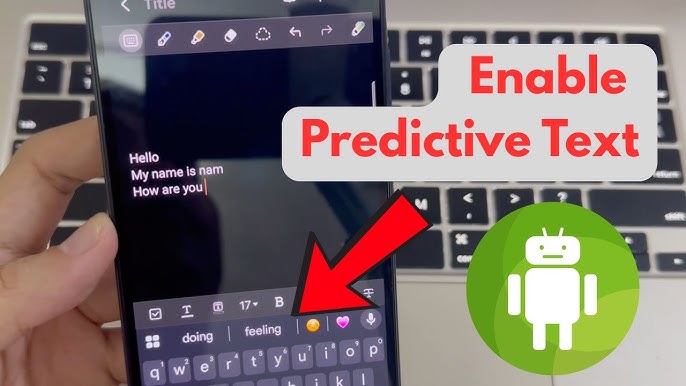
Step-by-Step: Enabling & Training Predictive Text for Viber
Since predictive learning operates at the OS level, configuring it requires adjusting your phone’s keyboard settings.
Option A: Enabling Predictive Text on iOS (iPhone/iPad)
-
Open your iPhone Settings.
-
Navigate to General -> Keyboard.
-
Toggle ON Auto-Correction and Predictive.
-
(Optional) Turn ON Check Spelling to catch typos before sending.
Pro Tip: To teach iOS new industry jargon or shorthand without waiting for the neural net to learn it, go to Text Replacement in the same menu and add your shortcuts manually.
Option B: Enabling Predictive Text on Android (Gboard Default)
-
Open Settings on your Android device.
-
Go to System -> Languages & input -> On-screen keyboard -> Gboard.
-
Tap Text correction.
-
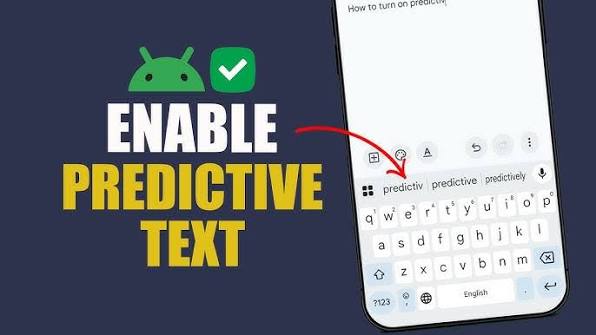
Enable Show suggestion strip and Next-word suggestions.
-
Ensure Predictive content search and Personalized suggestions are toggled ON so Gboard adapts to your vocabulary.
Once enabled, launch Viber, open a chat, and test your keyboard. The suggestion bar will now populate above your keys as you type.
Troubleshooting Broken Auto-Correct & Incorrect Predictions in Viber
If your predictions suddenly stop working or Viber keeps autocorrecting custom names into gibberish, use this quick SOP checklist to fix the problem.
SOP Troubleshooting Checklist
- [ ] Verify Keyboard Layout: Make sure your active keyboard language matches the language you are typing in Viber.
- [ ] Reset Keyboard Dictionary: If your keyboard learned misspelled words, go to
Settings -> General -> Transfer or Reset iPhone -> Reset -> Reset Keyboard Dictionary(iOS) orSettings -> Apps -> Gboard -> Storage -> Clear Data(Android). - [ ] Check App Permissions: Ensure Viber isn’t running under a restricted sandbox or “Private Space” profile that blocks keyboard extensions.
- [ ] Test Gesture Typing: If swipes aren’t registering properly while navigating chats, review our guide on how to use Viber’s gesture-based navigation to master hidden swipes and shortcuts for layout optimization.
- [ ] Check Session Security: If you suspect strange keyboard lag or account anomalies, check your active sessions using our walkthrough on how to manage Viber’s device verification history and active sessions.
For official details regarding iOS keyboard extensions and predictive input APIs, review the Apple iOS Human Interface Guidelines on Keyboards. Android developers and power users can inspect the Android Developers Input Method Framework Guide to understand how text prediction pipelines interact with secure messaging apps. You can also visit the Viber official website for more device configuration tips.
FAQ
Q1: Does Viber read or store my custom keyboard dictionary?
No. Viber operates under strict end-to-end encryption for all messages, calls, and shared media. The custom words, slang, and contact names stored in your keyboard dictionary remain on your physical device (or in your encrypted personal cloud account if you sync Gboard or SwiftKey across devices).
Q2: Why are my word predictions working in other apps but not inside Viber?
This usually indicates a conflict between your third-party keyboard extension and Viber’s input field. Try switching back to your device’s stock keyboard (iOS QuickType or default Android Keyboard) to see if the issue persists. Alternatively, force-closing Viber and clearing your app cache often resolves temporary input rendering glitches.
Q3: How do I remove a wrongly learned word from showing up in Viber?
When the incorrect word appears in the prediction bar above your keyboard while typing in Viber, long-press (tap and hold) the suggested word. On Android/Gboard, a trash icon will appear—drag the word to the trash to unlearn it. On iOS, tapping “Unlearn” or removing it from
Settings -> General -> Keyboard -> Text Replacement will remove it from future suggestions.