
📅 Last Updated: 10 8 月, 2026
✅ Reviewed by: Viber.im Editorial Team
Viber’s gesture-based navigation combines native operating system touch inputs with application-specific shortcuts to streamline chat management and media capture. On your chat list, swipe right on iOS or tap and hold on Android to pin, mute, or mark messages as unread instantly. Inside chat windows, hold and drag the camera or voice recorder icon upward or sideways to lock hands-free recording or adjust live video zoom.
When our team migrated a portion of our remote ops and client communications over to Rakuten Viber, we initially spent far too much time clicking through secondary settings panels just to pin active discussions or manage media files. Modern messaging platforms are designed for fluid, physical navigation—yet most users never move beyond basic tapping.
Unlike standalone apps that build non-standard gesture overlays, Viber leans heavily on standard platform conventions. Whether you are navigating through the central Viber communication hub, managing group threads, or sending voice notes on the fly, mastering these hidden touch controls will save you hours of screen-friction over time.
Understanding Viber’s Core Gesture Architecture
Before touching your screen, it helps to understand how Viber handles touch inputs. Viber divides touch interactions into three main layers:
-
Inbox-Level Swipes: Quick touch actions executed directly on individual conversation rows in your primary chat list.
-
In-Chat Media Controls: Touch-and-drag mechanics integrated into the camera view and audio recording triggers.
-
OS-Level Gesture Compatibility: How device-wide back-swipes and system navigation bars interact with Viber’s internal screen stack.
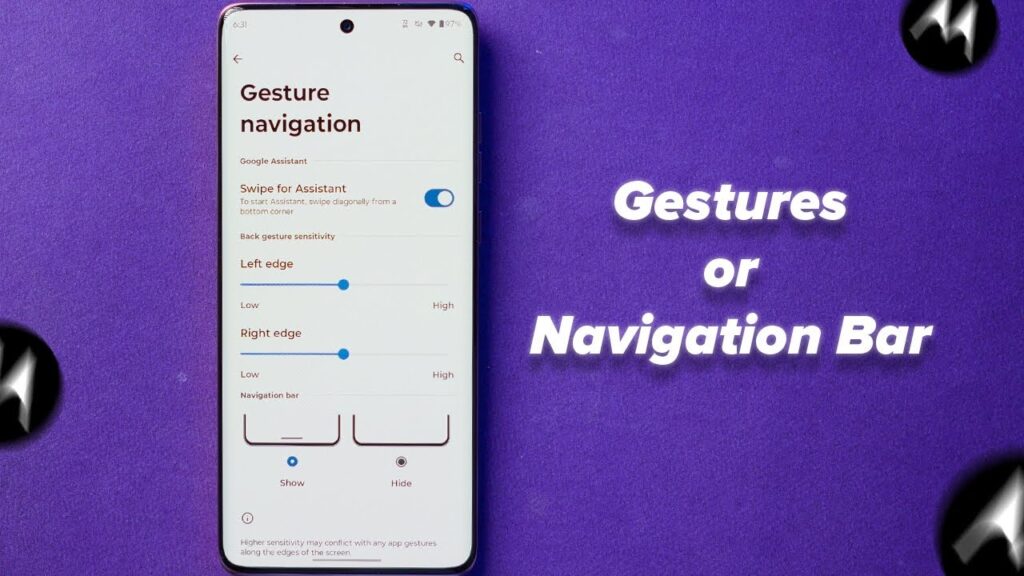
A common pain point occurs when in-app gestures conflict with native mobile operating systems. Developers must build apps that respect OS-wide edge swipes—a design standard detailed in the official Android Gesture Navigation Guidelines. Understanding this balance prevents accidental back-navigation while trying to invoke app features.
Inbox & Chat List Gestures (Quick Actions)
Your chat inbox is where most navigation overhead accumulates. Accessing individual chat settings menus for routine organization is inefficient when swipe shortcuts are available.
Platform Breakdown: iOS vs. Android
| Action | iOS (iPhone / iPad) | Android Devices |
| Mark as Unread | Swipe Right on chat thread | Long-tap thread $\rightarrow$ Select Mark as unread |
| Pin to Top | Swipe Left $\rightarrow$ Tap Pin | Long-tap thread $\rightarrow$ Select Pin to top |
| Mute Notifications | Swipe Left $\rightarrow$ Tap Mute | Long-tap thread $\rightarrow$ Select Mute chat |
| Delete / Archive | Full Swipe Left or Swipe Left $\rightarrow$ Delete | Long-tap thread $\rightarrow$ Select Delete |
Real-World Troubleshooting Note: During a busy campaign deployment, our team noticed that swipe inputs occasionally failed to register on Android devices with custom UI skins (such as Samsung One UI or Xiaomi HyperOS). On Android, Viber defaults to contextual long-press menus rather than horizontal list swipes to avoid edge-swipe conflicts with system gesture bars.
For users managing corporate or multi-device workflows, pairing these chat list shortcuts with clean session controls is essential. To secure your account across mobile and desktop environments, review our guide on how to manage Viber’s device verification history and active sessions.
In-Chat Media & Camera Controls
Media transmission offers some of Viber’s best gesture capabilities. Instead of relying on static buttons, the media interface supports dynamic drag vectors:
[ Hold Recording Button ] ---> Drag Left / Up ---> [ Lock Hands-Free Recording ]
[ In-App Camera View   ] ---> Pinch In / Out   ---> [ Adjust Optical / Digital Zoom ]
[ Media Button Toggle  ] ---> Swipe Horizontal ---> [ Switch Audio <-> Video Note ]
-
Hands-Free Audio/Video Recording: Press and hold the voice or video note icon, then drag your finger upward or to the left toward the lock symbol. This locks the microphone on, allowing long-form recording without continuous screen pressure.
-
Vertical Camera Zoom: While holding the capture button in Viber’s native camera view, slide your finger upward to zoom in smoothly and downward to pull back out.
-
Instant Mode Switching: Tap the circular microphone or camera icon at the bottom right of the input bar to toggle between audio messaging and instant video clips instantly.
To safeguard valuable recordings and conversation media captured using these shortcuts, ensure your cloud retention settings are updated using our step-by-step guide to setting up Viber automated backups to Google Drive and iCloud.
System Navigation & Gesture Conflicts
Both iOS and Android have migrated away from physical or persistent software buttons in favor of edge gestures. Following standard user experience rules outlined in Apple’s Human Interface Guidelines for Gestures, intuitive apps should support fluid horizontal edge dragging to step backward through navigation stacks.
-
Swipe to Go Back: On both platforms, dragging your finger inward from the left screen edge anywhere inside an open chat returns you directly to your main inbox.
-
Pull to Search: Swiping downward on the primary chat list forces a refresh and exposes the global search bar for quick query entry.
Master Viber Navigation in 5 Steps
-
[ ] Inbox Practice: Open Viber and test swiping right (iOS) or long-pressing (Android) on three old threads to mark them read/unread.
-
[ ] Pin Top Threads: Lock your 3 most critical team or family chats to the top of your list using quick-action shortcuts.
-
[ ] Voice Lock Test: Open a test chat, hold the microphone button, and slide left/up to lock hands-free recording mode.
-
[ ] Camera Zoom Test: Launch the in-app camera, hold the shutter button, and slide your thumb upward to test one-handed camera zoom.
-
[ ] Edge Navigation: Practice swiping inward from the left screen edge to exit a chat window without pressing the back arrow.
FAQ: Common Questions About Viber Gestures
Can I rebind or customize swipe actions inside Viber?
No. Viber relies on standardized app-level touch pathways and does not offer a custom input remapping menu. Swipe behavior is determined by whether you are using iOS or Android.
Why does swiping from the edge close my chat instead of scrolling?
Swiping too close to the outer bezel triggers your phone’s operating system back gesture (iOS back swipe or Android gesture bar). To scroll horizontally or access in-app sliders, start your drag motion slightly further inward from the screen border.
How do I quickly reply to a specific message using touch inputs?
To reply to a specific message within a thread, tap and hold the message bubble until the contextual menu appears, then tap Reply. On supported iOS builds, a quick rightward swipe directly on the target message bubble will instantly quote it in your text bar.