
📅 Last Updated: 6 8 月, 2026
✅ Reviewed by: Viber.im Editorial Team
Rakuten Viber links your primary phone number to your mobile device and allows secondary devices (PCs, tablets) to sync. Managing your device verification history involves:
-
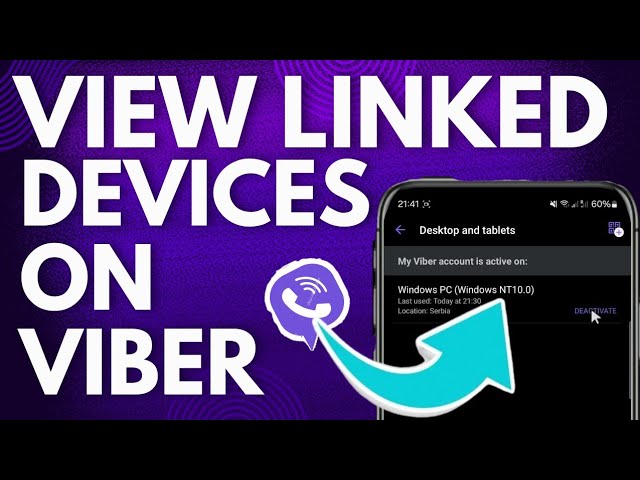
Managing Linked Devices: Go to More > Settings > Account > Desktop and Tablets to view all active sessions and disconnect unneeded devices.
-
Managing Encryption Keys: Go to More > Settings > Privacy > Trusted Contacts to verify end-to-end encryption keys or clear untrusted contacts.
-
Securing Verification: Enable 2-Step Verification (PIN) under Settings > Privacy to stop unauthorized device activations.
Maintaining control over where your Viber account is logged in is essential for personal privacy and cybersecurity. Viber uses your primary mobile phone number as the core account identifier and allows you to link secondary devices like Windows PCs, Macs, iPads, or Android tablets.
If you have upgraded your hardware, logged in on a shared work computer, or suspect unauthorized access, checking your active session list and verification keys allows you to instantly revoke access to any secondary device. To learn more about official security configurations and account features, you can refer to the official Rakuten Viber Support Documentation.
Below is a complete guide on inspecting active devices, deactivating old logins, and securing your verification history.
Viewing and Deactivating Linked Devices
Viber allows you to manage secondary devices (desktops and tablets) directly from your primary mobile app.
Steps to Review Active Sessions:
-
Open the Viber app on your primary smartphone.
-
Tap the More icon (three dots / menu at the bottom right).
-
Select Settings $\rightarrow$ Account.
-
Tap Desktop and Tablets.
How to Remotely Disconnect a Device:
-
Under Desktop and Tablets, you will see a list of all computers and tablets currently linked to your account.
-
If you see an unrecognized device or an old PC you no longer use, tap Deactivate next to that device.
-
Confirm your action. Once deactivated, all local chat history on that secondary device will be cleared, and it will be logged out immediately.
[Viber App] ➔ More ➔ Settings ➔ Account ➔ Desktop and Tablets ➔ Select Device ➔ Deactivate
Note: Your primary smartphone is the master device. You cannot deactivate your primary phone from a desktop; you can only manage secondary devices from your main smartphone.
Managing End-to-End Encryption & Trusted Contacts
Viber utilizes end-to-end encryption for 1-on-1 chats and calls. When you or a contact reinstall Viber or switch to a new phone, the unique encryption keys change, affecting device verification status. To understand broader digital rights and messaging security standards, you can review the Privacy International Guide on Viber Security Practices.
Checking Trusted Verification Keys:
-
When you verify a contact via a voice call, a secret key is generated.
-
A green shield indicates a verified, trusted contact connection.
-
A red shield indicates that the contact’s device key has changed (which happens when they buy a new phone or reinstall the app).
Clearing or Updating Trusted Contacts:
-
Open Viber on your phone.
-
Go to More > Settings > Privacy.
-
Tap Trusted Contacts.
-
To remove an outdated key or clear a contact whose device changed, tap Clear trusted contacts and select the specific contact to reset their verification status.
Strengthening Device Security with 2-Step Verification
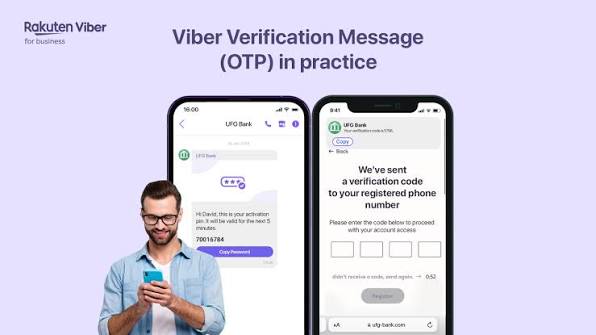
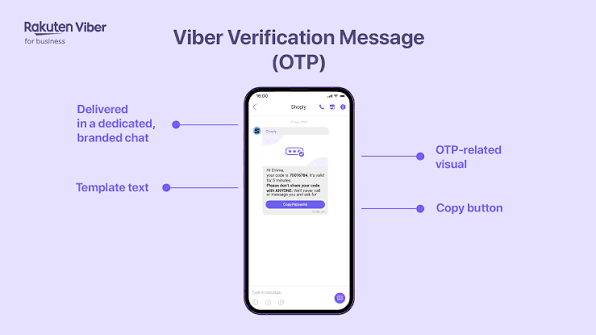
To prevent someone from activating your Viber number on a new phone using an intercepted SMS code, you should enable 2-Step Verification.
Steps to Set Up a Security PIN:
-
Open Viber and tap More > Settings.
-
Select Privacy > 2-Step Verification.
-
Create a 6-digit PIN and confirm it.
-
Provide a recovery email address to unlock your account if you ever forget your PIN.
With 2-step verification enabled, entering a PIN will be required whenever a new device attempts to activate or link your Viber account.
Account Security & Verification Summary
| Feature / Setting | Navigation Path | Purpose |
| Desktop & Tablets | Settings > Account > Desktop & Tablets |
View active sessions and remotely disconnect secondary devices |
| 2-Step Verification | Settings > Privacy > 2-Step Verification |
Require a 6-digit PIN for new device activations |
| Trusted Contacts | Settings > Privacy > Trusted Contacts |
Manage device-level encryption verification keys |
| Chat Backup | Settings > Account > Viber Backup |
Protect chat history when transferring to new hardware (See Viber Automated Backups Guide) |
Security Check SOP
Before giving away an old computer or switching smartphones, complete this verification checklist:
-
[ ] Audit Linked Devices: Remove all inactive PCs/tablets from Desktop and Tablets.
-
[ ] Backup Chat History: Perform a manual cloud backup prior to device migration.
-
[ ] Verify PIN: Ensure 2-Step Verification is active with an accessible recovery email.
-
[ ] Check App Features: Ensure your Viber app is updated to access security and interactive features (such as Viber’s Augmented Audio Effects).
-
[ ] Resource Hub: Explore tutorials on device management at the Viber official website.
Frequently Asked Questions (FAQ)
Q1: Can someone use my Viber account on another phone without my knowledge?
A: Viber only allows one active mobile phone per account. If someone activates your phone number on another smartphone, your current phone will be automatically logged out. However, they cannot activate it without receiving an SMS code sent to your SIM or entering your 2-Step Verification PIN.
Q2: What happens when I deactivate a desktop from my phone?
A: The secondary device is instantly logged out, and its local Viber cache is wiped. It cannot rejoin your account without scanning the QR code on your primary phone again.
Q3: Why did my contact’s shield turn red?
A: A red shield means the encryption key for that chat has changed. This usually happens when your contact switches to a new device or reinstalls Viber. You can re-verify the contact by making a call and comparing security keys.