
How to Create Custom Viber Chat Themes: Dynamic Backgrounds & Group Styles (Step-by-Step)

2026年09月24日
📅 Last Updated: 24 9 月, 2026
✅ Reviewed by: Viber.im Editorial Team

1-on-1 & Group Chats: Open any conversation, tap the three dots (iOS) / gear icon (Android) to open Chat Info, select Background, and choose from Viber’s gallery, blur a photo, or upload your own image.

Viber Channels & Communities: Channel admins can set dedicated cover art and custom icons via the channel profile settings to maintain brand consistency.

Pro Tip: Use dark, subtle textures for text-heavy work groups to keep typography legible, and vibrant, high-contrast imagery for casual family or event chats.
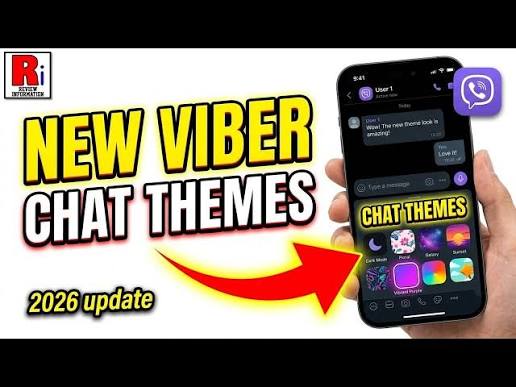
Create Viber themed chat rooms

I still remember the late-night group chat incident from last November. I accidentally sent a confidential budget spreadsheet meant for our internal marketing team straight into a rowdy, 50-person family group. The culprit? Both chats shared Viber’s stark, default white background, making them look identical when I was speed-scrolling under tight deadlines.

That embarrassing mishap forced our operations team to implement a strict visual hierarchy across all our Viber workspaces. Today, every group chat we manage features a distinct, color-coded custom theme.

Customizing your Viber chat rooms goes way beyond aesthetic flair. It is a critical productivity tool that prevents messaging blunders, establishes brand identity for business communities, and breathes fresh life into daily conversations. Here is how to master Viber’s chat customization tools, bypass common layout glitches, and craft custom backgrounds like a pro.

Why Customizing Viber Chat Themes Matters

Standard messaging interfaces are notoriously monotonous. When you handle dozens of client inquiries, team updates, and personal conversations in a single app, cognitive fatigue sets in fast.
[Default Uniform Chat UI] ➔ Visual Confusion ➔ High Risk of Missent Messages
[Custom Color-Coded Themes] ➔ Instant Visual Context ➔ Zero Cross-Chat Blunders
Customizing your chat backgrounds delivers three distinct advantages:
  1. Instant Visual Context: Assigning cool blue tones to work chats and warm, ambient colors to personal threads gives your brain an immediate cue where you are posting.
  2. Reduced Eyestrain: Overly bright default backgrounds can tire your eyes during long messaging sessions. Swapping them out for custom dark textures or ambient wallpaper makes extended reading much easier.
  3. Community Branding: For business owners running Viber Communities, a custom visual identity builds trust and makes your channel look polished and official.

Step-by-Step: Setting Custom Backgrounds for Individual & Group Chats

Whether you want to personalize a private 1-on-1 conversation or style a massive group thread, the underlying workflow is straightforward.

Method 1: Applying a Background to a Specific Chat

If you want a unique background for a single contact or group thread, follow this process:
  1. Open the target conversation in Viber on your mobile device.
  2. Access Chat Info:
    • iOS: Tap the contact/group name at the top, or tap the three dots (…) in the top-right corner.
    • Android: Swipe left from the right edge of the screen, or tap the gear icon in the top bar.
  3. Scroll down and select Background.
  4. Choose your image source:
    • Viber Gallery: Select from pre-loaded HD wallpapers.
    • Choose from Gallery: Pick a custom photo stored on your device.
    • Take Photo: Capture a fresh shot directly through the camera.
  5. Apply image filters:
    • Blur Effect: Toggle the blur slider to soften busy photos so overlaying text stays crisp.
    • Darken Filter: Apply an ambient dark overlay to ensure white chat bubbles stand out cleanly.
  6. Tap Save or Set Background.
Note: Custom backgrounds applied inside a 1-on-1 or group chat are client-side settings by default—meaning your change personalizes your view without altering the background on other participants’ screens.

Advanced Styling: Designing Professional Viber Communities & Channels

If you manage a Viber Community or Channel, visual branding isn’t just optional—it’s mandatory for engagement. Unlike standard group chats, admins can set default header graphics and icons that apply to all members.
+-----------------------------------------------------------------------+
|  [CHANNEL BANNER / COVER ART] (1100 x 650 px)                         |
|  High-contrast imagery, clear value proposition                       |
+-----------------------------------------------------------------------+
|  [ICON]  Channel Name                                                 |
|  512x512  Verified Badge (if applicable)                              |
+-----------------------------------------------------------------------+

 Header Banner & Cover Art

Upload an eye-catching cover photo that defines your channel’s purpose.
  • Ideal Dimensions: 1100 x 650 pixels.
  • Format: PNG or high-quality JPEG.
  • Design Tip: Keep essential text centered so it doesn’t get cropped on smaller smartphone displays.

Group Icon & Avatar

Your icon appears in every subscriber’s main chat list.
  • Ideal Dimensions: 512 x 512 pixels (1:1 square ratio, cropped to a circle).
  • Best Practice: Use a high-contrast logo or crisp icon rather than a complex photo.

Content Formatting & Link Previews
Viber formats external links automatically using OpenGraph meta tags. If you share articles or landing pages inside your themed group, bad link previews can instantly ruin the sleek look of your channel. To keep your chat feed clean and private, check out our detailed guide on how to manage Viber’s external link previews.

 Create Viber themed chat rooms

Desktop Syncing: Keeping Desktop & Mobile Themes In Sync

A common frustration among Viber power users is setting up a gorgeous background on mobile, only to open Viber for Desktop and see the default background again.
Viber syncs message logs across devices, but local theme preferences don’t always carry over automatically. To make sure your desktop workspace matches your mobile setup:
  1. Open Viber on Windows or Mac.
  2. Click the Gear icon (Settings) in the top-right corner.
  3. Navigate to Appearance.
  4. Under Set Default Background, drag and drop the exact image you used on your phone.
If you frequently jump between your desktop station and phone mid-conversation, seamless device transitions are essential. Learn how to optimize your multi-device workflow in our step-by-step guide on how to enable Viber’s seamless handover call and chat transfers between PC and mobile.

Design Checklist: Creating the Perfect Viber Background

Avoid picking wallpapers that make text impossible to read. Follow this checklist before locking in a custom theme:
  • [ ] Contrast Verification: Is text inside both sent (purple/dark) and received (white/light) chat bubbles easy to read?
  • [ ] Low Visual Noise: Avoid overly busy photos (like crowds or detailed maps) that clash with text bubbles.
  • [ ] Aspect Ratio Check: Did you use a portrait image (9:16) to prevent awkward stretching or cropping?
  • [ ] Compression Test: Is your image resolution clear without looking pixelated on high-DPI smartphone screens?
  • [ ] Dark Mode Adaptation: If you use system-wide dark mode, does the custom wallpaper blend nicely with dark UI elements?
Troubleshooting Common Viber Customization Issues

Issue 1: Custom Background Looks Pixelated or Stretched

Why It Happens: You used an image with a low resolution or an ultra-wide horizontal aspect ratio.
Fix: Crop your desired image to a 9:16 aspect ratio (e.g., 1080 x 1920 pixels) in your phone’s photos app before uploading it to Viber.

Issue 2: Background Disappears After App Update

Why It Happens: Major OS updates or app cache cleanups occasionally reset local preference files.
Fix: Re-apply the wallpaper through Chat Info. To prevent losing your favorite setups, save your preferred wallpapers into a dedicated “Viber Themes” folder in your photo library.

Issue 3: Text Is Unreadable Over a Bright Photo

Why It Happens: High-exposure photos wash out white text and chat bubble outlines.
Fix: Use Viber’s built-in Blur or Darken toggle inside the Background selection screen. Alternatively, edit the image beforehand using mobile editors like Snapseed or Lightroom to reduce brightness by 15–20%.

Create Viber themed chat rooms

FAQ

Q1: Does changing a group chat background change it for everyone else in the group?

No. Setting a custom background in a standard 1-on-1 or group chat only changes the visual layout on your local device. Other participants will continue seeing their own chosen background or Viber’s default wallpaper.

Q2: What is the best image resolution for custom Viber wallpapers?

For crisp rendering on modern smartphones, use an image resolution of 1080 x 1920 pixels (or a 9:16 aspect ratio). Higher-end displays render 1440 x 2560 pixels flawlessly without noticeable performance hits.

Q3: Can I set a global background for ALL my Viber chats at once?

Yes. Instead of changing backgrounds chat-by-chat, go to Viber’s main screen ➔ tap More (three lines) ➔ Settings ➔ Appearance ➔ Change Default Background. This applies your chosen graphic across all conversations that don’t have a specific chat background assigned.

Q4: How do I revert to Viber’s default original background?

Navigate to Chat Info (or global Appearance settings) ➔ tap Background ➔ select the Default option or tap Remove Background.
For more official technical specifications on image asset guidelines, you can consult the Viber Partner Developer Portal or review general UI typography best practices on the W3C Web Accessibility Initiative.
By spending just a few minutes setting up visual themes, you can turn Viber from a plain messaging tool into a clean, well-organized workspace tailored to your daily workflow.
最新文章
How to Create Custom Viber Chat Themes: Dynamic Backgrounds & Group Styles (Step-by-Step)

1-on-1 & Group Chats: Open any conversation, tap ...

How to Enable Viber’s Seamless Handover: Transfer Calls & Chats Between PC and Mobile Instantly (2026 Guide)

Viber Seamless Handover allows live audio, video, and c...

How to Manage Viber’s External Link Previews? (2026 Privacy Guide)

Every time you drop a URL into a Viber chat, the app au...

How to Use Viber AI Chat Summarization: Step-by-Step 2026 Guide & Fixes

In a hurry? Here is the fast track: Open any Vib...

How to Turn Off Online Status on Viber? 2026 Guide to Hiding Your Offline Indicator!

To turn off your online status on Viber, open the app and...

How to Create and Use Custom Fonts in Viber Chats

Native custom font installation is not supported direct...