
📅 Last Updated: 21 9 月, 2026
✅ Reviewed by: Viber.im Editorial Team
Viber Seamless Handover allows live audio, video, and chat transfers between PC and mobile with one tap. To switch a live call: Ensure both desktop and mobile apps are signed into the same account, then tap the Transfer Call (phone icon with arrow) on the active call screen. The secondary device will ring instantly—accept it to shift the session without dropping audio.
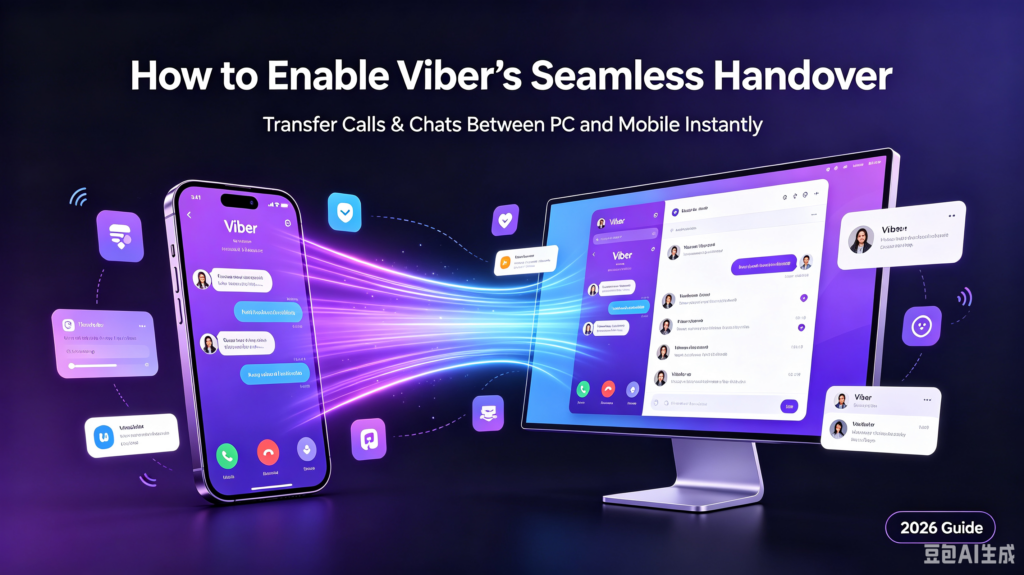
Viber Seamless Handover: Instant Call & Chat Transfer Between PC and Mobile
Picture this: You’re 20 minutes into an important client call on your desktop Viber app, discussing quarterly deliverables. Suddenly, your doorbell rings—it’s an urgent courier delivery—or you need to run out the door to catch a train. In the past, you had two bad options: awkwardly interrupt the client to call them back, or drag your heavy laptop across the house while risking bad Wi-Fi connection.
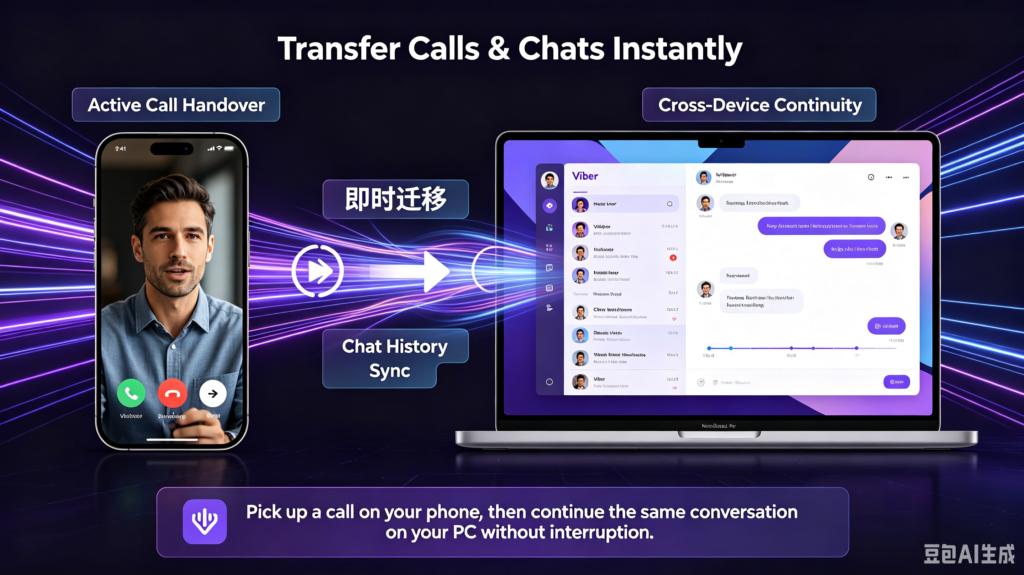
Viber’s Seamless Handover feature eliminates this exact friction point. It allows you to move active voice calls, video streams, and ongoing chat sessions between your mobile phone and desktop client instantly—in real time, with zero call drops, and without interrupting the person on the other end.
In this deep-dive guide, I’ll walk you through setting up and using Viber’s Seamless Handover, how to troubleshoot hidden sync glitches, and the exact step-by-step workflow our operations team uses daily to stay mobile without losing context.
Why Viber Seamless Handover Matters for Modern Workflows
Most cross-platform messaging tools claim to sync devices, but there’s a massive difference between synchronizing message logs and handing over a live state.
When you move a session using Viber Handover, you aren’t just opening the same app on a different screen. The network protocol dynamically hands off media packets (VoIP audio stream or video feed) from device A to device B while maintaining the encrypted channel end-to-end. For a technical deep-dive into how real-time VoIP protocols manage dynamic session handoffs and media packet routing under fluctuating bandwidth conditions, consult the IETF RFC 3261 (SIP: Session Initiation Protocol) Specifications.
[ Active Call / Chat Session ]
             │
             ├── Primary Device (PC)  ─────► Real-Time Handover Protocol
             │                                       │
             └── Secondary Device (Mobile) ◄─────────┘
Key Performance Benefits
-
Zero Audio Dropouts: The SIP/VoIP session re-routes packets dynamically during handoff.
-
Context Preservation: Chat buffers automatically refresh on the receiving device so you don’t lose typed drafts or media attachments.
-
Hardware Flexibility: Switch from your desktop setup with a high-end mic to mobile LTE instantly when moving around.
Technical Prerequisites & Setup
Before transferring calls or live sessions, ensure your workspace meets the baseline configuration requirements.
Hardware & Operating System Requirements
-
Mobile: Viber for iOS (v18.0+) or Viber for Android (v18.0+).
-
Desktop: Viber for Windows 10/11 or macOS (v18.0+).
-
Network: Both devices must have active internet connectivity (they do not strictly need to be on the same local Wi-Fi network, but local proximity speeds up local device discovery).
Device Pairing Verification
-
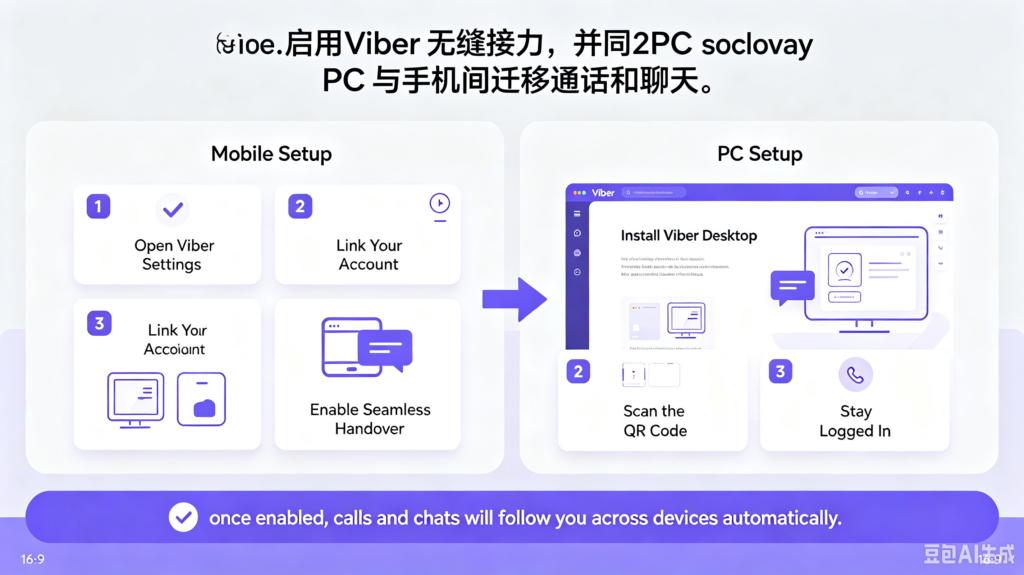
Open Viber Desktop.
-
Go to Settings (Gear Icon) > Account.
-
Verify that your mobile number matches your active smartphone Viber account.
-
Check Primary Device Status to ensure your phone is listed as the master key device. For step-by-step configuration policies regarding mobile primary node authorization, refer to the official Viber Knowledge Base & Setup Documentation.
Step-by-Step: How to Transfer Live Calls & Chats
Transferring an Active Voice or Video Call
Whether moving from PC to Mobile or Mobile to PC, the handoff process uses the same protocol anchor.
-
Initiate or Accept Call: Start your voice or video call on Device A (e.g., your Windows or Mac desktop).
-
Locate Handover Button: On the active call screen, look for the Transfer Call icon (resembles a smartphone with an arrow pointing to a monitor, or a transfer button on the top toolbar).
-
Trigger Handover: Click or tap Transfer Call.
-
Accept on Target Device: Your secondary device (e.g., your iPhone or Android phone) will vibrate and display a screen stating “Incoming Transferred Call”.
-
Tap Answer: The audio stream switches instantly. The primary device’s call window closes automatically once the handoff is complete.
[ Device A (PC): Active Call ] ──► Click "Transfer Call"
                                          │
                                          ▼
[ Device B (Mobile): Notification ] ──► Tap "Accept" ──► Audio Shifted
Switching Live Chat Context
If you are typing a long response on mobile and want to switch to your desktop keyboard:
-
Keep the chat open on your mobile app.
-
Launch or bring Viber Desktop to the foreground.
-
The desktop client reads the active session state from the primary device and automatically opens the active conversation thread at the top of your chat list.
-
Any unsent drafts typed on desktop will retain focus, letting you hit Enter seamlessly.
Real-World Field Notes: Lessons from the Trenches
During a major remote project rollout last year, our team ran into several real-world edge cases while testing cross-device workflows across 15+ remote setups. Here are two vital troubleshooting takeaways from actual operational failures:
Real-World Lesson 1: The Dual-Network NAT Traversal Trap
We had an account executive who frequently lost calls when walking out of the office while trying to transfer a desktop call to mobile. The issue was network transition. The desktop was on a strict corporate Wi-Fi (behind a double-NAT firewall), while the mobile phone was switching from Wi-Fi to 5G simultaneously.
-
The Fix: Trigger the Transfer Call button before disconnecting from the desktop’s network environment, or ensure your mobile phone is established on LTE/5G before accepting the transfer popup. Don’t attempt network handoffs and device handovers at the exact same split second.
Real-World Lesson 2: Micro-Latency in AI Summarization & Link Previews
When transferring heavy group chats with embedded media or automated summaries, bandwidth spikes can briefly delay chat synchronization. If you utilize advanced automation, such as reviewing Viber’s AI Chat Summarization features, keep in mind that the AI processing state runs on cloud buffers. Wait 2-3 seconds after transfer for summaries to re-anchor on your target device. Similarly, if your organization configures custom data restrictions, review how to manage Viber’s external link previews to prevent metadata caching failures during cross-platform session switching.
Comparison: Seamless Handover vs. Standard Call Relay
To understand how Viber handles real-time session transfers differently than legacy VoIP or traditional phone networks, review the breakdown below:
| Feature Dimension | Viber Seamless Handover | Traditional Bluetooth Relay | Call Forwarding (PSTN) |
| Transfer Time | < 500 ms (Instant) | 3 – 5 Seconds | 5 – 10 Seconds |
| Audio Re-negotiation | Dynamic Codec Switching | Fixed Audio Pipeline | Drops to Cellular Voice Quality |
| Video Stream Transfer | Yes (Keeps video state) | No (Audio only) | No |
| Data Continuity | Keeps active chat/file logs | None | None |
| Platform Scope | iOS, Android, PC, Mac | Local Hardware Only | Carrier-dependent |
Practical SOP Checklist for Viber Power Users
Use this checklist to ensure your desktop and mobile environments are fully optimized for instant, zero-drop call transfers:
-
[ ] App Version Check: Confirm both Desktop and Mobile apps are updated to the latest build.
-
[ ] Primary Device Binding: Verify Mobile app displays Desktop as an authorized active device under
Settings > Accounts > Desktop & Tablets. -
[ ] Microphone & Camera Permissions: Check that OS-level permissions for Microphone and Camera are set to “Always Allow” or “While Using App” on both ends.
-
[ ] Notification Settings: Ensure target device notifications are not suppressed by Focus Mode, Do Not Disturb, or Battery Saver Mode.
-
[ ] Network Stability: Confirm ping times under 100ms on active network connections to prevent SIP transfer timeouts.
Frequently Asked Questions (FAQ)
Q1: Does transferring a live call reveal my private phone number to external participants?
A: No. Viber Seamless Handover operates strictly within Viber’s encrypted VoIP protocol layer. The call session routing uses your internal Viber ID tokens, meaning your underlying phone number exposure settings remain unchanged during transfers.
Q2: Why is the “Transfer Call” button greyed out on my Viber desktop app?
A: This typically occurs if your primary mobile device is offline, unlinked, or running an outdated app version. Re-open Viber on your mobile device to establish an active socket connection with Viber’s sync servers, then try again.
Q3: Will transferring a video call consume double mobile data?
A: No. Once the target device accepts the call, the primary device terminates its socket connection and media stream instantly. Mobile data is only used by the device actively hosting the live call.
Q4: Can I transfer calls to an iPad or Android Tablet?
A: Yes, provided the tablet is linked as a secondary account under your primary smartphone number via the standard QR code setup process.
Next Steps for Viber Power Users
Mastering call handover is just one part of building a unified mobile-desktop communications workflow. If you want to optimize your entire setup, check out the Viber official website to stay updated on key platform updates, security standards, and power-user tips.