
Viber doesn’t have a native “Soundboard” tab, but you can stream custom meme sounds, audio effects, and clips directly into your Viber calls and voice messages on PC using a virtual audio routing tool (like Voicemod or VB-Audio Virtual Cable). On mobile, you can use floating soundboard apps alongside Viber’s voice recording feature. Follow our 4-step setup below to turn your Viber chats into an interactive sound station.
Why Viber Soundboards are Taking Over Group Chats in 2026
If you’ve spent any time in active Viber group chats recently, you’ve probably noticed that plain text and static emojis just don’t cut it anymore. Voice messaging and live audio calls have become the primary arena for banter, gaming sessions, and family catch-ups.
While Viber has continually upgraded its ecosystem—adding features like interactive stickers in polls—it still lacks a built-in soundboard engine.
Last month, during an online trivia night with our remote engineering team, we attempted to route custom applause and game-show buzzer sounds into a Viber group call. At first, holding a phone speaker up to the laptop microphone sounded like a muffled mess. After tinkering with virtual audio drivers on PC and background audio overlay apps on Android, we cracked the code for crystal-clear audio injection without lag or feedback loops.
Here is the exact blueprint to build and route your own custom Viber soundboard.
The PC & Desktop Setup (Best for Live Viber Calls)
If you use Viber Desktop on Windows or Mac, setting up a custom soundboard gives you real-time keybind control during calls.
Step 1: Install a Virtual Soundboard Engine
To pipe audio directly into Viber’s mic input, you need software that acts as both a soundboard player and an audio router.
-
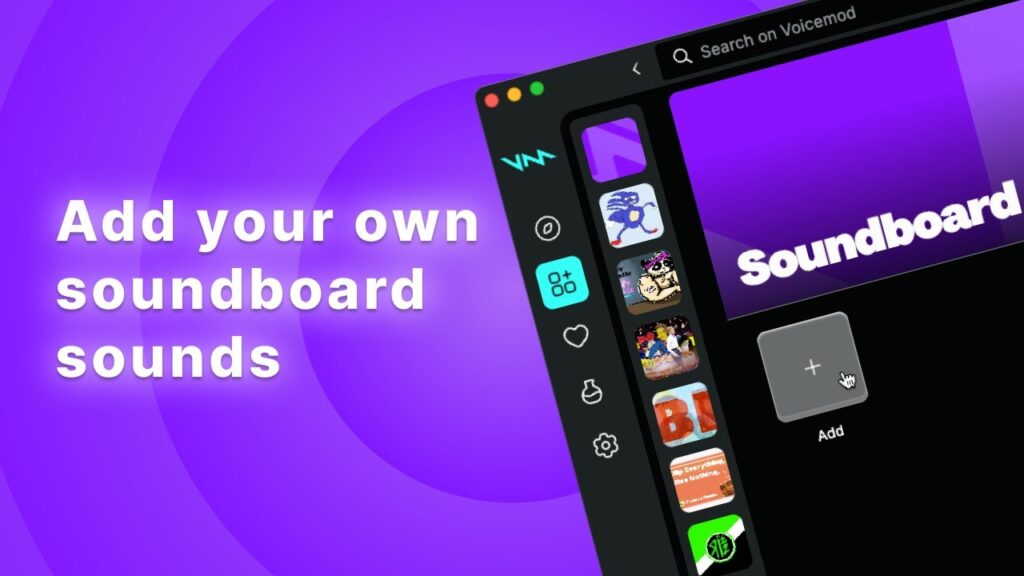
Option A: Voicemod (Recommended): Offers a built-in Soundboard matrix where you can assign hotkeys to custom
.mp3or.wavfiles. -
Option B: VB-Audio Cable + Soundpad / Open-Source Tools: A lightweight, highly customizable alternative. If you prefer open-source software, projects like Soundux on GitHub offer seamless audio routing to virtual sinks.
Step 2: Configure Virtual Audio Routing
To make Viber hear your soundboard without looping your ambient room noise into a terrible feedback frenzy:
-
Ensure your virtual audio cables are properly configured in your system OS (see Microsoft’s official Windows Audio Device guide).
-
Open Viber Desktop and click the Gear Icon (Settings) in the top right.
-
Select Audio & Video.
-
Under Input Device (Microphone), change the default mic to Voicemod Virtual Audio Device (or CABLE Output if using VB-Audio Cable).
-
In your soundboard application, ensure your primary microphone is selected as the input source, and the virtual cable is set as the output.
[ Your Mic ] ──┐
               ├──> [ Soundboard Software ] ──> [ Viber Desktop Input ]
[ SFX Clips ] ─┘
Pro Tip / Real-World Bug Fix: If your friends complain that soundboard audio sounds muted or truncated, disable Viber’s native noise suppression in settings. Viber’s AI noise cancelation sometimes misidentifies crisp meme sound effects (like air horns or high-pitched laughs) as background noise and silences them.
The Mobile Setup (Android & iOS)
Playing soundboard clips during Viber calls on mobile requires slightly different workarounds due to OS background audio restrictions.
For Android Users
-
Download a floating overlay soundboard app like Custom Soundboard Creator.
-
Grant the app “Display over other apps” permission.
-
Open Viber and start your voice call or prepare to send a voice note.
-
Tap the floating audio button on your screen to trigger clips instantly while speaking.
For iOS Users
Due to iOS sandboxing, live audio injection into active cellular or VoIP calls requires hardware assistance (like a dual-jack audio adapter connected to a secondary playback device) or sending pre-trimmed audio snippets as files within the chat window.
Comparing Soundboard Setup Methods for Viber
| Feature / Criteria | Desktop + Virtual Cable (Voicemod/Soundpad) | Mobile Floating Overlay (Android) | Hardware Audio Mixer |
| Audio Quality | Crisp / Lossless Digital | Good (via Mic Pickup) | Professional / Studio |
| Setup Complexity | Moderate (5-10 mins) | Easy (2 mins) | High (Requires Hardware) |
| Best For | Desktop Calls & Streaming | Casual Voice Notes & Groups | Podcasting / Live Shows |
| Cost | Free to Low Cost | Free | $50 – $150+ |
SOP Checklist: Your Viber Soundboard Rollout
Before jumpstarting your next group call, go through this practical checklist to ensure zero technical glitches:
-
[ ] Audio Formats Prepared: Ensure all sound clips are formatted in MP3 or WAV (keep clips under 15 seconds for maximum impact).
-
[ ] Volume Normalization: Normalize all audio files to -3 dB using free software like Audacity so one clip isn’t whisper-quiet while another blows out your friends’ ears.
-
[ ] Viber Mic Input Verified: Double-check that Viber Desktop points to the Virtual Audio Device.
-
[ ] Noise Suppression Adjusted: Turn off aggressive background noise filters inside Viber settings if clips sound distorted.
-
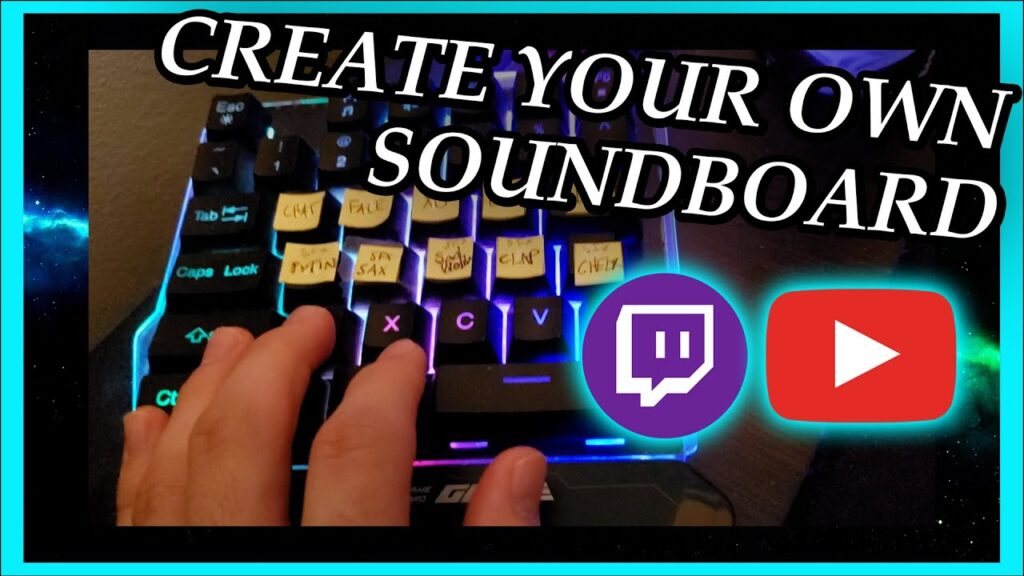
[ ] Hotkey Mapping: Map 4-6 primary reaction sounds (e.g., Laugh Track, Cricket, Drumroll, Airhorn) to unused Numpad keys (
Num 1,Num 2, etc.). -
[ ] Security & Privacy Checked: Verify your app permissions and review your Viber Privacy Dashboard settings to keep your account safe while using third-party integrations.
FAQ: Frequently Asked Questions
Can Viber detect or ban me for using a custom soundboard?
No. Virtual audio cables simply present themselves to Viber as standard hardware microphones. As long as you aren’t spamming or violating terms of service in public channels, using a soundboard is 100% safe.
Why can’t my friends hear the soundboard during a Viber call?
This usually happens if Viber is still selected to your physical headset mic instead of the virtual audio driver. Go to Settings > Audio & Video in Viber Desktop and confirm the Input Device is explicitly set to your soundboard’s virtual cable output.
Can I create a custom soundboard using official Viber tools?
Currently, Viber does not have an official native soundboard tab built into the app. However, you can explore the official Viber homepage for the latest desktop client updates, as new audio features are frequently added to the roadmap.
Final Thoughts
Adding a custom soundboard setup to Viber changes the whole dynamic of group chats, live gaming calls, and casual banter. By routing audio correctly through a virtual cable on PC or utilizing floating apps on mobile, you get crystal-clear audio playback with instant keybind triggers. Pick your preferred method, normalize your audio clips, and take your Viber calls to the next level today!