
To access Viber’s Privacy Dashboard, open the app, navigate to More (…) -> Settings -> Privacy, and tap Privacy Dashboard. From there, you can inspect app permissions, audit active sessions, manage end-to-end encryption keys, and limit data collection in under two minutes.
Why Viber’s Privacy Dashboard Matters for Your Digital Security
If you have been using messaging apps for a while, you know that managing app permissions used to be a nightmare. You had to jump between phone system settings and app menus just to see who had access to your data.
Viber’s Privacy Dashboard consolidates every permission, encryption status, and data-sharing toggle into a single, clean interface. Whether you want to audit which devices are logged into your account or restrict background data collection, the Privacy Dashboard is your central control tower.
How to Enable and Access Viber’s Privacy Dashboard (Step-by-Step)
The Privacy Dashboard is built directly into the client across Android and iOS platforms. Here is how to locate and configure it:
[Open Viber App] ---> [Tap 'More' (...)] ---> [Select 'Settings'] ---> [Choose 'Privacy'] ---> [Open 'Privacy Dashboard']
Step 1: Open Settings
Launch the Viber app on your primary mobile device. Tap the More icon (three dots) located at the bottom right corner of the screen, then select Settings.
Step 2: Navigate to Privacy
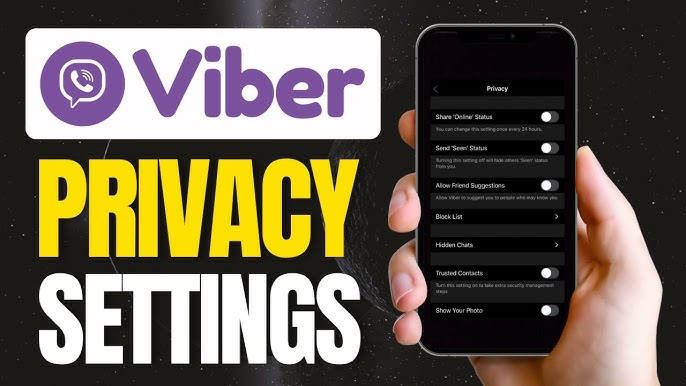
Inside the Settings menu, tap Privacy. This section houses all security protocols, including peer-to-peer call toggles, hidden chats, and block lists.
Step 3: Launch Privacy Dashboard
Tap Privacy Dashboard near the top of the menu. If prompted, confirm your identity using biometric authentication (Face ID or fingerprint scanner).
Core Features You Should Configure Right Away
Once inside the Privacy Dashboard, take a few minutes to audit these critical privacy controls:
| Setting | Recommended Configuration | Why It Matters |
| Peer-to-Peer Calls | Enabled (for trusted contacts) | Direct connections improve audio quality but expose IP addresses. |
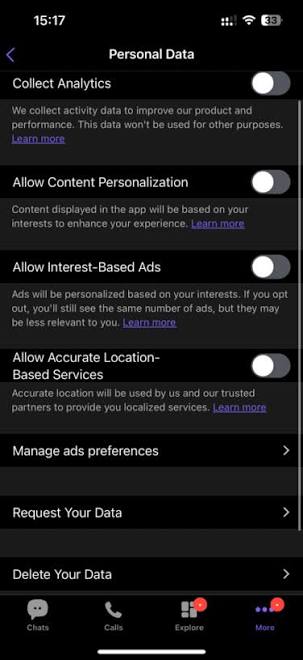
| Personal Data Analytics | Disabled | Prevents usage metrics from being processed for targeted offers. |
| App Permission Audit | Review Camera & Location | Shows exactly when Viber accessed system resources. |
| Active Sessions | Terminate unknown devices | Instantly logs out unauthorized desktop or tablet sessions. |
Auditing System Permissions
The dashboard breaks down resource usage over the past 7 to 30 days. You can see how many times Viber accessed your camera, microphone, or contacts. If you notice unusual background battery drain alongside high permission activity during long voice sessions, you might want to look into how to set up Viber’s energy-saving call mode in 2026 to keep resource consumption in check.
Managing Data Sharing & Personalization
By default, messaging platforms process contextual telemetry to deliver personalized recommendations. Turn off Collect Analytics and Personalized Content inside the dashboard if you want a zero-tracking experience. For more official technical details on how messaging telemetry is processed globally, you can read the Electronic Frontier Foundation’s Secure Messaging Guide.
Securing Group Interactions
While configuring privacy, keep in mind that interactive community features also inherit your privacy rules. If you host public groups or run interactive polls, check out our guide on how to use Viber interactive stickers in polls to keep member responses engaging without compromising user identity.
Recommended Privacy SOP Checklist
Follow this checklist during your monthly security audit:
-
[ ] Biometric Lock: Ensure Viber requires Face ID / Fingerprint upon opening.
-
[ ] Active Sessions Check: Terminate any outdated PC or tablet connections under
Settings -> Desktop and Tablets. -
[ ] P2P Call Protection: Restrict direct peer-to-peer IP connection to contacts only.
-
[ ] Disappearing Messages: Set default timers for sensitive one-on-one chats.
-
[ ] Analytics Opt-Out: Verify that personalized data analytics toggles remain disabled.
For more technical updates, user guides, and troubleshooting, visit the Viber official website. You can also review Apple’s Privacy & Data Protection Framework to understand how mobile operating systems isolate app sandbox permissions.
FAQ (Frequently Asked Questions)
Q1: Can I lock the Privacy Dashboard with a PIN?
Yes. You can require biometric authentication or a custom 4-digit PIN under Settings -> Privacy -> App Lock to prevent unauthorized users from modifying your security configurations.
Q2: Does enabling the Privacy Dashboard slow down Viber messaging?
No. The Privacy Dashboard is simply an administrative UI overlay for existing security hooks. It operates locally on your device without adding network latency to your chats or voice calls.
Q3: Why can’t I see the Privacy Dashboard option on my Viber desktop client?
Privacy permissions and hardware access audits must be configured from your primary mobile device (Android or iOS). Once configured on mobile, the policy settings sync automatically across your linked desktop and tablet clients.