
Viber automatically restricts media quality under default settings to preserve your mobile data plan.
-
The Fix: Go to More (three dots) -> Settings -> Media and Storage.
-
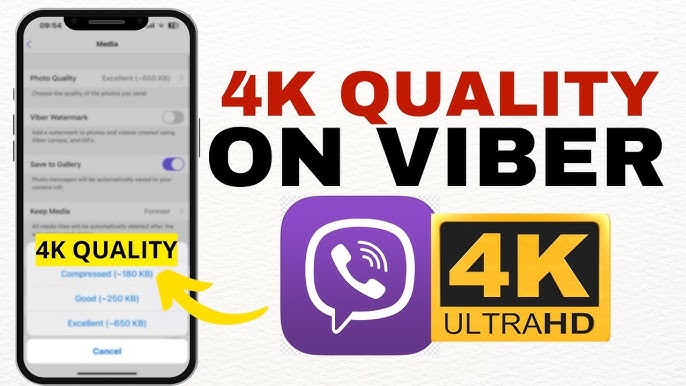
Photo Quality: Change it from “Compressed” to “Excellent Quality” or “Original Size”.
-
Video/Streaming: Uncheck “Restrict Data Usage” to unlock maximum streaming bitrates over Wi-Fi and 5G.
Ever wondered why that crisp, high-definition 4K video you shot on your phone looks like a blurry, pixelated mess from 2010 the moment you send it over Viber? You are definitely not alone.
Last week, I was working with a remote creative team that relies heavily on Viber download to exchange quick design drafts and video mockups. They were ready to jump ship to another platform because their video clips kept getting butchered by compression. The reality is, Viber’s default “out-of-the-box” configuration heavily penalizes media quality to save bandwidth.
If you have plenty of cellular data or spend most of your time on high-speed Wi-Fi, there is zero reason to tolerate muddy compression. Let’s look at exactly how to bypass these restrictions and force Viber to stream and send media at the highest possible fidelity.
Why Does Viber Compress Your Videos and Streams?
Note: This guide is based on Viber 23.1 (mobile) and Viber 22.8 (desktop), the latest versions as of 2026. Features and interface may vary slightly in older versions.
Before flipping the switches, it helps to understand the underlying mechanics. Instant messaging platforms utilize dynamic compression algorithms to ensure smooth delivery. According to technical documentation on standard web media streaming protocols and compression codecs, software must balance loading speed, server costs, and network stability.
Viber applies two specific bottlenecks to your app:
-
Aggressive Transcoding: Videos are compressed down to lower bitrates and resolutions (often 480p or 720p max) before uploading.
-
Data Saver Mode: When on cellular networks, Viber artificially throttles streaming playback quality to prevent users from accidentally burning through their monthly data caps.
Step-by-Step: Enabling Maximum Quality on Viber
To unlock uncompressed photo sharing and maximum streaming bitrates, follow these steps on your iOS or Android device:
Step 1: Adjust Photo Quality to “Excellent”
-
Open the Viber app and tap the More icon (three horizontal dots in the bottom right corner).
-
Tap on Settings (the gear icon).
-
Navigate to Media and storage.
-
Tap on Photo quality. By default, this is set to Standard (~250 KB). Change this to Excellent quality (~650 KB).
Note: If you need 100% uncompressed files for professional work, do not use the regular gallery button. Instead, tap the file attachment icon (the paperclip) in your chat window and send the media as a raw “File”.
Step 2: Disable Data Throttling for High-Quality Streaming
Under the exact same Media and storage menu, look for the toggle labeled Restrict Data Usage.
-
Turn this OFF. * When enabled, this setting prevents Viber from utilizing your device’s full network capability to stream videos or handle high-fidelity voice/video calls. Disabling it allows the app to stream at maximum resolution when connected to 5G or Wi-Fi.
Pro-Tips for Power Users: Managing Network Performance
Unlocking high-quality streaming means your device will download and process significantly larger files. If you aren’t careful, this can lead to two frustrating side effects: a clogged phone storage cache and accidental mobile billing overages.
To keep your app running cleanly, consider configuring these automated behaviors:
| Setting Name | Recommended State | Why It Matters |
| Auto-download media over cellular | OFF | Keeps Viber from downloading heavy, high-quality videos automatically while you are traveling on expensive data roaming networks. |
| Save to Gallery | OFF | Prevents every random meme or high-res video sent in group chats from cluttering your phone’s internal hardware storage album. |
If you use Viber to coordinate heavy tasks or professional projects, tracking these bandwidth changes can save you a headache down the line. For a full breakdown on managing your digital footprint on the platform, take a look at our guide on how can you master Viber chat statistics in 2026? The ultimate analytics guide.
Similarly, if you are scheduling client calls or managing media-heavy presentations natively through the platform, synchronizing your schedule is crucial. You can streamline your workflow by reading how to use Viber’s integrated calendar sharing: a 2026 guide to maximum productivity.
FAQ: Troubleshooting Viber Media Performance
Q1: I turned on “Excellent Quality”, but my video calls are still lagging and blurry. Why?
A: While changing your app settings tells Viber not to limit your quality, real-time video calls are still governed by your current network latency and upload speed. If your ping is too high or your Wi-Fi upload speed drops below 5 Mbps, Viber’s engine will automatically downgrade your streaming resolution to prevent the call from dropping entirely.
Q2: Does Viber support HDR or 4K video streaming?
A: No. Even with data restrictions disabled, Viber’s servers cap maximum native video playback and streaming to Full HD (1080p) to optimize global delivery bandwidth. For true 4K sharing, you must send the video as an uncompressed document attachment.
Q3: Why can’t I find the “Media and Storage” settings on the Viber Desktop app?
A: The desktop client inherits most of its core media properties directly from your primary mobile device. Ensure you have altered the settings on your smartphone first, then restart the desktop app to ensure the preferences properly sync via the cloud.