
Viber for PC lets you continue conversations from a Windows computer, but setup starts with an active Viber account on your phone. Download the desktop app from Viber’s official download page, install it, scan the Viber QR code login with your phone, and approve the link. Check the live page to choose the Windows download that matches your PC.
Get Viber for Windows from an official source
Start with the official Viber desktop download rather than a third-party mirror. Viber lists desktop downloads by platform and Windows version, and the available options may change. I recommend checking the page before installing instead of guessing based on your computer’s age or brand.
A Microsoft Store listing may also be an option. If you use it, confirm that Rakuten Viber appears as the publisher. Unofficial mirrors and repackaged installers may contain files that Viber did not publish.
Choose the Windows installer that fits your PC
The download page may list Windows 10 and 11 64-bit, Windows ARM, 32-bit Windows, and Windows 8 or lower. Check the live page for its compatibility notes before you download.
| Option listed on Viber’s page | What to check |
|---|---|
| Windows 10/11 64-bit | Confirm that your Windows installation is 64-bit. |
| Windows ARM | Choose this only if your PC uses an ARM processor and Viber lists support for your system. |
| Windows 32-bit | Check that Windows itself is 32-bit. An older PC does not necessarily use 32-bit Windows. |
| Windows 8 or lower | Review Viber’s compatibility details. Do not assume a newer installer will work. |
To find your system type, open Settings and look under System for About or System type. Labels vary by Windows version. If you are unsure, check Viber’s page before trying an installer.
What you need before installing Viber on PC
Viber Desktop links to an account that you already use on a phone. You need the phone app for initial activation, so the Viber desktop app cannot set up a new account on its own.
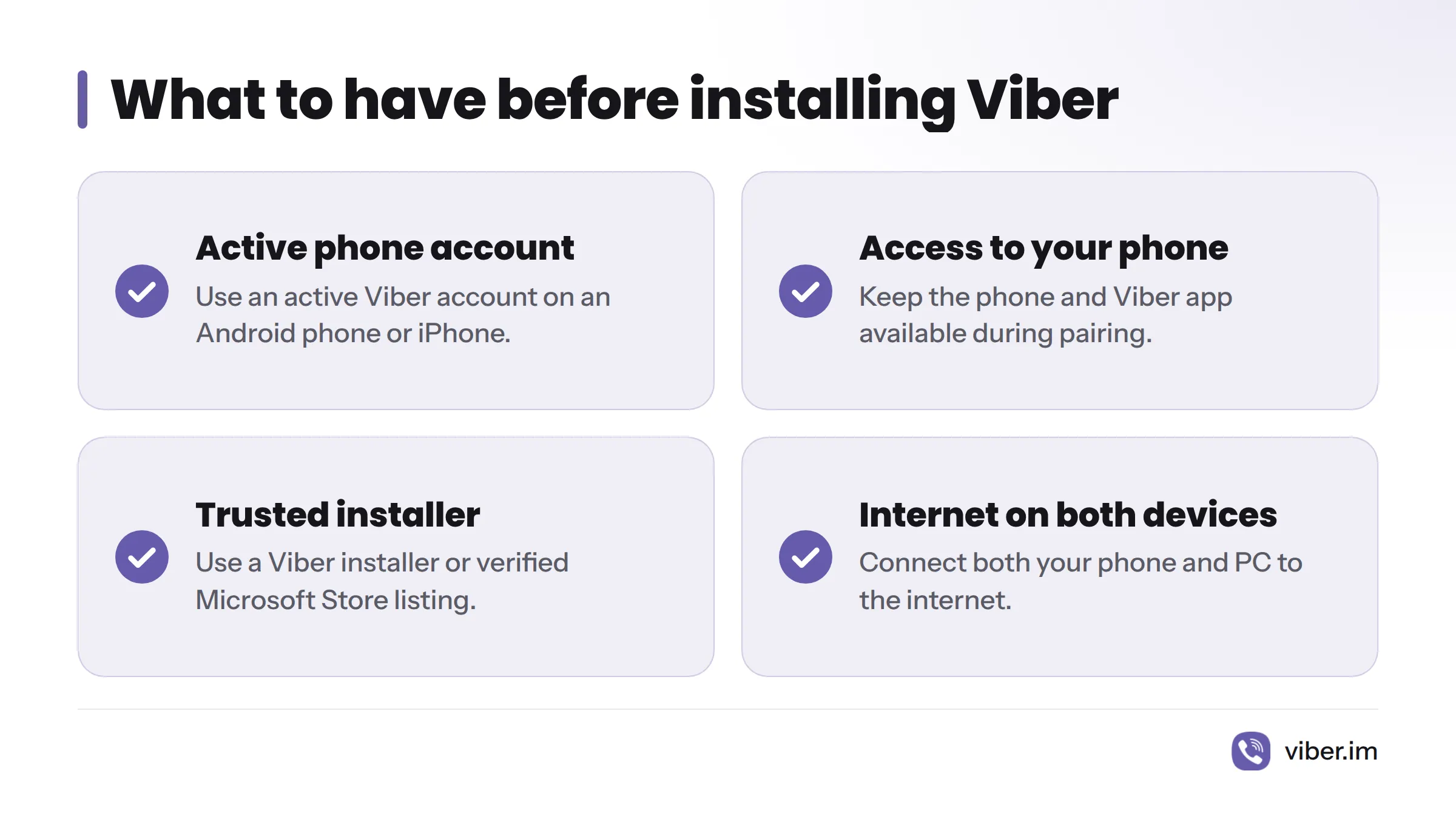
Have these ready:
- An active Viber account on an Android phone or iPhone.
- Access to the phone and its Viber app during pairing.
- A Windows installer from Viber or a verified Microsoft Store listing.
- An internet connection on both devices.
If you have not set up Viber on your phone, use the mobile app download guide first. The desktop setup depends on an active phone account.
Install Viber on PC and link your account
- Download Viber for PC. On Viber’s download page, select the Windows option that matches your system.
- Run the installer. Open the downloaded file and follow the Windows prompts. If Windows asks for permission, check the publisher information before continuing.
- Open Viber on your PC. The desktop app should show a QR code.
- Open Viber on your phone. Find the QR scanner in the app. Its name and location may vary, so check the menu or account options if you do not see it right away.
- Scan the code. Point the phone’s camera or in-app scanner at the QR code on your computer screen.
- Approve the link. Read the prompt on your phone and approve it only if you recognize the computer and started the pairing.
- Wait for setup to finish. Check whether your conversations appear, then send a short test message.
The sequence is simple: the PC displays a QR code, the phone scans it, and you approve the connection on the phone. That links the desktop app to your existing Viber account; it does not replace mobile account setup.
For a Windows walkthrough, see the Viber PC installation steps. If a guide uses different screen labels, follow the prompts in the app and instructions on Viber’s official site.
What Viber for desktop can do
After linking, you can continue conversations from your computer and use the desktop messaging and calling features included in your installed version. The Viber homepage describes messaging and voice and video calls. Desktop options can differ from those in the phone app, so check what your version offers.
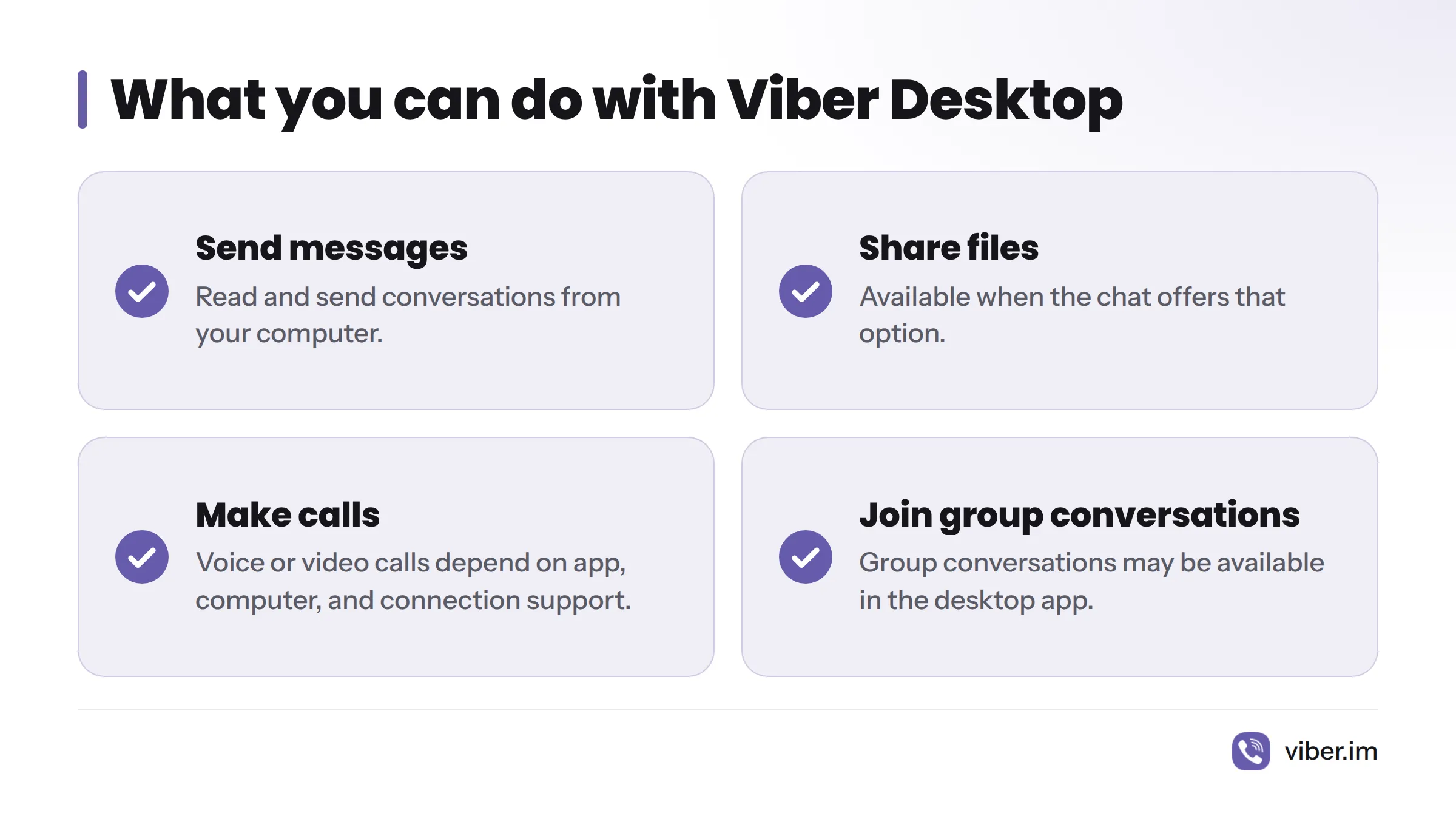
Common tasks include reading and sending messages, sharing files when the chat offers that option, and making voice or video calls when your app, computer, and connection support them. Group conversations may also be available in the desktop app.
Viber-to-Viber calls differ from calls to regular phone numbers. Viber Out handles calls to phone numbers, subject to its rates and terms. Read Viber call types and Viber Out for details. Do not assume every phone feature or call option appears on the desktop.
How Viber desktop sync works
Your phone account anchors the desktop connection. After you scan the QR code and approve activation, Viber Desktop connects to that account. The messages and settings shown can depend on the app version and account state, so check the desktop app rather than assuming that all history will transfer.
| On your phone | On your PC |
|---|---|
| Keep your Viber account active and approve the initial link. | Install and open Viber Desktop to display its QR code. |
| Scan the code with Viber’s scanner. | Use linked conversations and the messaging or calling features shown in the app. |
| Manage account access and respond to activation prompts. | Check the app’s status if chats do not appear or calls fail. |
You need phone access to set up a new desktop link. If you cannot access the phone or account connected to Viber, restore that access before pairing another PC. See how Viber connects across devices for more on desktop linking and sync. This guide covers the installed app, not a browser-based Viber login.
Fix common Viber PC setup problems
Before reinstalling, check that both devices have internet access, reopen Viber, and confirm that you chose the right Windows download.
| Problem | What to try |
|---|---|
| The QR code will not scan | Increase the PC screen brightness, clean the phone camera lens, and hold the phone steady. Reopen the scanner and refresh the code if the app offers that option. |
| No approval prompt appears on the phone | Check that Viber is signed in to the account you want to use. Scan the code again and read any message in the app. |
| Chats do not appear on the PC | Check both internet connections, give the app time to load, and reopen Viber Desktop. Chat history may not all appear. |
| The installer will not run | Compare your Windows system type with the download option. If the installer came from an untrusted site, delete it and download a fresh copy from Viber. |
| Calls or notifications do not work | Check Windows sound, microphone, camera, and notification permissions, then review Viber’s settings. Test those devices in another app to see whether the problem is specific to Viber. |
If the problem continues, consult Viber troubleshooting guidance and check the official download page for the right installer. For a store installation, check the Microsoft Store for updates. For an installation from Viber’s site, return to its download page. Avoid Viber old version for PC download sites: an old installer may no longer be supported or may be unsafe.
Viber for PC FAQs
Can I use Viber on my PC?
Yes. Install Viber Desktop on a supported Windows PC and link it to an active phone account by scanning the desktop QR code.
Can I create a Viber account on a PC?
No. Set up and activate the account on a phone first, then link the desktop app.
Does Viber support Windows 11, 32-bit Windows, and Windows ARM?
Viber’s download page may list Windows 10 and 11 64-bit, ARM, 32-bit, and Windows 8 or lower options. Check the live page to confirm which downloads it offers.
Can I use Viber on my PC if my phone is unavailable?
You need the phone for initial linking and approval. If the desktop app is already linked, what remains available can depend on your account and app state. Do not count on activating a new PC without access to the phone account.
How do I get a Viber update download for Windows?
Use the update route for your installation. Check the Microsoft Store if you installed Viber there, or visit Viber’s official download page if you installed it directly. Confirm that the installer matches your Windows system type.
Is Viber for PC the same as Viber Web?
No. Viber for Windows is an application installed on your computer. A linked desktop app is not the same as signing in through a browser.
How can I check whether a download is official?
Download Viber for PC from Viber’s official site or a verified Microsoft Store listing. The publisher should be Rakuten Viber. If a listing uses the name Rakuten Viber Messenger, check the publisher before installing. Avoid third-party mirrors and pages offering modified or unusually old installers.