
Language barriers shouldn’t hold back your conversations—and on Viber, they don’t have to.
With the platform’s recent integration of advanced AI and real-time machine translation engines, Viber allows you to read any incoming foreign message in your native tongue almost instantly. However, because the system relies on your device’s default language or hidden in-chat options, many users miss out on setting up the seamless Automatic Translation feature, which converts text on the fly the moment it hits your screen.
In this 2026 Ultimate Viber Translation Guide, we are bypassing the confusing technical jargon to give you a step-by-step walkthrough. You’ll learn how to activate native message translation on iOS, Android, and Desktop, how to adjust your target language preferences, and a quick workaround for handling real-time language changes in group chats. Stop relying on clunky third-party copy-pasting—spend 2 minutes with this guide and unlock fluent global chatting today!
Note: This guide is based on Viber 23.1 (mobile) and Viber 22.8 (desktop), the latest versions as of 2026. Features and interface may vary slightly in older versions.
How Viber’s Translation Works in 2026 + Key AI Updates
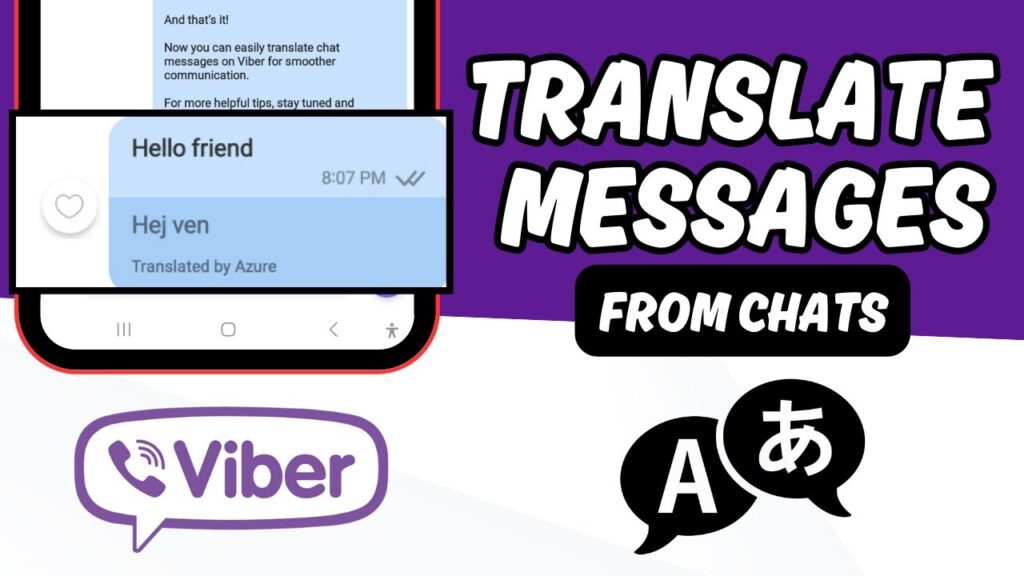
Viber’s translation triggers via long-press and displays the result right under the original message. It defaults to your app’s interface language. The 2026 updates integrate AI for better context awareness, group chat summaries, and smart reply suggestions that respect multiple languages.
Common Pain Points I’ve Seen:
- International group chats full of unread foreign messages
- Real-time conversations stalled by language switches
- Long messages or voice-to-text that are hard to understand
- Missing AI features leading to low efficiency
I’ve hit all these issues myself. Here’s exactly how to fix them.
Step-by-Step: How to Translate Messages on Viber (Mobile)
Prerequisites:
- Update to the latest Viber version from official sources.
- Set your app language to your preferred target.
Step 1: Translate a Single Message
- Open Viber and enter the chat.
- Long-press the message you want to translate.
- Tap Translate in the menu.
- The translation appears instantly below the original.
Change Target Language: Long-press > Language > select your choice > Done.
Pro Tip: Works great in private chats, groups, and channels. Accuracy is high for major languages, with 2026 improvements for Asian and less common ones.
Want to automate smart replies alongside translation? Check out this detailed guide: How to Automate Smart Replies on Viber 2026 AI Guide. Combining both features is a game-changer for fast responses.
Desktop Version: Translation & Auto Features
On Viber Desktop it’s just as easy:
- Right-click a message > Translate.
- For whole chats: Go to Settings > Chat > Auto Translation (or similar option in newer versions).
Enable Auto-Translation: Some versions let you set incoming messages to translate automatically—perfect for work groups.
Unlock Viber AI Chat Features: Translation Meets Intelligence
In 2026 Viber boosted AI integration:
- AI Chat Summary: One-tap summary of long group chats, then translate the key points.
- Smart Replies: Context-aware suggestions that work across languages.
- AI Assistant: Real-time translation help and reply polishing.
How to Enable AI Tools:
- Go to Settings > Viber AI or Chat Features.
- Toggle on the relevant options (some may require Viber Plus).
- Use the AI toolbar directly in chats.
Real Case from My Work: Last year I configured this for an international trade group. Before, they wasted time manually translating. After enabling AI summaries + translation, they could catch up on meetings in just 5 minutes. Productivity soared. Only heavy users truly appreciate how much time this saves.
For team collaboration, see this useful resource: Can You Edit Documents Together on Viber 2026 Collaboration Guide. Great for remote document work in multiple languages.
Troubleshooting Common Translation Issues
| Issue | Possible Cause | Quick Fix |
|---|---|---|
| Translate button missing | Outdated app or unsupported language | Update Viber and check language settings |
| Low accuracy | Complex context or slang | Use AI Summary first or adjust target language |
| Auto-translation not working | Feature not enabled | Settings > Messages > Translation options |
| Group chats overwhelming | No AI help | Turn on AI Chat Summary |
| Privacy concerns | AI processing | Review Viber’s privacy policy—data handling is minimal |
Extra Security Tip: Translation mostly happens locally, but AI features may use the cloud. Be cautious with highly sensitive chats.
For deeper understanding, check the Viber Official Help Center on AI Features and general multilingual AI best practices. These authoritative sources explain the underlying tech well.
Why Stick with Official Viber and Combine with AI?
Third-party modified versions often break translation and AI tools and can introduce security risks. Always download from official channels to keep every feature working smoothly.
Official Download: Get the latest version directly from Viber official site.
Advanced Tips for Viber Translation & AI
Beyond basic translation you can:
- Translate voice messages after transcription.
- Enable auto-detection in multilingual groups.
- Combine with document collaboration for real-time multi-language editing.
- Review AI settings regularly to balance privacy and convenience.
The international groups I manage stay highly efficient thanks to these tools—no more language or time-zone barriers.
FAQ
Q1: How do I auto-translate all messages on Viber?
A: In Settings look for Translation or AI options and enable default translation for incoming messages. Some versions require manual long-press to start.
Q2: Which languages does Viber translation support?
A: Dozens of major languages with solid accuracy. 2026 updates improved support for more regional languages.
Q3: How to use AI Chat Summary?
A: In group chats, find the AI button or enable it in settings for one-tap summaries of unread messages.
Q4: Is Viber translation free?
A: Basic translation is free. Advanced AI features may require a Viber Plus subscription.
Master these 2026 Viber translation and AI chat techniques and cross-language communication becomes effortless. Practice a few times in different chats and you’ll get the hang of it quickly. Got a specific scenario or issue? Drop it in the comments—I’ll share tailored advice based on real experience.