
📝 About the Author
Tech writer with 5+ years covering messaging apps and VoIP services. Testing and reviewing Viber features hands-on since 2024.
Have questions about Viber? Feel free to leave a comment below — I read and respond to every message. 💬
In today’s hyper-connected world, messaging apps like Viber, with over a billion users globally, are essential for personal and professional communication. However, the constant ping of notifications can overwhelm even the most organized users, disrupting focus and productivity. Knowing how to manage Viber notifications effectively is crucial to tailoring your digital experience, ensuring you stay connected without drowning in alerts. This comprehensive guide will walk you through Viber’s notification settings, offering step-by-step instructions, practical applications, and troubleshooting tips to optimize your messaging experience. Whether you’re a casual chatter, a group admin, or a business professional, this article equips you to take control of Viber notifications with ease.
Drawing from Viber’s robust feature set and its 2025 updates, we’ll explore how to fine-tune alerts, leverage advanced tools, and align notifications with your lifestyle. Let’s dive in and transform your Viber experience into one that’s seamless, distraction-free, and tailored to your needs.
Note: This guide is based on Viber 23.1 (mobile) and Viber 22.8 (desktop), the latest versions as of 2026. Features and interface may vary slightly in older versions.
Why Managing Viber Notifications Matters
Viber’s versatility—supporting text, voice, video calls, and communities—makes it a powerhouse for communication. Yet, with great connectivity comes the challenge of notification overload. A 2024 study by Statista noted that 68% of smartphone users feel overwhelmed by app notifications, impacting mental clarity and work efficiency. Viber’s notification system, while robust, can flood your device with alerts from group chats, individual messages, and promotional updates if left unchecked.
Effective notification management offers multiple benefits:
- Improved Focus: Prioritize critical messages while silencing non-essential alerts.
- Time Efficiency: Reduce distractions to streamline communication.
- Personalization: Customize alerts to match your schedule or preferences.
- Battery Optimization: Fewer notifications mean less battery drain, as Viber’s 2025 update optimizes background activity.
By mastering Viber’s settings, you can create a balanced digital environment, whether you’re managing family group chats or coordinating with colleagues across time zones.
Step-by-Step Guide: How to Manage Viber Notifications Effectively
Viber’s notification settings are intuitive, offering granular control across Android, iOS, and desktop platforms. Below is a detailed guide to help you customize notifications for a clutter-free experience.
Step 1: Access Notification Settings
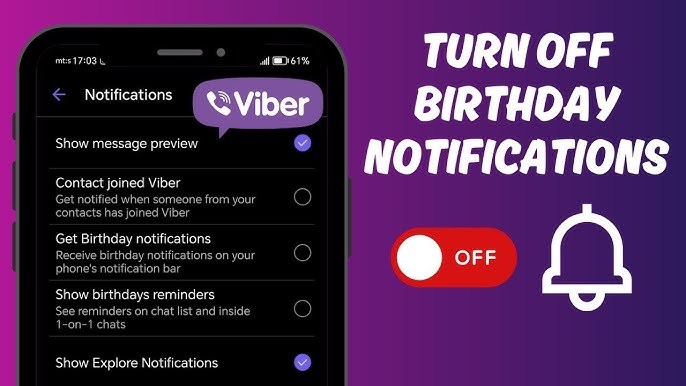
Open Viber on your device (ensure it’s updated to the latest version, v23.0+ as of 2025). Navigate to the “More” tab (bottom right on mobile, sidebar on desktop). Tap “Settings” > “Notifications” to access the control hub. This section lets you manage global settings, chat-specific alerts, and system preferences.
Step 2: Customize Global Notification Preferences
Viber allows you to toggle notifications for various activities:
- Messages: Enable/disable alerts for new messages in personal or group chats.
- Calls: Turn on/off notifications for incoming voice or video calls.
- Community Updates: Manage alerts for Viber Communities, ideal for large groups.
For example, uncheck “Show Notifications” to mute all Viber alerts temporarily, perfect for meetings or focus time. Alternatively, enable “Priority Notifications” to ensure critical contacts (e.g., family or work leads) always get through.
Step 3: Tailor Notifications for Specific Chats
Viber’s chat-specific controls are a game-changer. To customize:
- Open a chat (individual or group).
- Tap the chat name at the top.
- Select “Chat Info” > “Notification Settings.”
- Choose from options like “Mute,” “Custom Tone,” or “Hide Notifications.”
Muting a group chat is ideal for high-traffic communities, such as a 200-member family reunion thread. You can set mute durations (e.g., 8 hours, 1 week, or indefinitely) or allow mentions (e.g., @YourName) to trigger alerts.
Step 4: Leverage Smart Notifications
Introduced in Viber’s 2025 update, the “Smart Notifications” feature uses AI to bundle non-urgent messages into summaries, reducing alert frequency. Enable this in Settings > Notifications > Smart Notifications. For instance, instead of 20 individual pings from a group chat, you’ll receive one summary every hour. This is particularly useful for users in multiple Viber Communities, where activity can spike.
Step 5: Adjust System-Level Notification Settings
For deeper control, tweak Viber’s notifications via your device’s operating system:
- Android: Go to Device Settings > Apps > Viber > Notifications. Adjust categories like “Messages” or “Calls” and set priority levels (e.g., high for banners, low for silent).
- iOS: Navigate to Settings > Notifications > Viber. Customize badges, sounds, or lock screen visibility.
- Desktop: Use system notification settings (e.g., Windows Notification Center) to control Viber alerts.
These settings ensure Viber aligns with your device’s broader notification ecosystem, preventing overlap with apps like WhatsApp or Slack.
Step 6: Personalize Notification Aesthetics
Enhance your experience by customizing notification visuals. For instance, you can change your Viber chat background to pair with unique notification tones, creating a cohesive aesthetic. Assign distinct sounds or vibration patterns to specific contacts (e.g., a cheerful chime for friends, a subtle buzz for work) via Chat Info > Custom Notifications.
This six-step process takes under 10 minutes and syncs across devices, ensuring consistency whether you’re on mobile or desktop.
Real-World Applications: Managing Viber Notifications in Daily Life
Effective notification management shines in diverse scenarios, tailoring Viber to your lifestyle.
Personal Use: Balancing Family and Friends
For family group chats, mute non-urgent threads during work hours but allow mentions for emergencies. A parent might set custom tones for kids’ messages to prioritize them over casual group banter. During holidays, enable festive notification sounds to match seasonal emoji packs, adding a playful touch.
Professional Settings: Streamlining Work Communication
Remote teams using Viber for project coordination can mute group chats during deep work sessions, relying on Smart Notifications for updates. Assign high-priority alerts to managers or urgent tasks, ensuring timely responses without constant interruptions. Viber’s end-to-end encryption ensures secure professional exchanges, even with customized settings.
Community Engagement: Managing Large Groups
In Viber Communities (e.g., hobby groups or local events), notifications can spiral. Mute general chatter but enable alerts for admin posts or tagged messages. For example, a community organizer might silence a 500-member travel group but allow notifications for itinerary updates, streamlining event planning.
Global Connectivity: Handling Time Zone Differences
For users with international contacts, schedule “Do Not Disturb” periods to align with your sleep cycle. Viber’s 2025 update includes a “Time Zone Sync” feature, which auto-adjusts notification settings based on your location, ideal for frequent travelers.
These applications demonstrate how Viber’s flexible settings cater to varied needs, from personal connections to global networking.
Common Issues and Troubleshooting Viber Notification Problems
Even with Viber’s robust system, issues can arise. Here’s how to address common pitfalls.
Notifications Not Appearing
If alerts don’t show, check:
- App Settings: Ensure “Show Notifications” is enabled in Viber’s Settings > Notifications.
- Device Settings: Verify Viber isn’t blocked in your device’s notification preferences.
- Battery Optimization: Disable battery-saving modes that restrict Viber’s background activity (Settings > Battery > App Restrictions).
Excessive Notifications
For chatty groups, enable Smart Notifications or mute non-essential threads. Clear cache (Settings > Storage > Clear Cache) if performance lags persist.
Inconsistent Alerts Across Devices
Ensure all devices run the latest Viber version. Sync issues often resolve after a manual refresh (More > Sync). If problems persist, reinstall Viber or contact support via the app’s Help Center.
Unwanted Promotional Alerts
Disable “Promotional Notifications” in Settings > Notifications to stop ads or sponsored pack alerts. Alternatively, opt out via Viber’s Privacy settings.
For additional support, visit Viber’s official help portal, a trusted resource for troubleshooting and updates.
Take Control of Your Viber Notifications
Mastering how to manage Viber notifications effectively empowers you to shape your digital communication with precision. From muting noisy group chats to prioritizing critical alerts, Viber’s flexible settings cater to every user, whether you’re connecting with friends, collaborating with colleagues, or engaging in global communities. By following the steps outlined—customizing preferences, leveraging Smart Notifications, and troubleshooting issues—you can create a distraction-free, personalized experience.
Start exploring Viber’s notification settings today to reclaim your focus and enhance your messaging. With a few tweaks, you’ll transform Viber into a tool that works for you, not against you.