
To sign out of other Viber sessions, start in the Viber app on a phone. Don’t delete your account. Look for “Deactivate Account on Other Devices” in the account settings, but check the wording and availability in your installed version. Viber’s product page describes chat syncing across devices; it does not document this setting’s location or explain what happens to message copies stored on another device.
Check for a device or session list
Open Viber and see whether your app displays a list of signed-in devices or sessions. The first-party material reviewed for this guide does not confirm where that list appears, which devices it includes, or whether every version has one. I won’t guess at a menu path.
For background on chats across devices, read our guide to syncing Viber across multiple devices. Viber’s product page describes syncing, but not remote session controls.
Find the other-device control in the phone app
Use a phone where your Viber account is active. Check the app’s account or privacy settings for the exact option below. The menu labels leading to it may vary, and the available sources do not verify a full route for Android or iPhone.
- Open Viber on the phone you can access.
- Open the app settings and look for “Deactivate Account on Other Devices.”
- If you don’t see that exact option, don’t choose “Deactivate account” or another similarly worded command. Check the Viber Help Center for instructions that match your app version and operating system.
Read the confirmation before proceeding
The wording suggests that the control applies to other devices, rather than deleting your Viber account. If it appears, read the explanation on screen before continuing. The available material does not confirm whether the action ends desktop and tablet sessions in every version or leaves the phone you’re using signed in.
Before tapping, make sure you’re managing the account you intend to. If the account or the on-screen explanation is unclear, stop and check Viber’s 2026 guidance rather than guessing.
Setting up Viber on another device is a separate task. See our guide to using Viber on two devices.
Check the result in the app
Follow the confirmation shown by your version of Viber. The sources reviewed for this guide do not verify the exact prompt or how soon a signed-out device disappears from a list, so don’t rely on a particular message or wait time.
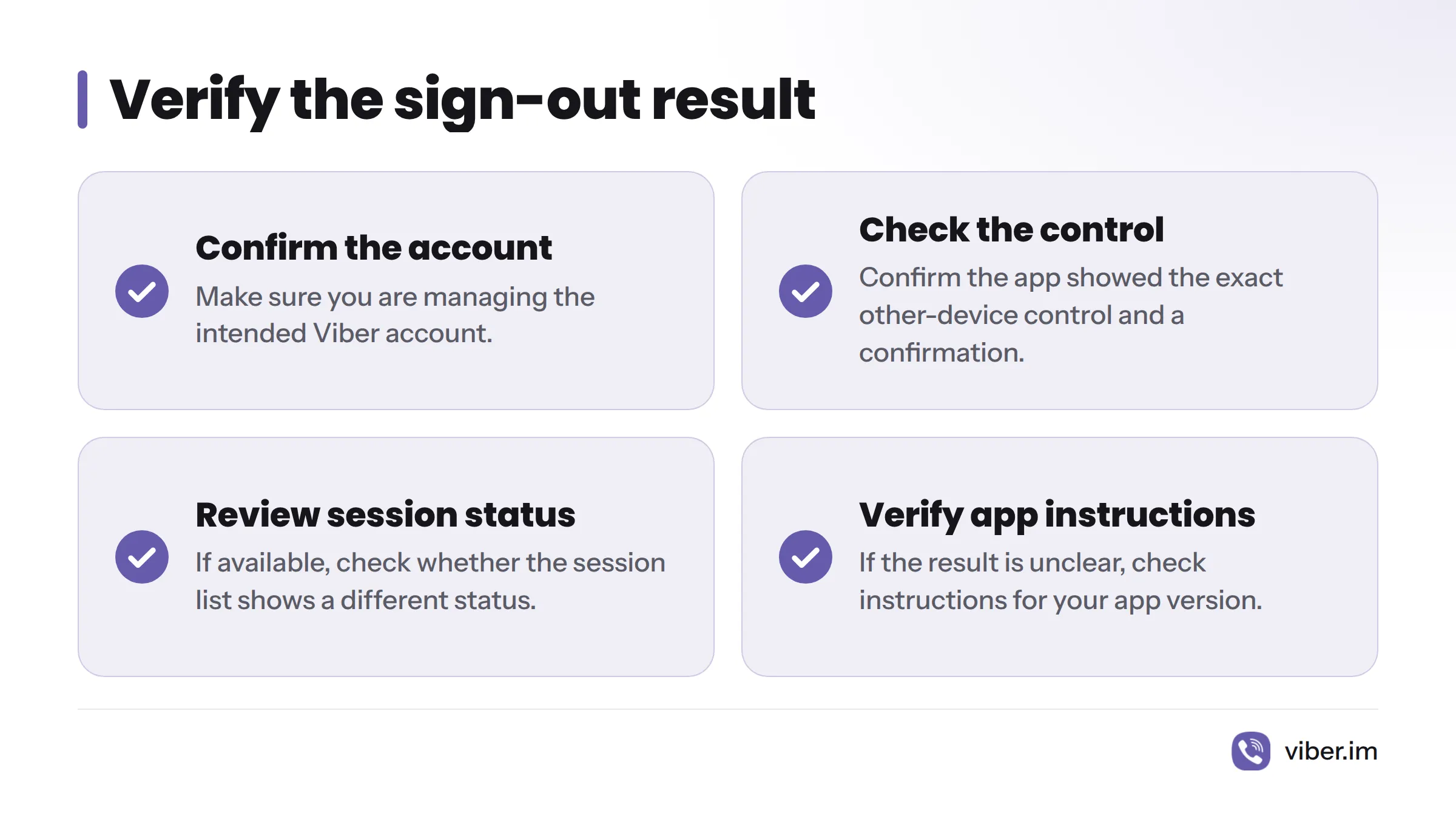
If the app has a session list, reopen it and check what it displays. A missing entry may show that the list has changed; it does not prove that messages, files, or other data were erased from that device.
Before repeating the action, check:
- Are you managing the intended Viber account?
- Did the app show the exact other-device control and a confirmation?
- If a session list is available, does it show a different status?
- If the result is unclear, have you checked instructions for your app version?
Remote sign-out does not confirm data erasure
Ending a session and deleting messages are separate matters. Viber describes cross-device chat syncing on its official product page, but the page does not explain what happens to chat history, files, or local copies when a session ends.
| What you may be able to check | What the reviewed sources do not confirm |
|---|---|
| Whether your app displays a control for other devices. | Whether every version signs out all desktop or tablet sessions. |
| The status shown in any session list after you act. | Whether a removed session means local messages or files were erased. |
| That the named control differs from deleting your Viber account. | Whether previously viewed content remains accessible on another device. |
If you need to remove data from a device you no longer control, remote sign-out alone does not prove that its local data has been erased. Ask Viber Support what applies to your platform before relying on that result.
If a device still appears connected
- The account or device is unclear: Check the account on your phone and identify the listed session before trying again.
- The option is missing or named differently: Check Viber’s 2026 instructions for your operating system and app version. Don’t assume a similarly named account-deactivation control does the same thing.
- The status remains unclear: Recheck the list, if your app provides one, and contact Viber Support. The sources reviewed here do not establish a refresh interval, device limit, or guaranteed sign-out time.
Remote sign-out is different from uninstalling Viber or deleting your account. For a separate question about account access settings, see our guide to Viber login and auto-login.
Does remote sign-out delete my Viber account or chat history?
This guide covers ending other sessions, not account deletion. The available first-party source does not say that remote sign-out deletes chat history or local copies. Don’t treat ending a session as proof that data has been erased.
Can I sign out desktop sessions from an iPhone or Android phone?
The first-party material available for this guide does not confirm platform coverage or the menu path. Check for the option in your app and verify its meaning with Viber’s 2026 guidance before proceeding.
Do I need the other device to sign it out?
The control’s wording refers to other devices, but the available source does not confirm its full behavior or requirements. If you cannot find the option or the result remains unclear, contact Viber Support.
Source note: Reviewed October 25, 2026. Viber’s public product page supports the general statement about cross-device syncing; it does not verify the settings path, confirmation prompt, platform coverage, or effects on local data. “Viber” is a product of Rakuten Viber.
Sources
Related: sync Viber across devices