
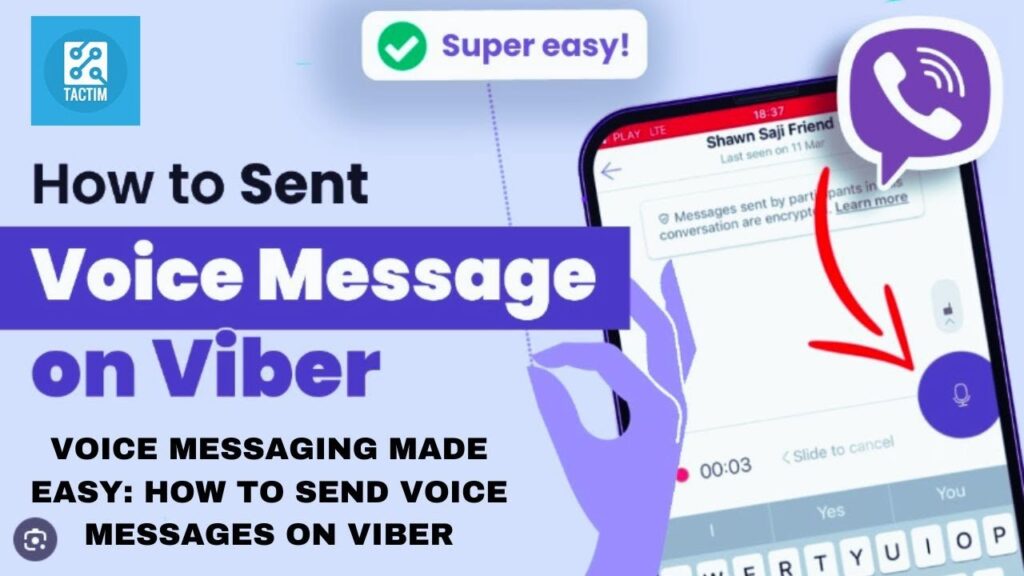
To send a voice message on Viber, simply open a chat, tap and hold the microphone icon, speak, and release to send. To record hands-free, swipe up to lock the recording. If you want to preview or cancel your audio before it goes live, swipe left to discard or use the new 2026 preview feature to check your tone before hitting send.
Why Viber Voice Notes Fail (And How the 2026 Update Changes Everything)
Look, we’ve all been there. You’re walking down a noisy street, you hold down the microphone button to explain a complex project to a client, and just as you finish a perfect two-minute breakdown, your thumb slips. The message vanishes into thin air, or worse, sends half-finished.
In my ten years of managing communication workflows and breaking down messaging app algorithms, I’ve seen Viber evolve through dozens of UI overhauls. For a long time, its voice messaging UX lagged behind WhatsApp and Telegram.
But with the latest 2026 updates, Viber finally fixed its biggest UX flaws. They introduced native audio previewing and better background noise suppression. If you are still just “holding and hoping” when you send voice notes, you are missing out on hidden shortcuts that make mobile communication seamless.
Step-by-Step: How to Send a Voice Message on Viber (Mobile & Desktop)
Let’s skip the basic definitions and get straight into the actual interface mechanics for iOS, Android, and Viber Desktop.
The Standard “Hold to Talk” Method (Mobile)
This is the default method most users rely on daily for quick, short bursts of conversation.
-
Step 1: Open Viber and tap into any individual or group chat.
-
Step 2: Look at the bottom right corner next to the text entry field. If you see a video camera icon, tap it once to toggle it back to the Microphone icon.
-
Step 3: Press and hold the microphone icon. The recording timer will start instantly.
-
Step 4: Speak clearly into your phone’s primary microphone (usually located at the bottom of the device).
-
Step 5: Release your finger. The voice note will send immediately to the recipient.
The “Swipe to Lock” Method (Hands-Free Recording)
If you need to explain something that takes more than 10 seconds, do not hold your thumb on the screen. It restricts your gestures and often cuts off your audio if your finger shifts.
[Microphone Icon] ──(Slide Upward)──> [Padlock Icon Locked]
-
Step 1: Press and hold the microphone icon to begin recording.
-
Step 2: Immediately slide your finger upward toward the lock icon that appears on the screen.
-
Step 3: Take your hand off the screen. You can now talk for up to 15 minutes without touching your phone.
-
Step 4: Tap the Send icon (the paper airplane) when finished, or tap the Delete/Trash icon if you messed up your words.
Sending Voice Notes on Viber Desktop
Many professionals keep Viber open on their Mac or Windows PC throughout the workday. Sending audio from your computer is slightly different:
-
Click the microphone icon located on the right side of the chat input box.
-
Viber will immediately start recording using your default system microphone.
-
Click the Checkmark button to send, or the X button to cancel.
Pro-Tips: How to Preview and Cancel Audio Before Sending
One of the biggest complaints I used to hear from enterprise teams using Viber was the lack of an edit or review phase for audio files. If you made a mistake, you had to send it, delete it for everyone, and deal with the awkward “This message was deleted” placeholder.
Here is how the pros handle audio control in 2026:
How to Safely Cancel a Live Recording
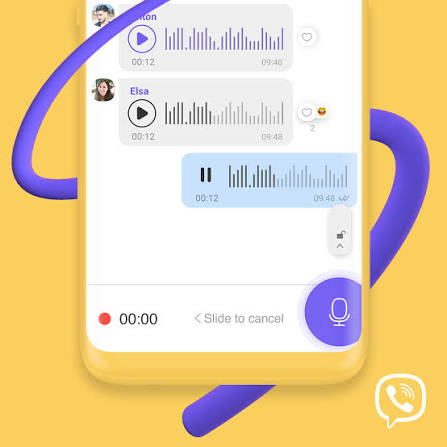
If you are using the Hold to Talk method and realize mid-sentence that you want to start over, do not lift your finger. Instead, slide your thumb horizontally to the left across the screen. You will see a trash can animation or a “Slide to cancel” indicator. Release your finger only after sliding left, and the message will be permanently discarded.
How to Preview Your Voice Note Before Sending
Thanks to recent software updates, you no longer have to send an audio note blindly.
| Step | Action | What Happens |
| 1 | Slide up to Lock the recording. | Hands-free mode activates. |
| 2 | Speak your message, then tap the Stop/Pause icon. | The recording stops but does not send. |
| 3 | Tap the Play button on the audio track. | You can listen to your own voice note. |
| 4 | Choose Send or Delete. | Full control over your outgoing media. |
Insider Knowledge: If you find yourself chatting late at night while managing these settings, toggling your app interface can save serious eye strain. Check out our deep dive on how to turn on dark mode on Viber to optimize your app layout for low-light environments.
Troubleshooting: Why is My Viber Voice Messaging Not Working?
During a recent system migration for a logistics client using Viber for fleet coordination, half the drivers suddenly reported that their voice notes were completely silent. We spent three hours debugging the issue. Here are the exact real-world fixes for when your audio breaks:
The “Ghost Silence” Bug (Microphone Permissions)
If your messages send but contain zero sound, your operating system has likely revoked Viber’s background hardware access after a system update.
-
On iOS: Go to
Settings>Viber> Toggle Microphone to ON. For older iOS versions, you may need to re-verify your device-wide privacy toggles following the Official Apple Support Guide on Microphone Permissions. -
On Android: Go to
Settings>Apps>Viber>Permissions>Microphone> Set to Allow only while using the app.
Hardware Conflict (The Bluetooth Trap)
If you regularly use wireless earbuds, Viber occasionally fails to hand over the audio input channel properly when the buds are charging in their case but still technically paired. Turn your phone’s Bluetooth off and back on to force Viber to utilize the phone’s physical internal mic hardware.
Audio Corruption Due to Low Cache Space
If your voice notes cut off precisely at the 2-second or 3-second mark, your phone’s temporary storage is full. Viber compresses live audio packets into lightweight container formats to save bandwidth. According to the technical specifications outlined in the MDN Web Docs on Media Container Formats, an interrupted buffer stream will instantly force the application to drop the render pipeline. Go into Viber’s internal settings, navigate to Storage, and clear the media cache to resolve this.
Beyond Voice Notes: Modern Viber Features to Know
Voice messaging is great for quick updates, but Viber’s ecosystem handles highly practical financial and security features directly inside the same chat window. For instance, if you are coordinating a split bill or business payment via voice chat, you don’t need to exit to an external banking application.
According to official technical updates on the Viber Homepage, the platform now natively integrates instant secure transactions. You can seamlessly transition from talking about a balance to handling a secure peer-to-peer transfer by learning how to scan a Viber QR code for payment, keeping your financial data encrypted directly within your secure chat threads.
FAQ
Q1: What is the maximum duration for a Viber voice message?
Viber allows you to record a single voice message for up to 15 minutes. However, for professional clarity and to avoid mobile data processing timeouts, it is highly recommended to split long updates into 2-3 minute chunks.
Q2: Can I download or save a voice note received on Viber to my phone’s storage?
Yes. On mobile, tap and hold the received voice message box until a context menu appears, then select Save or Forward to send it to your files app. On Desktop, right-click the audio track and select Save As to export it as an .amr or .m4a audio file.
Q3: Why does the voice note icon switch to a video icon automatically?
Viber shares the space for voice and video notes on the same button. A quick, single tap on the icon toggles it between Microphone mode (audio notes) and Camera mode (instant short video messages). If you see a camera, just tap it once to switch back to audio.
Q4: Does listening to a voice message notify the sender?
Yes. Just like text messages, once you click play and listen to an audio track, the sender’s status for that message will change from “Delivered” to “Seen,” unless they have explicitly disabled read receipts within their personal privacy settings.