
To search across all Viber chats simultaneously:
-
Open the Viber app and navigate to your main Chats screen.
-
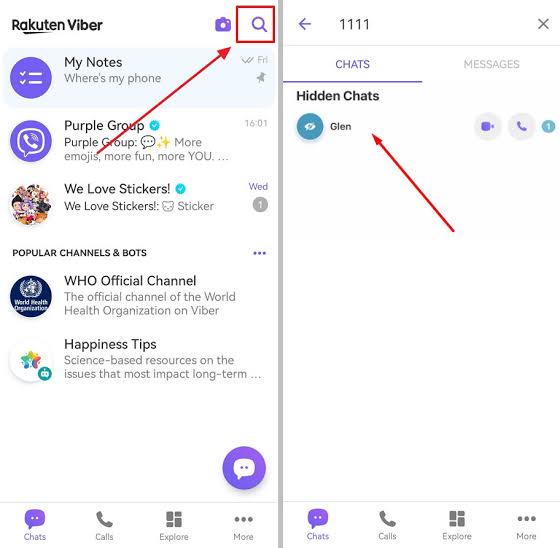
Android: Tap the Magnifying Glass (top right). iOS: Swipe down anywhere on the chat list to reveal the hidden global Search Bar.
-
Type your keyword, then toggle from the “Chats” tab to the “Messages” tab to see every text match across your entire conversation history.

As an operations manager handling over 40 active client threads, my biggest daily bottleneck used to be digging through endless conversation histories. Just last week, a client asked, “Hey, did you review the logistics invoice I sent last month?” I spent twenty agonizing minutes opening individual group chats, checking hidden text blocks, and losing my sanity—only to realize I could have found it in three seconds if I knew how Viber’s cross-chat search engine actually handles global queries.
Viber’s indexing doesn’t behave exactly like WhatsApp or Telegram. If you don’t know the explicit layout differences between the iOS UI, Android ecosystem, and the Desktop client, you’ll feel like the search function is completely broken. Let’s break down exactly how to force Viber to scan every single chat, group, and community database you own in under five seconds.
The Global Search Blueprint: Step-by-Step Mobile Walkthrough
Most users fail at cross-chat searching because they try to search from inside a specific conversation. Inside a chat, you are locked into a silo. To execute a global cross-chat search, you must stand at the root directory of the app.
For iOS (iPhone & iPad)
-
Launch Viber and ensure you are on the primary Chats tab.
-
Put your finger in the middle of the screen and swipe down smoothly. The global search input header will drop down from the top margin.
-
Type your keyword.
-
By default, Viber filters by contacts/chat names. You must tap the “Messages” sub-tab right under the input line to display contextual text strings across all conversations.
For Android Devices
-
Open Viber to your main chat list dashboard.
-
Look at the top right-hand corner; tap the native Magnifying Glass icon.
-
Type your target search string.
-
Swipe over or select the Messages vertical column to view preview snippets sorted chronologically.
Desktop Mastery: The Ultimate Search Aggregator
If you are dealing with massive archives or looking for specific technical terms, skip the phone entirely. The Viber Desktop client handles indexing far more efficiently because of local SSD caching. For step-by-step implementation notes on setting up your terminal correctly, you can review the official Viber Setup and Integration Guide.
| Feature Category | Mobile App Cross-Chat Search | Desktop App Cross-Chat Search |
| Discoverability | Hidden (Requires gesture/icon tap) | Permanent (Static left sidebar input field) |
| Tab Segregation | Separated into “Chats” & “Messages” | Unified sidebar list with distinct category tags |
| Speed & Scrolling | Throttled by mobile RAM limits | Instantaneous, high-volume scrolling |
To use it on Desktop, click the Search box positioned directly above your left-hand conversation roster. When you type your query, the app splits your results instantly: the upper half yields direct account names, while the lower section populates raw text matches spanning your individual, group, and community histories.
Advanced Filtering & Retrieval Operations
Finding a text snippet is only half the battle. Often, what you are actually hunting for isn’t a word, but a specific asset type.
Locating Media, Links, and Files Without Text Keywords
If you remember who sent an item or which group it was in, but can’t recall the text file name, do not scroll blindly through your chats.
-
Open the target chat or group.
-
Click or tap the chat name at the top, then select Chat Info & Settings.
-
Scroll down to the dedicated Media, Links, and Files repositories.
-
Viber organizes these into clean, filtered tabs. If you are trying to verify financial transfers or shared documentation, you can easily pair this structural view with advanced app functions like learning how to scan Viber QR code for payment to double-check structural transaction histories or confirm shared invoices.
Tracking Down Shared Voice Notes
Looking for a voice memo? Because voice clips don’t contain indexable ASCII text characters, they won’t show up inside the standard global cross-chat text search. To locate past audio records quickly, you need to systematically browse the media galleries inside your most active threads. For a complete understanding of how these files are processed, stored, and verified in your device’s cache, check out our comprehensive how to send voice messages on Viber workflow analysis.
Why Isn’t Your Search Working? (Hidden Quirks & Caching Issues)
If you followed the steps above and your target text isn’t populating, you are likely hitting one of Viber’s strict database constraints. Here is the technical reality of why data goes missing:
-
The Secret Chats Blindspot: Viber’s end-to-end encryption pipeline treats “Hidden/Secret Chats” differently. For maximum security, parameters inside hidden conversations are completely excluded from the global cross-chat indexing database to protect sensitive logs. You can read more about how these barriers function in the official Viber Security and Encryption Protocol. You must open that specific hidden vault using your PIN code to search inside it.
-
Local Storage Deletion: If you clear your mobile system cache or use an automated storage cleaner, Viber deletes its localized raw text log files. The messages will still be visible when you scroll backwards manually (as they pull from cloud sync), but the local search index will draw a blank until the thread is fully re-cached.
-
Desktop Desynchronization: If your phone was disconnected from the internet when a message arrived, the desktop client might fail to index that specific timeline block. To resolve this, keep both apps open simultaneously for 60 seconds to force a complete database re-index. For deeper platform sync optimization techniques, refer back to the official Viber Homepage infrastructure documentation.

FAQ:
Q1: Can I search across deleted Viber messages?
No. Once a message is deleted from your device (either via “Delete for myself” or “Delete for everyone”), its metadata string is permanently expunged from the local SQLite database. Unless you restore an older cloud backup from iCloud or Google Drive, it cannot be indexed by the cross-chat search engine.
Q2: Is there a way to filter global search results by a specific sender name?
Not directly in the global search bar. The current global search indexes by keyword strings or chat titles. If you need to find messages exclusively from one individual within a massive group dynamic, you must enter that specific chat, access the internal search tool, and review chronological occurrences.
Q3: Why does my Viber Desktop search show different results than my mobile app?
This occurs due to local caching delays. The desktop client only indexes messages received while the desktop application is running or during its initial startup sync sequence. If there are discrepancies, log out of the desktop client, scan the QR pairing code again, and allow the system to rebuild the text cache from your mobile device.