
Viber Notifications Delayed? 2026 Fix: How to Stop Battery Savers from Killing Your Alerts!
In a world that moves at lightning speed, missing a Viber message isn’t just an inconvenience—it’s a missed opportunity. Whether it’s an urgent work update or a “thinking of you” text from family, you need your alerts the second they’re sent. But if you’ve noticed your phone only “wakes up” once you manually open the app, you’re likely a victim of aggressive battery optimization.
Modern smartphones in 2026 are obsessed with saving power, often treating Viber as a “background distraction” and cutting its lifeline to instant notifications. The result? You get silence when you need a ping. The good news is that you don’t have to choose between a dead battery and a dead social life.
By fine-tuning Viber’s battery settings, you can whitelist the app for real-time delivery without draining your device. Our 2026 Viber Reliability Guide walks you through the essential tweaks for both Android and iOS, ensuring your notifications stay snappy while your power management stays smart. Let’s get your Viber back to “Real-Time” status!
Understanding Battery Optimization and Its Impact on Viber
Modern operating systems like Android and iOS use intelligent battery management to prolong device life. Features such as Android’s Doze mode or Adaptive Battery, and iOS’s Low Power Mode, limit background processes for apps not in active use. For messaging apps like Viber, this means delayed push notifications—messages might only arrive when you open the app, defeating the purpose of instant communication.
The trade-off is clear: aggressive optimization saves power but compromises reliability. By making targeted adjustments, you can exempt Viber from these restrictions, ensuring alerts arrive promptly. According to user reports and official troubleshooting resources, disabling battery restrictions for Viber resolves notification delays for most people without causing excessive drain.
For authoritative guidance on notification issues, refer to Viber’s official support article on fixing notification problems, which emphasizes checking battery saver settings.
Optimizing Viber Battery Settings on Android Devices
Android’s battery optimization varies by manufacturer (Samsung, Xiaomi, Huawei, etc.), but the core principle remains the same: allow Viber unrestricted background access.
Step-by-Step Guide to Disable Battery Optimization
- Open your phone’s Settings app.
- Navigate to Apps > See all apps (or Manage apps).
- Select Rakuten Viber from the list.
- Tap Battery usage or App battery usage.
- Choose Unrestricted or No restrictions (options may say “Optimize battery usage” > “Don’t optimize”).
This change allows Viber to run freely in the background, enabling instant alerts even when your screen is off.
Manufacturer-Specific Adjustments
Some brands add extra layers of power management:
- Samsung: Go to Settings > Battery and device care > Battery > Background usage limits. Add Viber to “Never sleeping apps.”
- Xiaomi/MIUI: Open Security app > Boost speed > Manage apps > Viber > Enable Autostart and set to “No restrictions.”
- Huawei/Honor: Settings > Battery > App launch > Viber > Set to “Manage manually” and enable all toggles.
- OnePlus/OxygenOS: Settings > Battery > Battery optimization > Viber > Don’t optimize.
Additionally, ensure Viber has permission for autostart and unrestricted data usage. These tweaks prevent the system from killing Viber’s processes, a common cause of delayed notifications on Android.
Users who apply these changes often report immediate improvements in Viber’s responsiveness, with messages arriving in real-time rather than in batches.
Adjusting Viber Settings on iOS Devices
iOS handles background activity differently, focusing on features like Background App Refresh and Low Power Mode.
Enabling Background App Refresh for Viber
- Go to Settings > General > Background App Refresh.
- Set it to Wi-Fi & Cellular Data (or at least Wi-Fi if you prefer).
- Then, go to Settings > Viber and ensure Background App Refresh is enabled specifically for the app.
This allows Viber to periodically check for new messages and calls, even when not in use.
Managing Low Power Mode and Notifications
- Avoid leaving Low Power Mode enabled permanently—it throttles background processes and can delay alerts.
- In Settings > Notifications > Viber, enable Allow Notifications, Sounds, Banners, and Show Previews.
- For critical alerts, consider enabling Time Sensitive Notifications if available in your iOS version.
iOS users also benefit from keeping Location Services enabled for Viber (if used for features like live location sharing), as it can indirectly support better sync.

Additional Tips for Enhanced Viber Reliability
Beyond battery tweaks, a few best practices can further improve performance:
- Keep Viber Updated: Always install the latest version for bug fixes and optimized power usage. Download the most recent Viber app from the official site .
- Enable Multi-Device Sync: If you use Viber on desktop or tablet, set up multi-device support. This ensures messages sync across platforms even if your phone is in a restricted state. Learn more in this guide on how to create multi-device sync for Viber Web.
- Leverage Offline Message Queuing: Viber intelligently queues messages when you’re offline and delivers them instantly upon reconnection. Optimize this feature by following tips on how to use Viber’s offline message queuing.
Combining these with battery tweaks creates a robust setup for uninterrupted communication.
Common Problems and Troubleshooting
Even after adjustments, some users face persistent issues:
- Delayed notifications only on mobile data: Check data saver mode (Settings > Network & internet > Data Saver) and exempt Viber.
- Messages arrive only when opening the app: Double-check battery restrictions and restart your device.
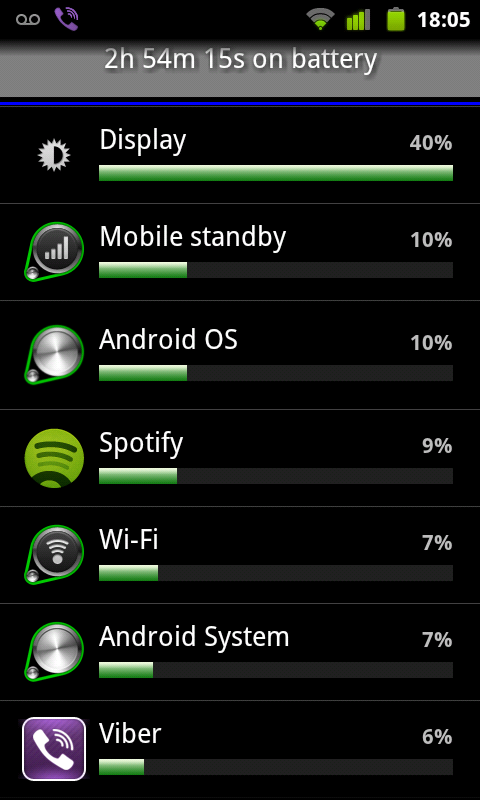
- Excessive battery drain after changes: Monitor usage in Settings > Battery. If Viber consumes too much, re-evaluate unrestricted access—most users find the trade-off worthwhile for reliability.
A quick force-stop and reinstall can also reset problematic configurations.
Latest Trends in Messaging Apps and Power Management
As smartphones evolve, messaging apps are adapting to stricter OS-level battery controls. Recent Android versions (14 and 15) introduce more granular permissions, while iOS continues refining Background App Refresh. Viber has responded with efficient push notification systems that minimize power draw while maximizing reliability.
Trends like always-on displays and 5G also influence notification speed, but proper battery settings remain foundational for consistent performance.
Tweaking Viber’s battery settings is a simple yet powerful way to ensure instant alerts and superior reliability. By disabling unnecessary optimizations on Android and enabling background refresh on iOS, you reclaim real-time communication without sacrificing too much battery life.
Whether you’re a heavy Viber user coordinating group chats or relying on it for important calls, these adjustments make a noticeable difference. Implement them today, and enjoy a smoother, more dependable messaging experience.
Take control of your notifications—your conversations deserve to arrive on time.