
Viber Dark Mode: 2026 Ultimate Guide to Saving Your Eyes (and Battery)!
Let’s face it—your eyes deserve a break. In 2026, we spend more time than ever glued to our screens, and that harsh “blinding white” interface is officially a relic of the past. Whether you’re power-messaging late at night or managing back-to-back business calls, Dark Mode isn’t just a aesthetic trend—it’s a digital health necessity. By shifting to a sleek, modern dark theme, you’re not only slashing eye strain and optimizing readability in low-light, but you’re also squeezing extra hours of battery life out of your OLED/AMOLED display.
Why is everyone switching to Dark Mode on Viber? It’s more than just looks. Rakuten’s Viber has fully optimized its 2026 interface to be the ultimate companion for your nocturnal habits. But navigating the settings menu shouldn’t feel like a chore.
Stop squinting and start scrolling in style! This 2026 Deep-Dive Tutorial walks you through everything you need to know. We’re stripping away the complexity to show you exactly how to flip the switch on Android, iOS, Windows, and macOS. From one-tap activation to hidden system-sync tricks, this guide ensures your Viber experience is as comfortable as it is efficient. Ready to transform your interface? Let’s get you into the dark side!
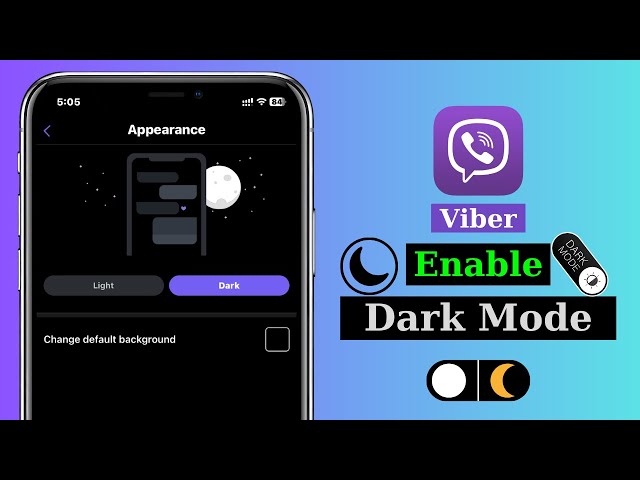
Why Enable Dark Mode in Viber? Key Benefits and Advantages
Before diving into the how-to, let’s understand why dark mode matters in Viber.
- Reduced Eye Strain: Bright white backgrounds can cause discomfort during extended use, especially in dim lighting. Dark mode inverts colors to dark backgrounds with light text, making long sessions more comfortable.
- Battery Savings: On devices with OLED displays (common in modern smartphones), dark mode uses less power because black pixels are essentially turned off.
- Improved Focus and Aesthetics: The clean, modern look helps reduce visual clutter, letting you focus on conversations rather than glaring screens.
- Accessibility: Dark mode benefits users with light sensitivity or certain visual impairments, aligning with broader accessibility standards.
In 2026, Viber’s dark mode is more refined than ever, with smoother transitions, better contrast ratios, and system-wide sync options on desktop. Many users report switching permanently after trying it, especially for evening or nighttime messaging.
How to Enable Dark Mode on Viber for Android (Mobile)
Viber’s Android app offers straightforward controls for dark mode, with options to follow your system settings or set it manually.
- Open the Viber app on your Android device.
- Tap the More icon (three horizontal lines or dots) in the bottom-right corner.
- Select Settings from the menu.
- Scroll down and tap Appearance.
- Under Themes, choose Dark (or Black in some versions for a deeper OLED-friendly black).
- Optional: Toggle Follow system theme (or Auto) to let Viber automatically switch based on your phone’s dark mode schedule (e.g., sunset to sunrise).
This setting applies immediately to chats, calls, and the overall interface. If you prefer manual control, simply select Light to revert anytime.
Pro tip: Update Viber to the latest version via Google Play Store for the smoothest dark mode experience, including any 2026 UI refinements.
How to Turn On Dark Mode in Viber on iOS (iPhone & iPad)
Apple users enjoy seamless integration thanks to iOS’s system-wide dark mode support.
- Launch Viber on your iPhone or iPad.
- Tap More in the bottom-right corner.
- Go to Settings > Appearance.
- Select Dark for immediate activation.
- For automatic switching, enable Auto Theme or Follow system appearance. This syncs Viber with iOS’s Dark Mode toggle (found in Settings > Display & Brightness).
On iPad, the process is identical, though secondary devices like tablets may allow independent settings from your primary phone (useful for shared or work/personal separation).
Viber’s iOS dark mode has been polished since its initial rollout, with excellent support for Dynamic Island and always-on display compatibility in recent updates.
Enabling Dark Mode on Viber Desktop (Windows & macOS)
Desktop users get additional flexibility, including full OS theme synchronization.
- Open the Viber desktop app (download the latest version from viber.com if needed).
- Click your profile picture or the menu in the top-left corner.
- Navigate to Settings (gear icon).
- Go to the Appearance tab.
- Under Themes, select Dark.
- Recommended: Turn ON the Follow operating system theme toggle. This automatically matches Viber to your Windows (Settings > Personalization > Colors) or macOS (System Settings > Appearance) preference.
On Windows 11 and macOS Ventura+, this sync is near-instant, ensuring consistency across your ecosystem. Note that desktop dark mode may appear slightly different (e.g., panel colors) compared to mobile for better readability on larger screens.
Dark Mode on Tablets and Cross-Platform Consistency
Viber supports tablets (Android tablets and iPads) with the same steps as mobile. Importantly, settings like dark mode do not always sync across primary and secondary devices. This allows customization—for instance, keeping dark mode on your phone for bedtime scrolling while using light mode on a shared tablet.
For the best cross-platform experience:
- Keep Viber updated on all devices.
- Use the same Rakuten Viber account.
- Enable auto-theme where available for hands-free switching.
Actual Use Cases: When Dark Mode Shines in Viber
- Late-Night Chats: Perfect for messaging family across time zones without disturbing your eyes.
- Video Calls: Dark mode reduces screen glare during long group calls.
- Battery-Conscious Travel: On long flights or commutes, it extends phone life noticeably.
- Professional Use: Many users combine dark mode with features like message reactions or AR filters for a cleaner workspace.
If you’re managing storage while using Viber extensively, check out this guide on how to manage Viber’s storage usage effectively to keep your app running smoothly.
For creative fun during calls, explore how to use Viber’s augmented reality filters in calls—dark mode makes the vibrant effects pop even more.
Planning a switch from another app? See how to import WhatsApp chats into Viber – the complete 2026 guide for seamless migration while enjoying dark mode.
Common Issues and Troubleshooting for Viber Dark Mode
- Dark mode not appearing: Ensure your app is updated. Restart Viber or your device.
- Inconsistent across devices: Remember, some settings (like appearance) may not sync—adjust manually on each.
- Auto-theme not working: Check your OS dark mode settings and permissions.
- Older versions: Dark mode requires recent builds (2024+); older apps may lack full support.
If issues persist, visit Viber’s official help center or community forums.

Latest Trends in 2026: Dark Mode Evolution
In 2026, messaging apps continue prioritizing user wellness. Viber has enhanced dark mode with better OLED optimization, adaptive contrast, and potential future integrations like scheduled theme switching or per-chat customization. As privacy-focused features grow, dark mode pairs well with end-to-end encryption for discreet, comfortable use.
For more on Viber’s evolving interface, refer to the official documentation at help.viber.com.
Switch to Dark Mode Today
Enabling Viber’s dark mode on all platforms is quick, intuitive, and delivers immediate benefits for eye health, battery life, and overall usability. Whether on Android, iOS, Windows, macOS, or tablets, the process takes under a minute and offers flexible controls to match your lifestyle.
Take a moment now to open Viber and toggle it on—you’ll likely wonder why you waited so long. Enjoy a more comfortable, modern messaging experience tailored to your needs.