
sharing photos, videos, and other media via messaging apps like Viber is a daily essential. However, large file sizes often lead to compression by default, resulting in reduced quality, slower uploads, or even failed sends due to limits. Learning how to compress media before sending in Viber gives you greater control over quality, speed, and reliability. Whether you’re sharing high-resolution vacation photos, family videos, or work documents, proper pre-compression ensures your content arrives looking sharp without exceeding Viber’s 200MB file size cap (for most media types).
This comprehensive 2026 guide walks you through everything you need to know about compressing images and videos effectively before hitting send in Viber. We’ll cover built-in options, external tools, best practices, and troubleshooting tips to help you optimize your sharing experience.
Why Compress Media Before Sending in Viber?
Viber automatically compresses photos and videos when sent as media attachments to save bandwidth and storage. While convenient, this often downgrades resolution, adds artifacts, or blurs details—especially noticeable with 4K videos or professional photos. By compressing files yourself beforehand, you can:
- Maintain higher quality while staying under size limits
- Reduce upload time on mobile data
- Avoid Viber’s auto-compression pitfalls
- Send larger batches without interruptions
Viber’s maximum file size for direct media sends is typically 200MB, though videos and photos often get resized further. Pre-compressing lets you bypass aggressive auto-adjustments and send cleaner files.
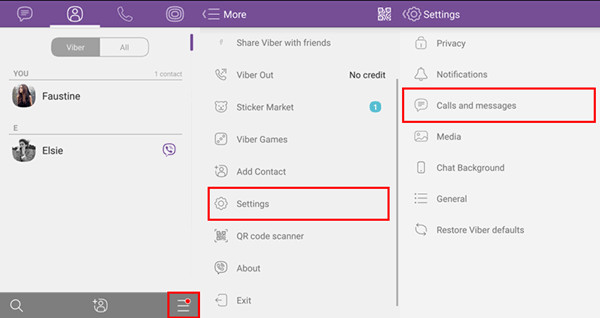
Understanding Viber’s Built-in Media Handling
Before diving into external compression, explore Viber’s native controls. The app offers some flexibility:
- Photo Quality Settings (Desktop Version) On Viber Desktop, go to Settings > Media > Photo quality. Options include Compressed (~180 KB), Good, or Excellent. Choosing “Excellent” reduces auto-compression for outgoing photos, preserving more detail. This is ideal for users who frequently share images on computers.
- Send Original Size Media When selecting photos or videos in a chat, look for the “Send original size media” option (often under the three-dot menu or attachment picker). This bypasses heavy compression, sending files closer to their original quality—perfect for short clips or high-res images under 200MB.
- Mobile App Adjustments In recent Viber versions (2025–2026 updates), some users report a “Photo quality” toggle in chat settings or global preferences. Tap the attachment icon, select media, and check for quality sliders before sending. If unavailable, default behavior leans toward compression for efficiency.
These built-in features help, but for true control—especially with videos—external compression tools are often necessary.
Step-by-Step: How to Compress Images Before Sending in Viber
Images are the most common media type shared on Viber. Here’s how to shrink them without noticeable quality loss:
- Use Online Tools (Quick & Free) Websites like TinyPNG or ILoveIMG allow drag-and-drop compression. Upload your JPEG/PNG, let the tool optimize (reducing file size by 50–70% typically), and download the result. These use smart lossless algorithms that preserve visual quality.
- Mobile Apps for On-the-Go Compression
- Android: Try “Photo Compressor” or “Image Size” apps from Google Play. Select photos, adjust resolution (e.g., down to 1080p if original is 4K), and export.
- iOS: Apps like “Compress Photos & Pictures” let you batch-process images, preview changes, and save optimized versions.
- Built-in Device Tools On iPhone: Use the Files app or Shortcuts to resize. On Android: Gallery apps often include “Resize” or “Optimize” options when sharing.
Pro Tip: Aim for file sizes under 5–10MB per photo for fast Viber sends while keeping excellent detail.
Step-by-Step: How to Compress Videos Before Sending in Viber
Videos pose the biggest challenge due to larger sizes. Follow these methods to reduce file size effectively:
- Free Online Video Compressors Tools like VEED.IO or Clideo let you upload videos, select compression level (e.g., high quality), and download smaller files. Many support up to 1GB uploads and show real-time previews.
- Dedicated Software
- HandBrake (free, open-source): Import your video, choose preset (e.g., “Fast 1080p30”), adjust bitrate, and export. This is excellent for batch processing without quality drops.
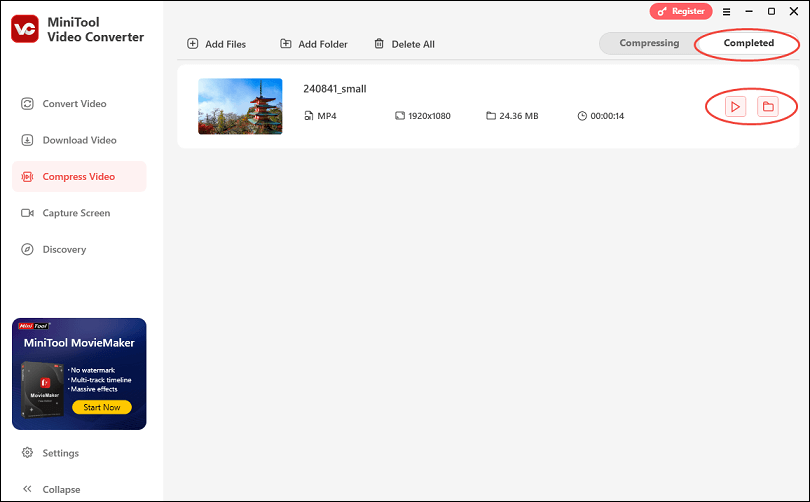
- For Windows/Mac users, apps like WonderFox HD Video Converter offer one-click Viber-optimized profiles.
- Mobile Video Compression Apps Android: “Video Compressor – Fast Compress Video & Photo” or ezyZip. iOS: “Compress Videos & Resize Video” apps trim length, lower resolution (e.g., from 4K to 1080p), or reduce bitrate.
Key Settings for Best Results:
- Resolution: 1080p or 720p for most shares
- Bitrate: 2000–5000 kbps
- Format: MP4 with H.264 codec (widely compatible)
- Trim unnecessary parts to cut size dramatically
After compression, attach the file in Viber as a document (if media send still compresses) or use “Send original size” for better fidelity.
Advantages of Pre-Compressing Media in Viber
- Faster Uploads: Smaller files send quicker, especially on slower connections.
- Better Recipient Experience: Recipients download high-quality media without waiting.
- Data Savings: Crucial for users on limited mobile plans.
- Reliability: Avoids “file too large” errors or mid-send failures.
- Privacy & Control: You decide quality levels instead of relying on Viber’s algorithms.
In 2026, with 5G and Wi-Fi 6 widespread, pre-compression remains valuable for international chats or group shares where bandwidth varies.
Common Problems and Solutions
- Media Still Looks Blurry After Compression Solution: Use higher quality presets or lossless tools. Avoid over-compressing—test with a sample send.
- Viber Re-Compresses Anyway Solution: Send as “Document” instead of photo/video attachment. This often preserves original quality.
- File Exceeds 200MB Limit Solution: Further trim/compress or split videos. Alternatively, upload to cloud storage (Google Drive, Dropbox) and share a link in Viber.
- Slow Processing on Older Devices Solution: Use lightweight online tools or cloud-based compressors.
For more Viber tips, check out the official site at Viber official website for the latest downloads and versions. You can also enhance your experience with features like Viber’s quick reply shortcuts or learn organize chats with folders in Viber.
Latest Trends in Media Compression for Messaging (2026)
As of 2026, trends include AI-powered compression (e.g., tools that intelligently preserve faces/details), AV1 codec adoption for better efficiency, and seamless integration in apps. Viber continues refining its media engine, but user-side control remains key for professionals and enthusiasts.
Mastering how to compress media before sending in Viber transforms your sharing from frustrating to flawless. By using built-in options like “original size” sends, quality settings, and reliable external tools, you ensure photos and videos arrive in top condition—without unnecessary data waste or quality loss.
Start experimenting today: compress a few files, test in a chat, and adjust as needed. With practice, you’ll find the perfect balance of size and quality for every scenario.